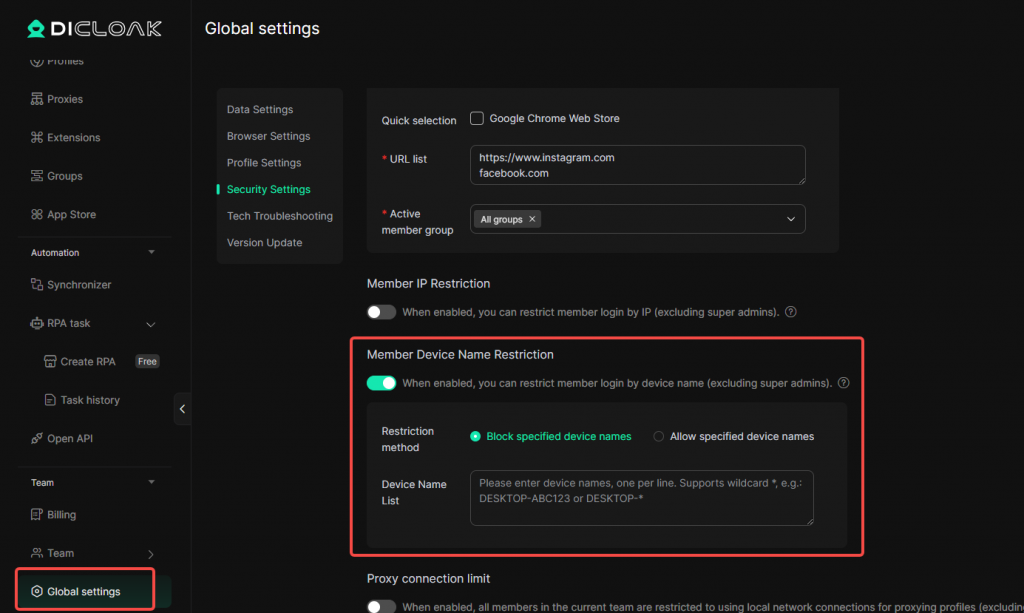
The Member Device Name Restriction feature allows administrators to restrict member logins based on device names. When enabled, the system will allow or block device access according to the configured device name rules.
Configure Member Device Name Restriction
Go to Team Management → Global Settings → Security Settings. Locate the Member Device Name Restriction setting.
Enable the feature and select a restriction method:
- Block specified device names: Devices matching the configured rules will be prevented from logging in.
- Allow specified device names: Only devices matching the configured rules will be allowed to log in.
Enter device names in the Device Name List, one entry per line. Wildcard matching using * is supported. For example:
DESKTOP-ABC123DESKTOP-*
After completing the configuration, click Confirm to save the settings.
Notes
- This feature applies only to member accounts. Super Admins are not affected.
- Wildcard matching using
*is supported. - Enter one device name or matching rule per line.