I. Profile Management
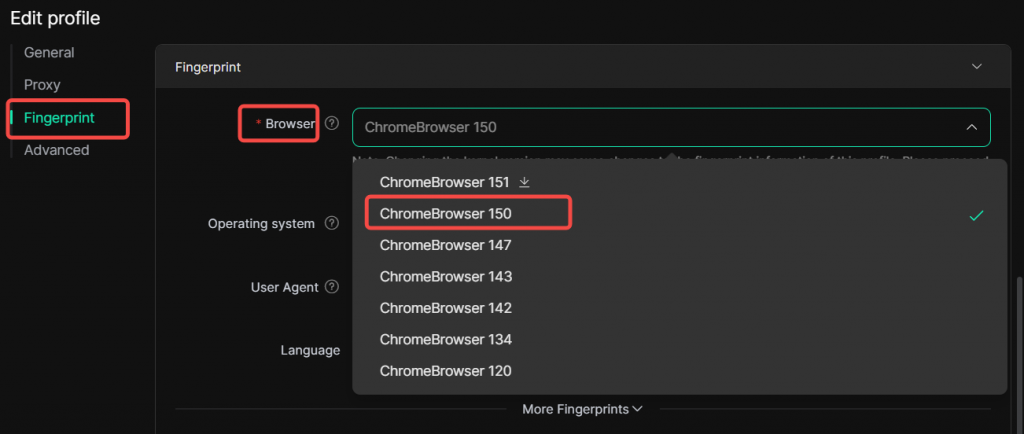
1. New Chrome 150 and Chrome 151 browser kernel added for profile fingerprints
Within [ Profiles ] management page, navigate to the edit page of a specific profile. Under [ Fingerprint ] ‑ [ Browser ], select and download the Kernel 150 or 151 for use. Please note that Kernel 150 and 151 is only available for V2.9.15 and later versions. To use it, ensure your DICloak is updated to V2.9.15 or higher.
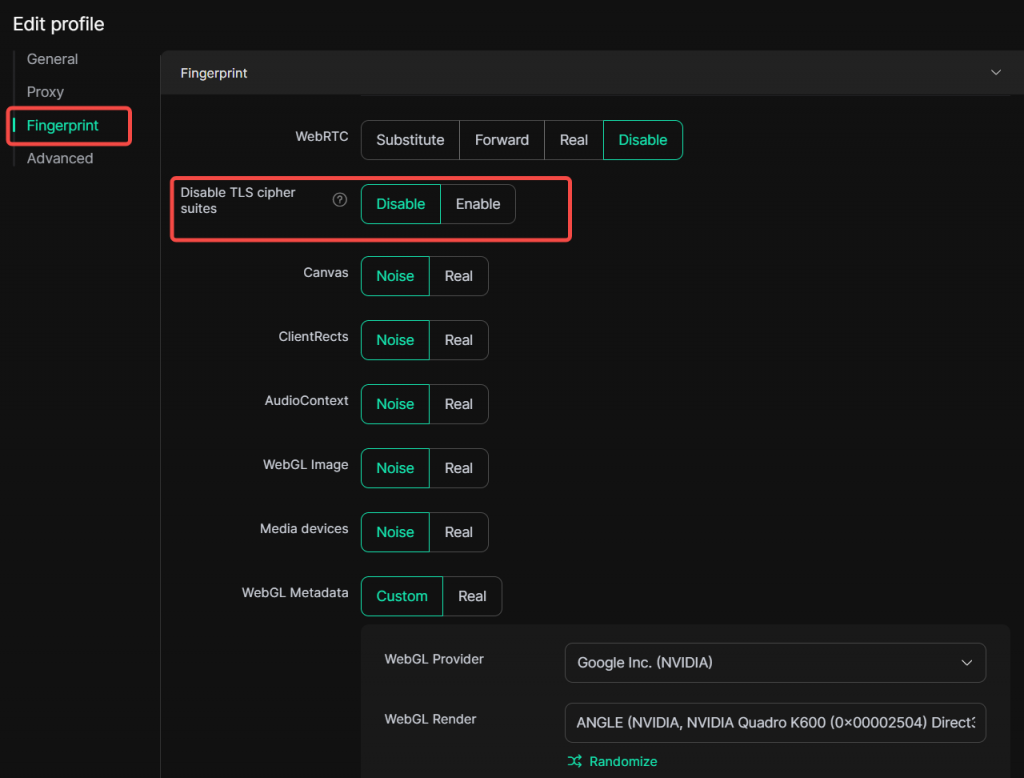
2. New Disable TLS cipher suites feature for profile fingerprints
Within [ Profiles ] management page, open the edit page of a target profile. Under [ Fingerprint ] ‑ [ Disable TLS cipher suites ], toggle between the “Disabled” and “Enabled” options to control network‑layer fingerprints generated during HTTPS handshakes.
II. Proxy Management
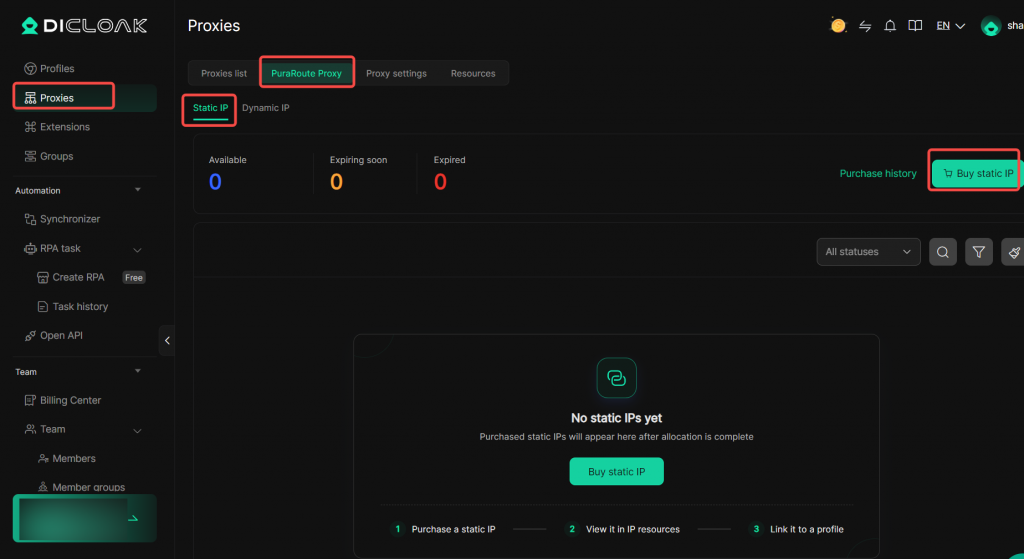
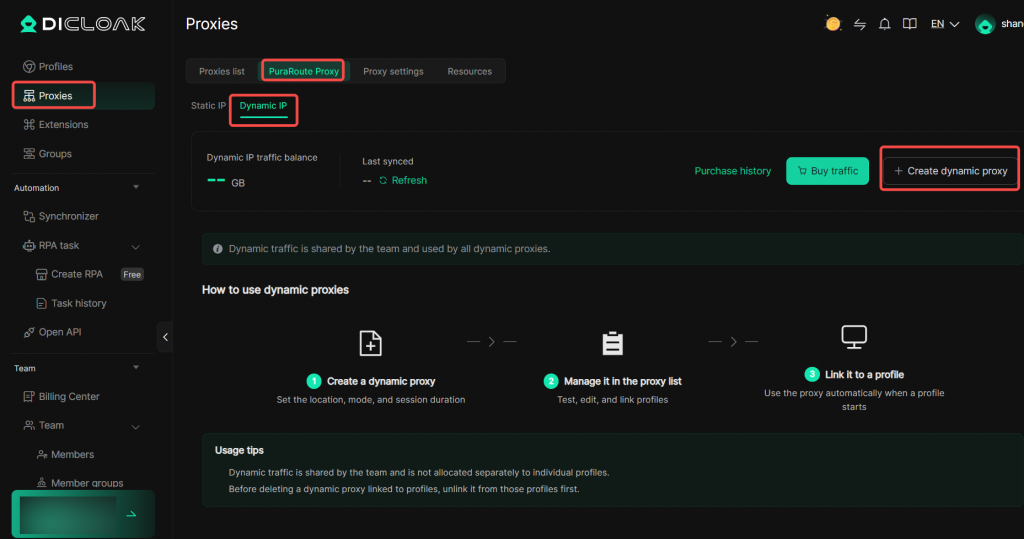
1. Built‑in PuraRoute proxy
Within [ Proxies ] management page , go to the [ PuraRoute Proxy ] page to view and purchase the newly‑added PuraRoute proxy service. Bind static IPs and dynamic IPs directly to browser profiles. There is no need to purchase proxy credentials on third‑party platforms and copy them for configuration. You can also monitor proxy usage status at a glance, including available proxies, proxies expiring soon, and expired proxies, allowing quick replacement when proxies are about to expire or have expired.
III. Extension Management
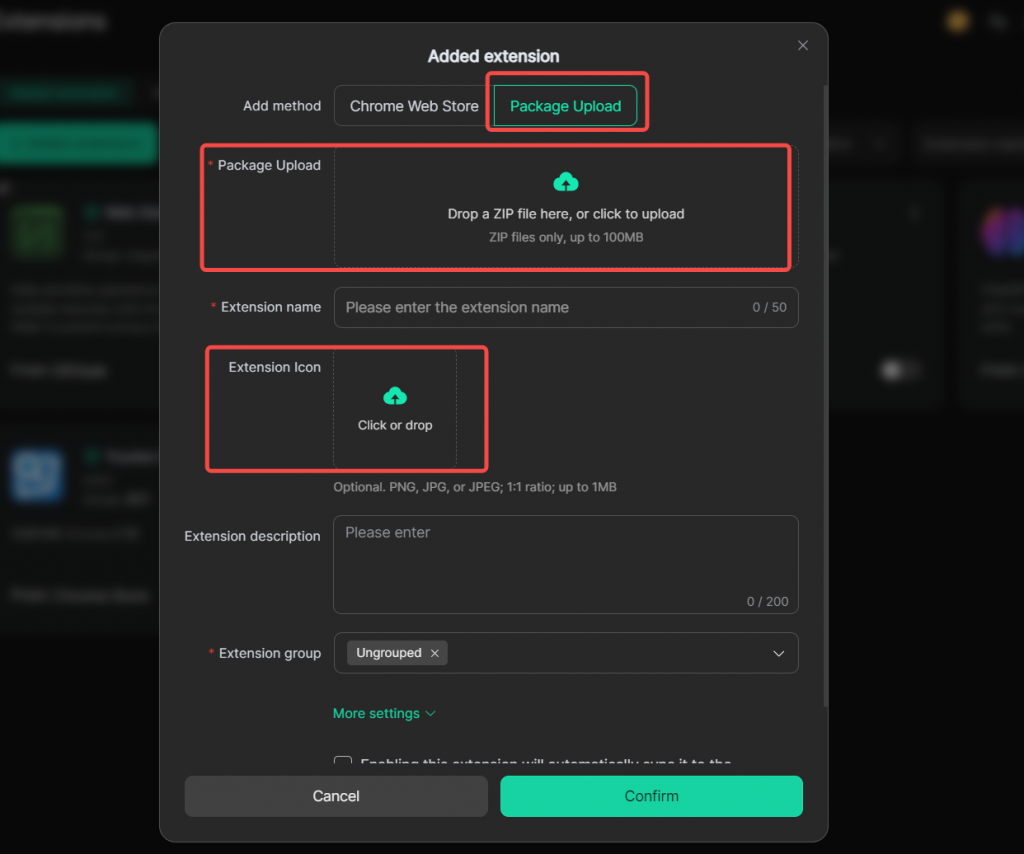
1. Drag‑and‑drop upload support for custom extension package
Within [ Extension ] management page, when adding custom extensions, drag extension packages or icon images from your device onto the upload area to complete uploads.
IV. Team Management
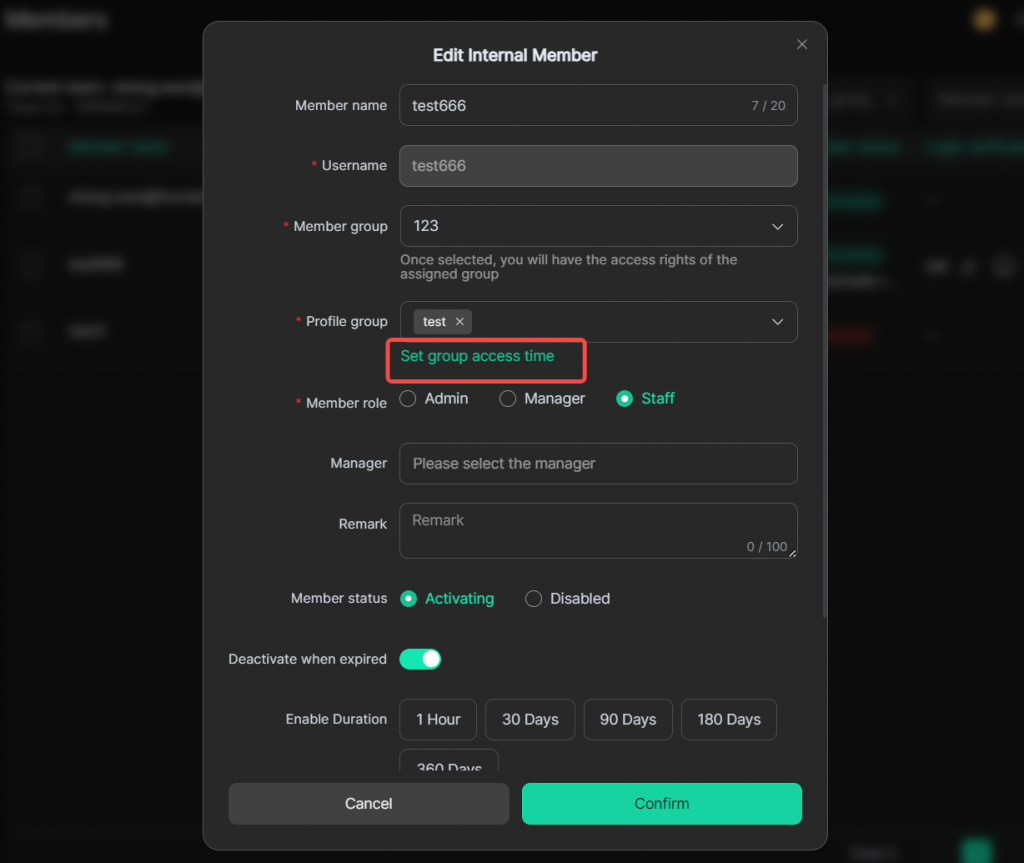
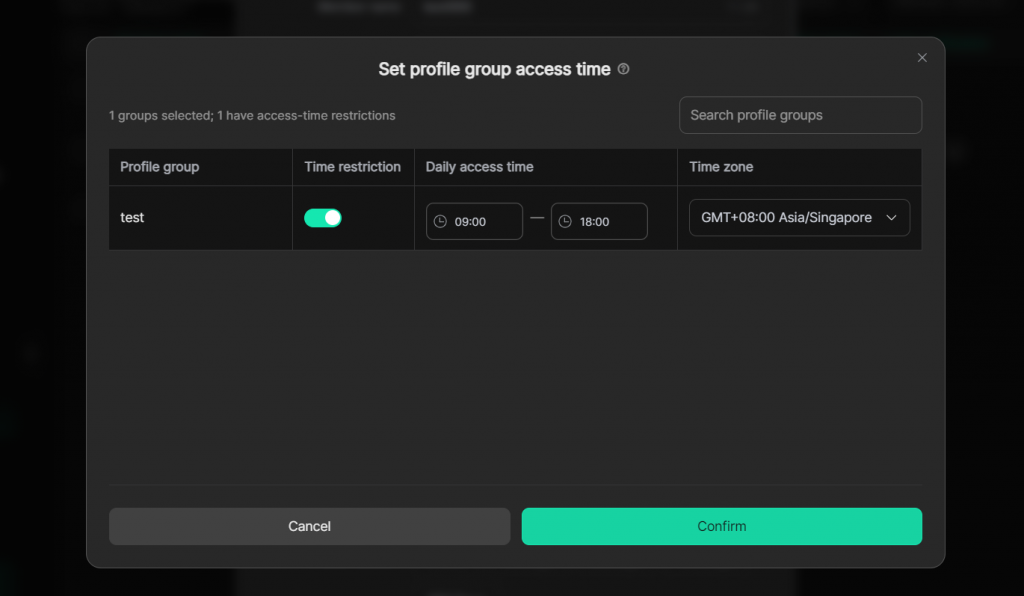
1. Support limiting the profile group access time for members
After assigning profile groups and creating team members, administrators can locate a target member in [ Team ] ‑ [ Members ] and open its edit page. Under [ Profile groups ] in edit page, access [ Set group access time ]. Configure time restriction, daily access time and time zone for member access to the corresponding profile group as required.
V. Global Settings
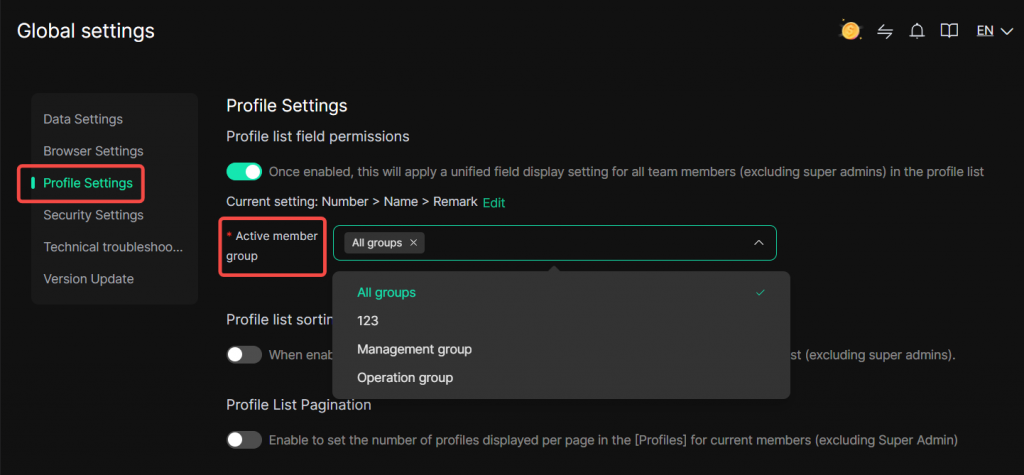
1. Profile list field permissions configurable by member group
Within [ Global settings ], locate [ Profile Settings ] ‑ [ Profile list field permissions ] . After selecting target fields, click [ Active member group ] under this feature. Select member groups as needed and apply profile‑list field permissions to them, so members in the same group follow identical visibility rules.