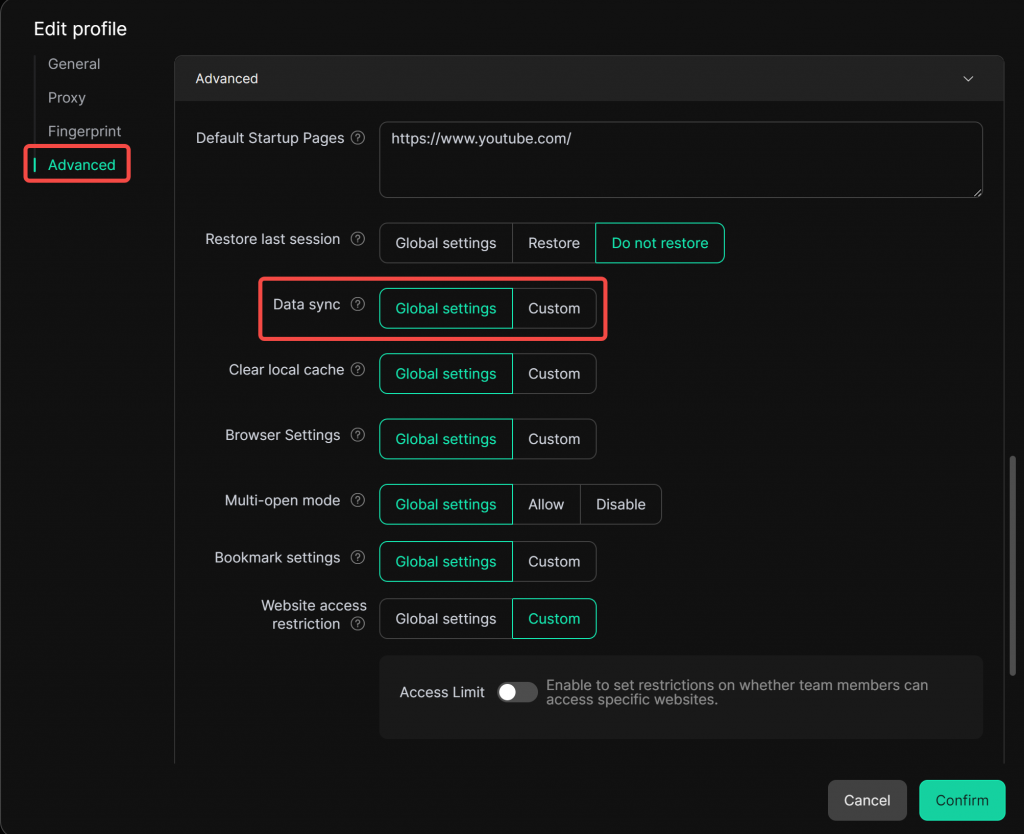
Data Sync refers to synchronizing your browser data (Cookies, account passwords, bookmarks, Local Storage, IndexedDB, and extension data) across different devices, allowing you to access and share this information seamlessly on each device.
1. Open Global Settings
- Find [Global Settings] in the left navigation bar. Under [Data Settings], you will see the [Data Sync] configuration.
2. Data Sync Settings
- Select the items you want to sync. The selected items will be synced to the cloud and can be accessed across devices.
- Cookie: Sync session data, such as website preferences or login status.
- Account Passwords: Sync saved usernames and passwords from the browser, making it convenient for members to log in on different devices.
- Bookmark: Sync bookmarks and favorites.
- Local Storage: Sync data stored locally by the browser, usually associated with the current domain.
- IndexedDB: Sync structured data stored locally, often used for complex web applications.
- Extension Data: Sync data from installed browser extensions.
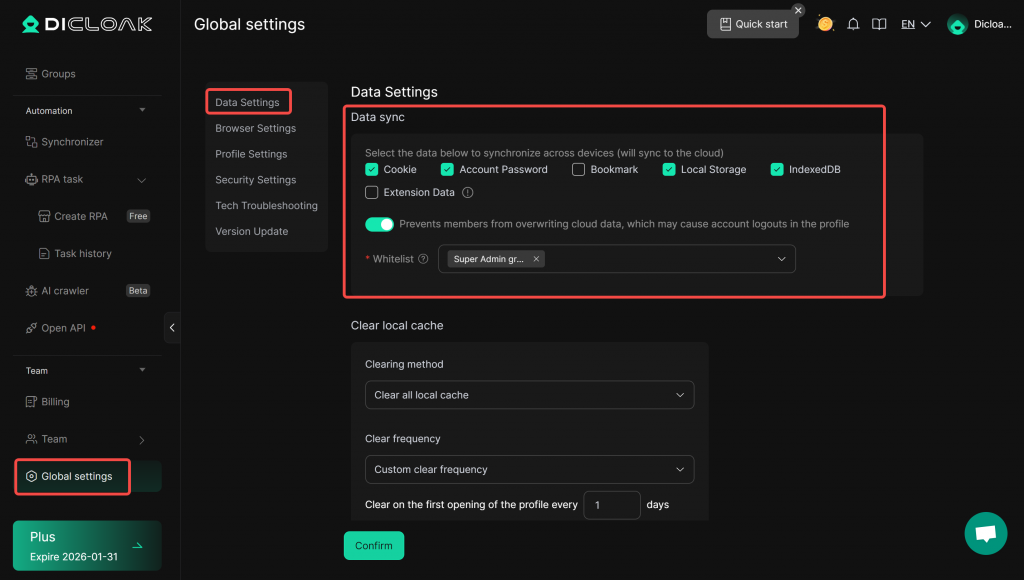
- Prevent Members from Overwriting Cloud Data: When enabled, you can set a whitelist of member groups (typically the Super Admin or Admin groups) allowed to sync data to the cloud. This prevents cloud data from being accidentally overwritten by other members, which could cause logged-out accounts.
- If “Prevent Members from Overwriting Cloud Data” is not enabled, login actions performed by any member in the browser will be synced to the cloud for all others. If one member accidentally logs out, other members will also see the site logged out when they open the profile.
- If “Prevent Members from Overwriting Cloud Data” is enabled, only browser data from members within the whitelisted groups will be synced to the cloud for others. Members not in the whitelist cannot affect the website’s login status even if they log out.
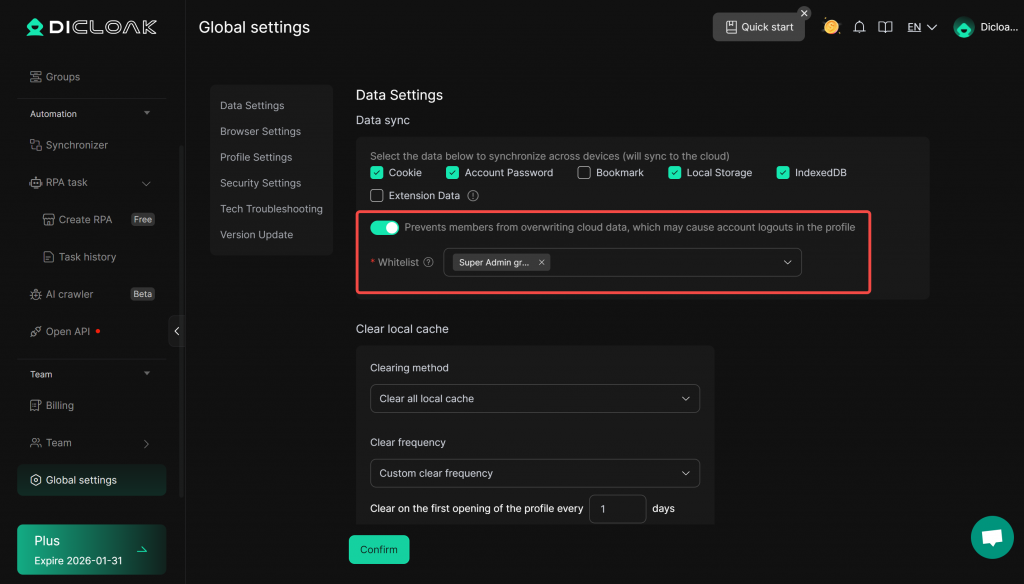
3. Profile Settings
- In the left-side navigation pane, locate the [Profiles] section and “Edit” a profile.
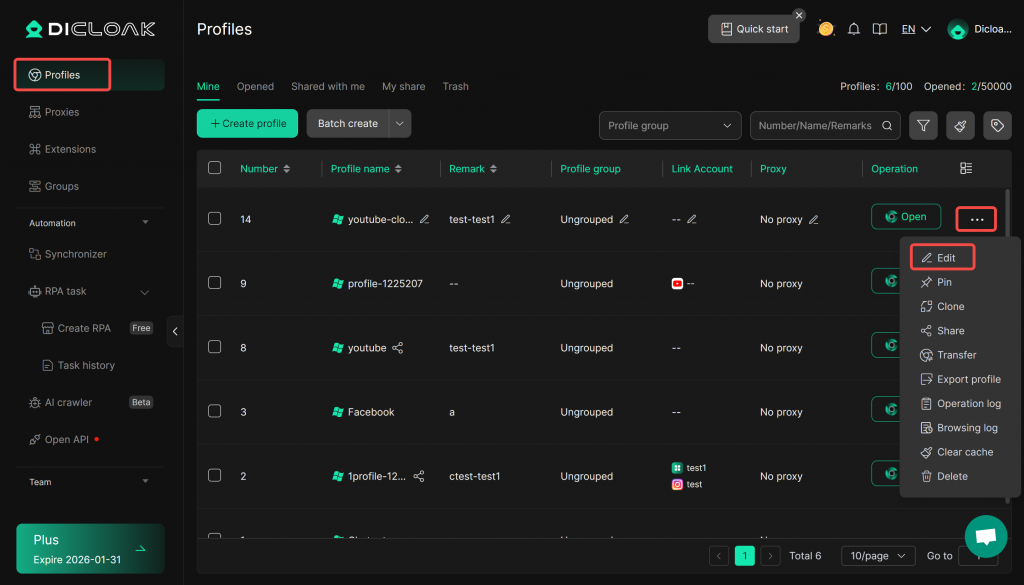
- Under [Advanced Settings], set [Data Sync] to “Global Settings” to apply the configurations from the Global Settings above. You may also choose “Custom” to configure data sync individually for this profile.