By setting profile to prohibit video loading, videos will not be loaded or played when the profile is opened. This feature is designed to reduce network bandwidth usage, improve webpage loading speed, and avoid video content interference in specific scenarios.
1. Global Settings
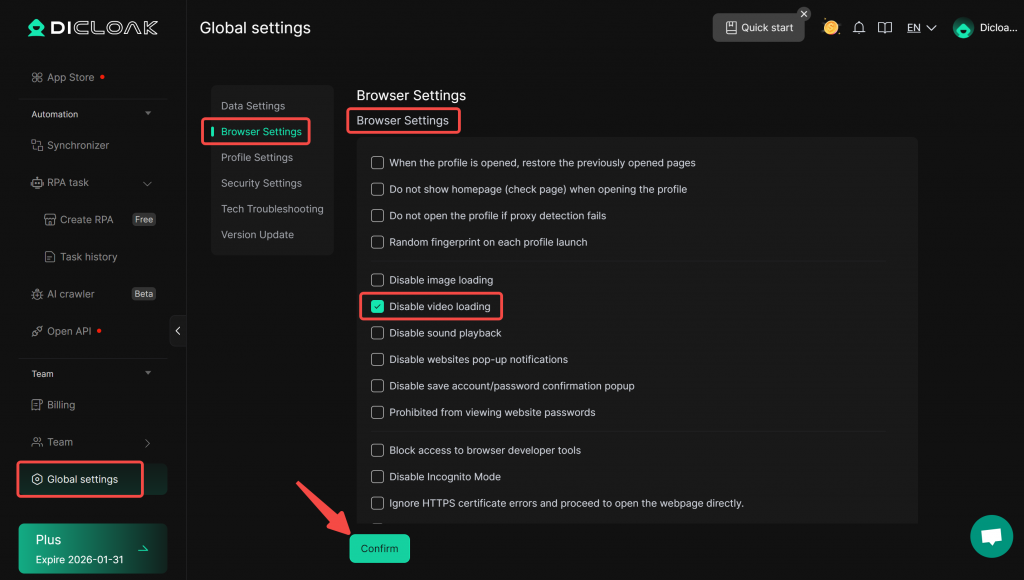
You can configure “Disable video loading” in [Global Settings], making it convenient to set default configuration values for multiple profiles at once.
- Open and log in to the DICloak software, locate [Global Settings] in the left navigation bar, check the option “Disable video loading” under “Browser Settings”, and click “Confirm” to save the settings.
2. Profile Settings
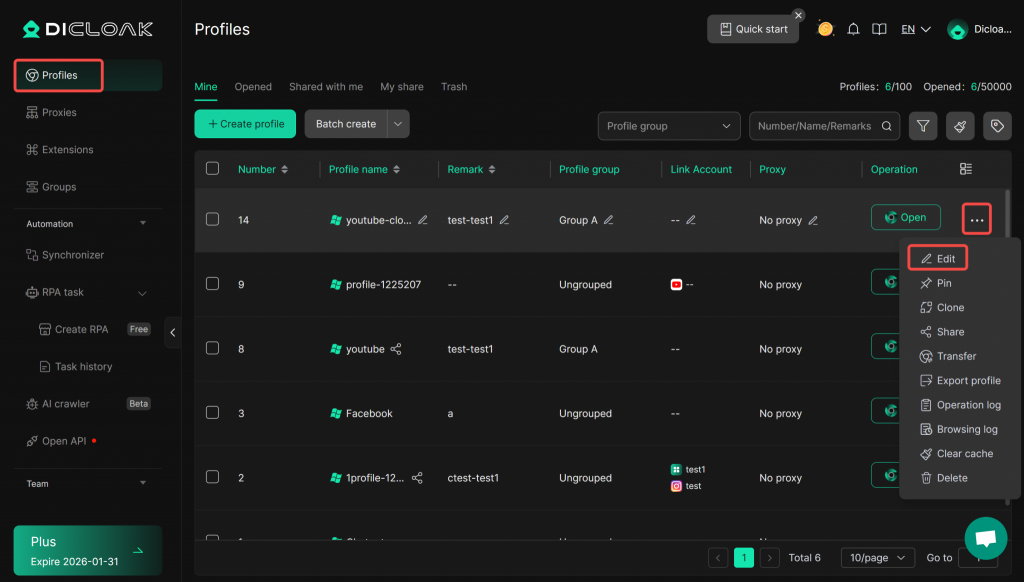
- In the left-side navigation pane, locate the [Profiles] section and“Edit” a profile.
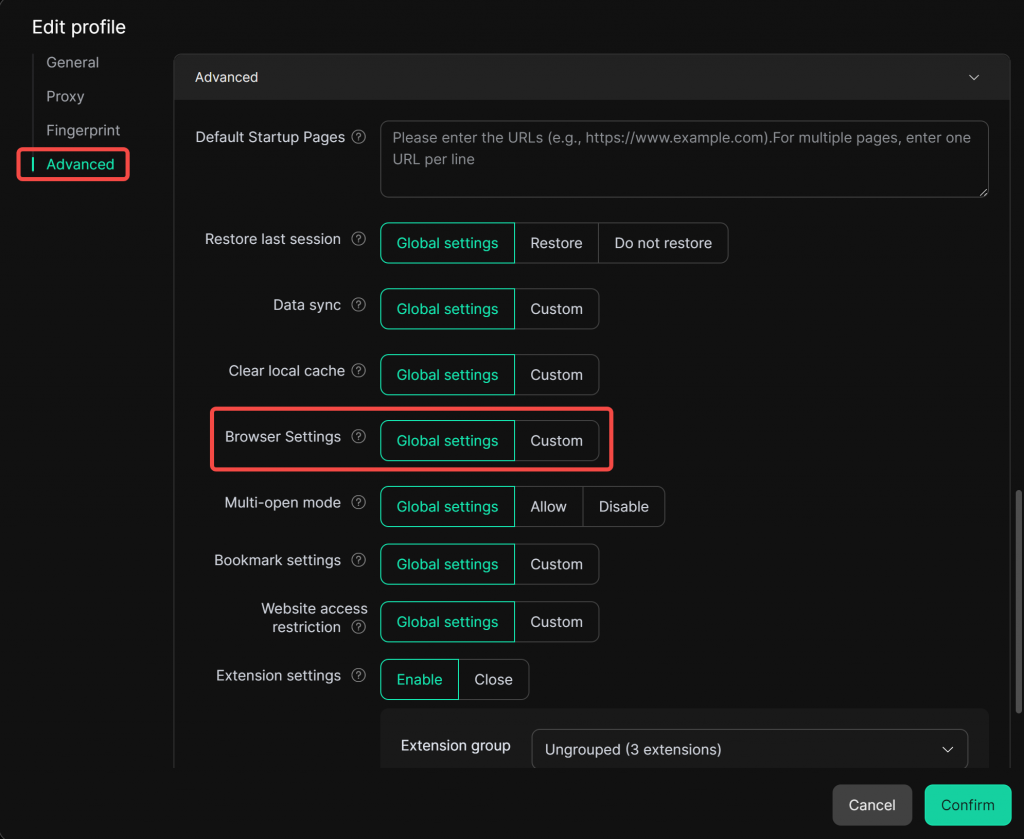
- Under [Advanced Settings], set [Browser Settings] to “Global Settings” to apply the browser configurations set in the Global Settings above. You can also choose “Custom” to configure browser settings individually for this specific profile.
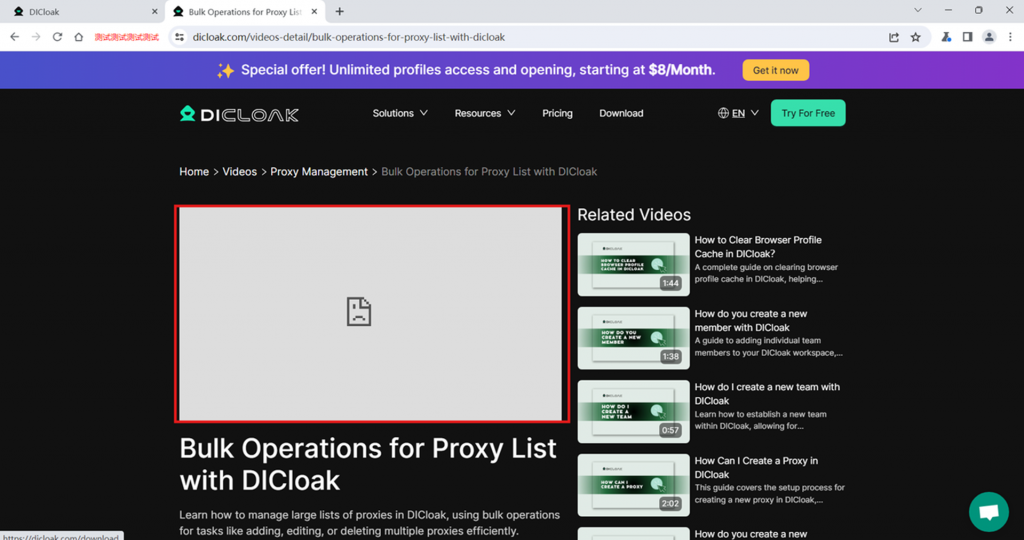
- After configuring the profile to prohibit video loading, all videos in that profile will not be loaded or played when opened. The specific effect is shown in the image below.