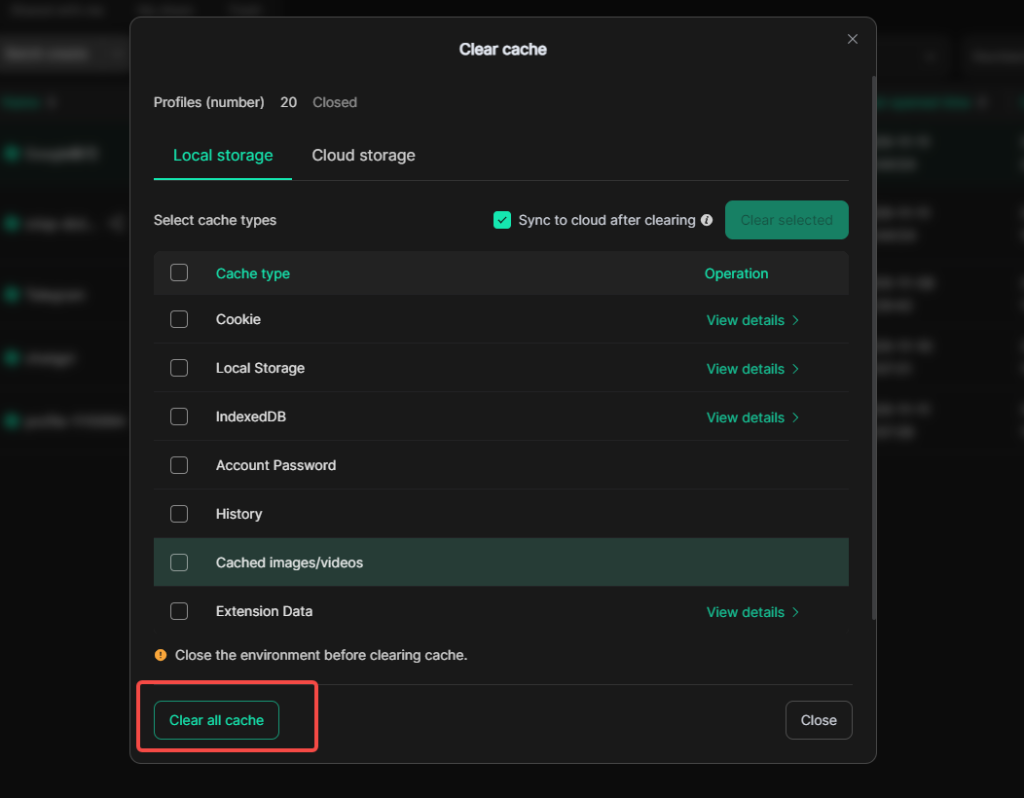
DICloak supports clearing the cache of browser profiles. You can follow the steps below to clear the cache of a specific profile.
Importance of Clearing Browser Profile Cache
- Privacy Protection: The cache includes data like browsing history, cookies, and LocalStorage, which can be used to track and identify your device. Clearing the cache helps prevent websites from fingerprinting your device, thereby enhancing privacy.
- Prevent Cross-Session Tracking: Clearing the cache can stop websites from sharing information across different browsing sessions, which prevents cross-site and cross-session user tracking. This is particularly important for users managing multiple accounts, engaging in traffic arbitrage, or affiliate marketing, as leftover session data could lead to account bans on platforms.
- Avoid Data Conflicts and Errors: Not clearing the cache for a long time can cause pages to load incorrectly, lead to data conflicts, or result in failed functionalities. Clearing the cache ensures the browser loads the most up-to-date content and prevents issues arising from outdated cached data.
- Improve Browser Performance: Over time, cached data can accumulate and take up significant storage space. Regularly clearing the cache frees up storage and can improve browser speed and performance.
Operation Guide
1.Access the Profile List Page
- Open the “Profiles” page. Click the ”…“ button for the browser profile whose cache you want to clear, then click “Clear cache”.

Or select multiple profiles, then click “More Actions” to perform a bulk “Clear cache” operation.

2.Clear Cache
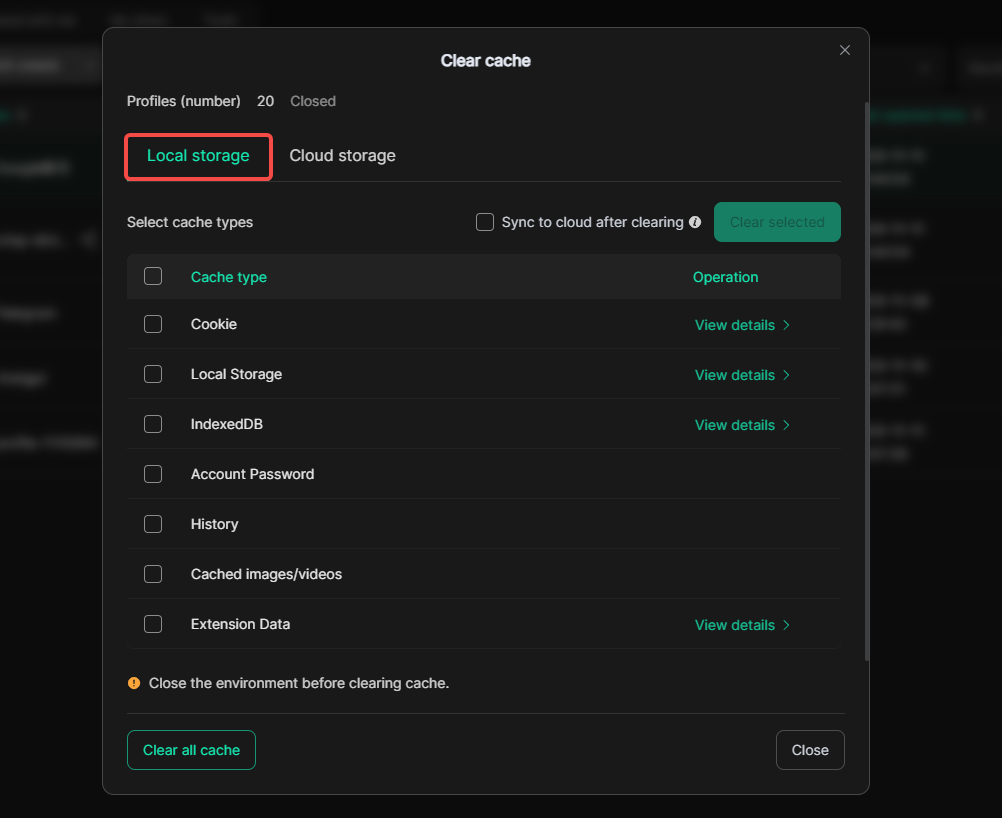
Custom clearing of local storage and cloud storage is supported.
2.1 Clear Local Storage
Clearing local storage deletes browser data on the current device, including Cookies, Local Storage, IndexedDB, account passwords, browsing history, extension data, and cached image/video data.
If synchronization of Cookies and other data is enabled, the login status of your account will remain valid.This operation will not uninstall extensions, nor delete bookmarks and synchronized cloud data.
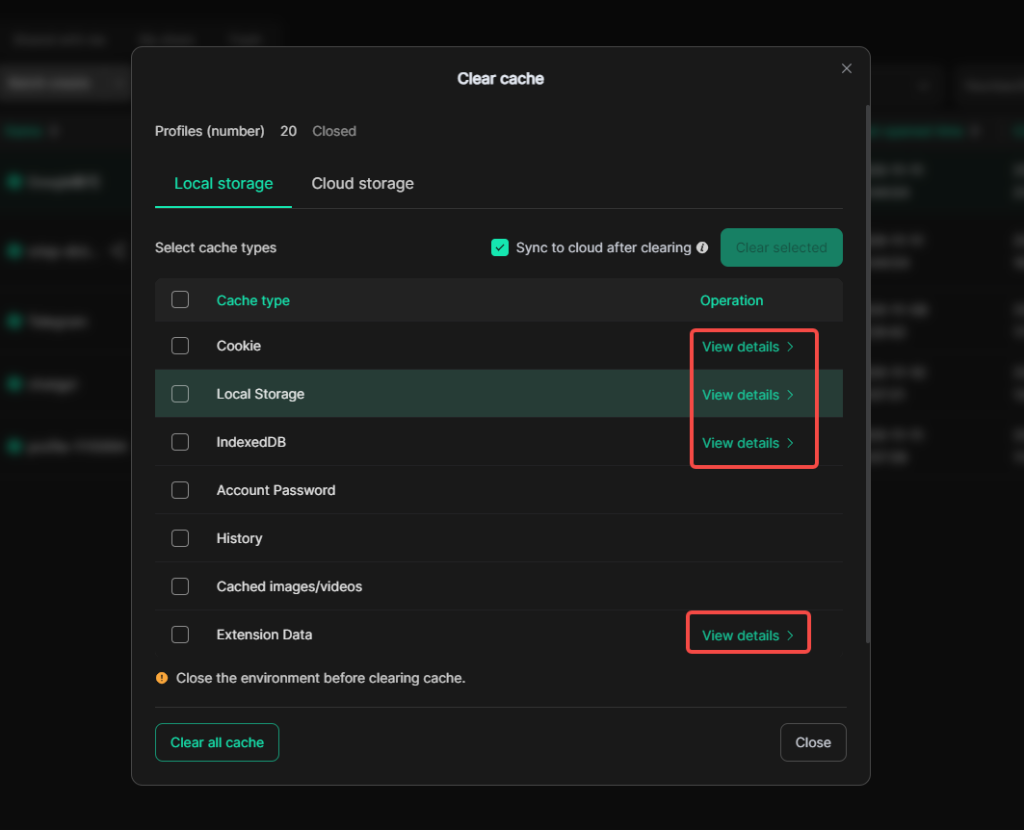
In this section, you can click the “View Details” button next to Cookies, Local Storage, IndexedDB, or extension data to clear cache data by specific website.
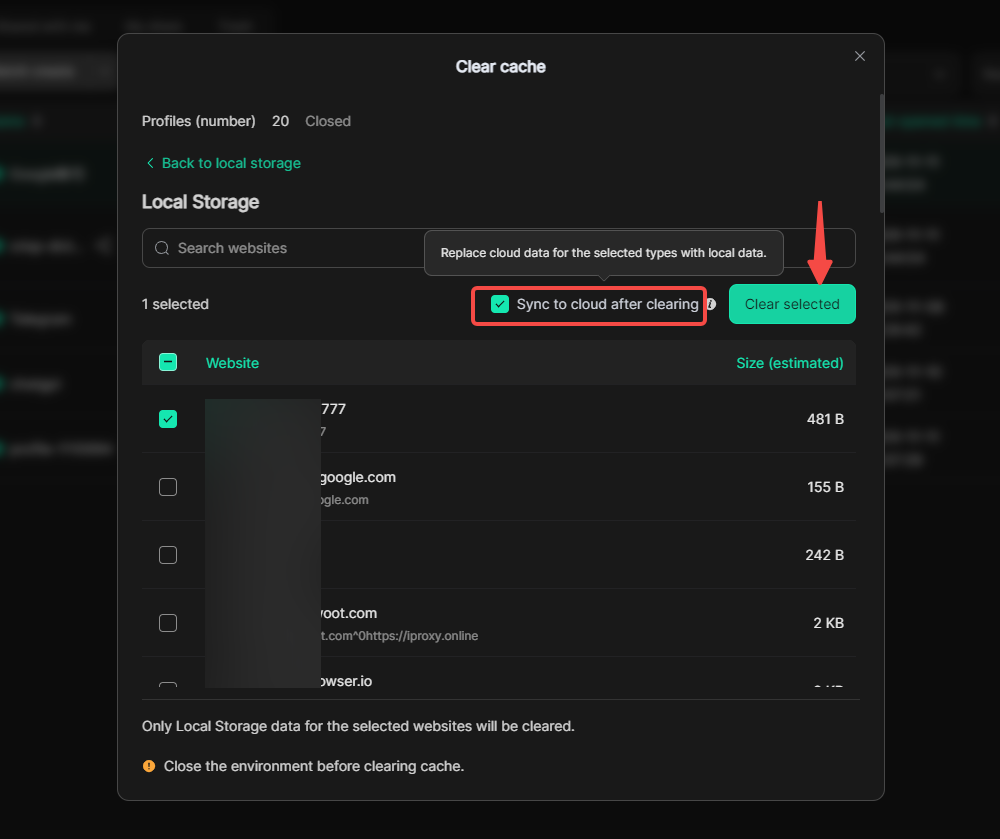
After entering the “View Details” page, select the websites whose cache you want to clear. If there are many websites, you can use the search function on this page to locate targets. Finally, click “Clear Selected“. If needed, check “Sync to cloud after Clearing” before confirming. After local cache is cleared, this option will automatically sync the change to the cloud to ensure team members can normally use platform accounts.
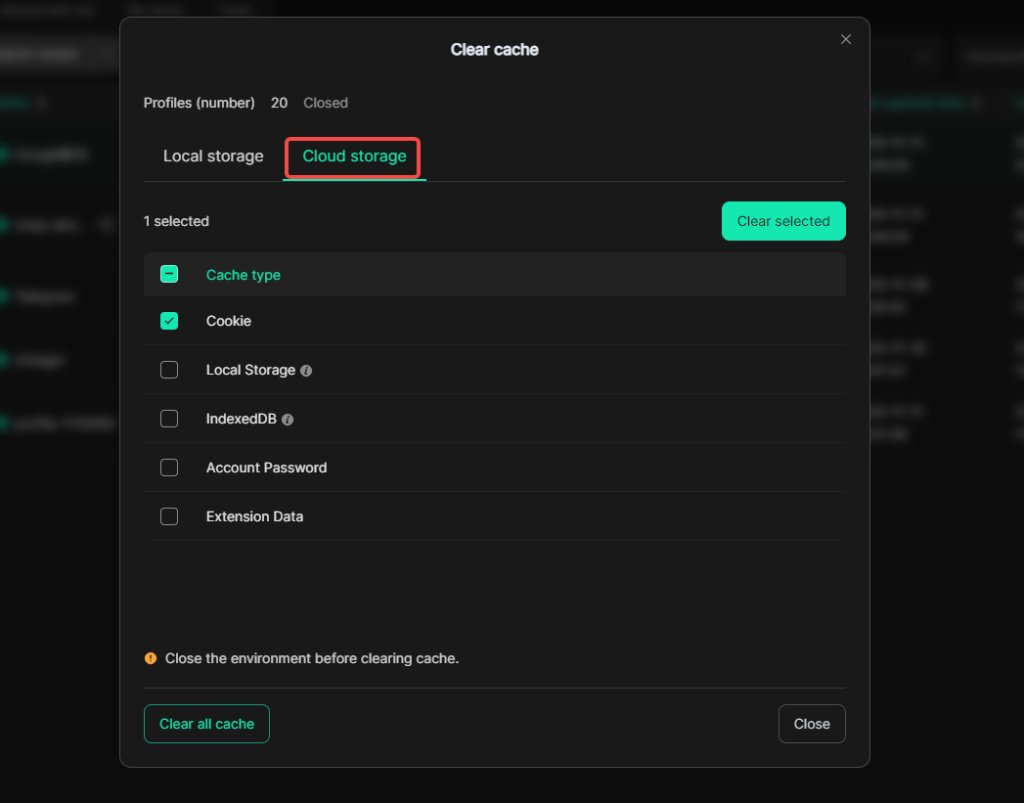
2.2 Clear Cloud Storage
Clearing cloud storage deletes browser cloud data including Cookies, Local Storage, IndexedDB (account login status will become invalid), account passwords, and extension data. This function will not uninstall extensions, nor delete bookmarks.
Please note: Clearing Local Storage and IndexedDB from the cloud will also delete such data on local devices.
2.3 Clear All Cache
“Clear all cache” deletes local data on the current computer (Cookies, account passwords, browsing history, IndexedDB, Local Storage, cached image/video data) as well as cloud data (Cookies, account passwords, IndexedDB, Local Storage, extension data; account login status will become invalid).
This operation will not uninstall extensions, nor delete bookmarks.