In DICloak, you can open RPA Settings from the Task history page. These settings help you control how RPA tasks run, including the number of running profiles, window layout, system sleep prevention, and how DICloak handles profiles that are already open.
1. Open RPA Settings
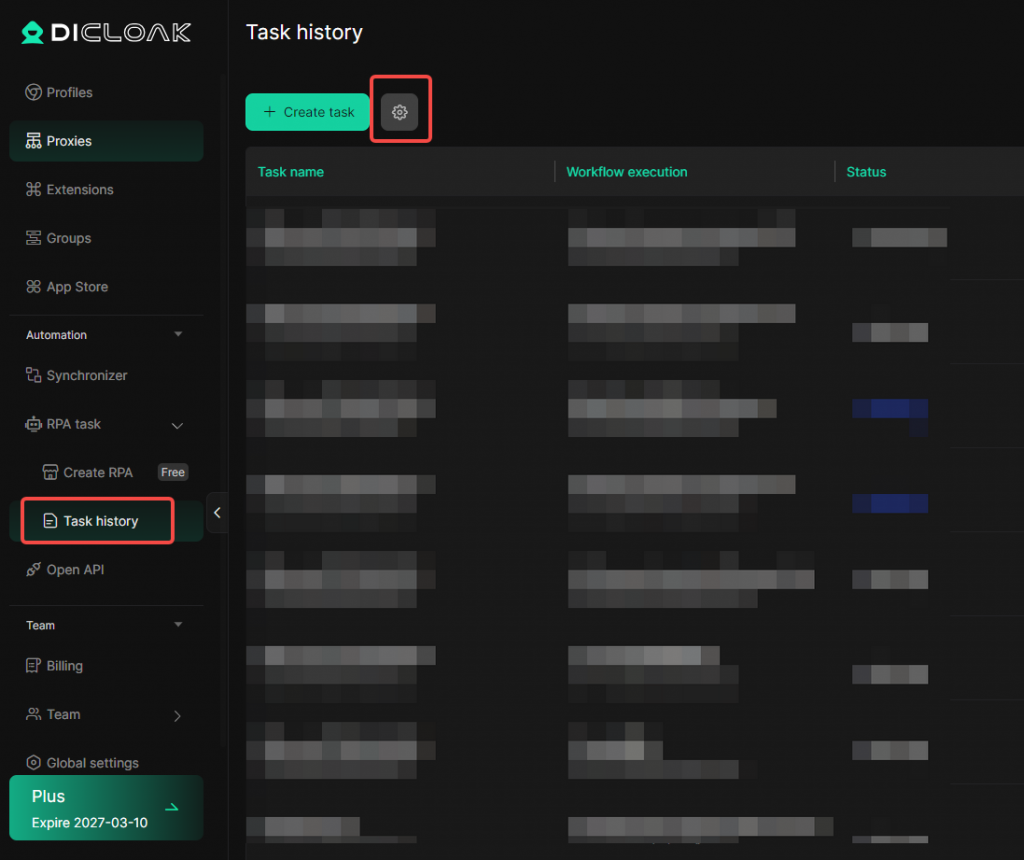
Go to Automation in the left menu, then click Task history under RPA task. On the Task history page, click the Settings button in the upper-left area to open RPA Settings.
2. RPA Configuration Settings
2.1 Set the Number of Running Profiles
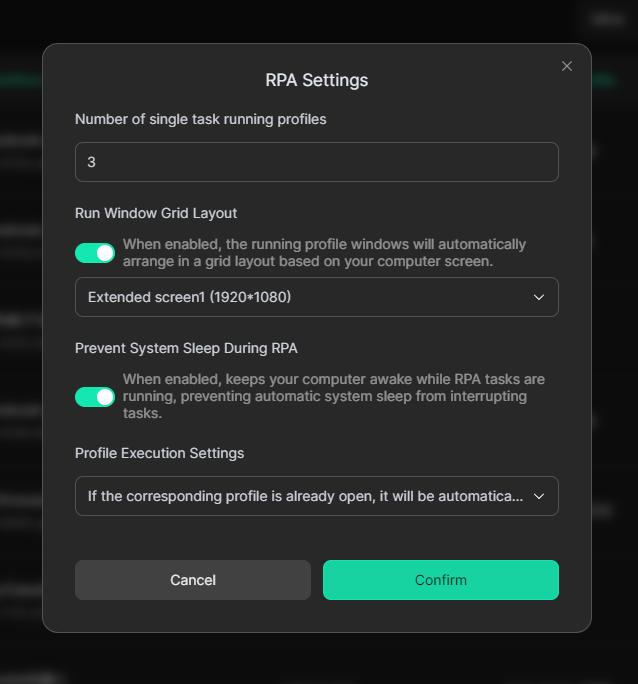
In Number of single task running profiles, you can set how many profiles a single RPA task can run at the same time.
For example, if you enter 3, the RPA task can run up to 3 profiles at once. You can adjust this based on your computer performance and task needs.
2.2 Enable Run Window Grid Layout
When Run Window Grid Layout is enabled, running profile windows will automatically arrange in a grid layout based on your computer screen. This is useful when multiple profiles are running at the same time, as it makes each running window easier to view.
2.3 Enable Prevent System Sleep During RPA
When Prevent System Sleep During RPA is enabled, your computer will stay awake while RPA tasks are running. This helps prevent tasks from being interrupted by automatic system sleep, especially when running longer tasks.
2.4 Set Profile Execution Settings
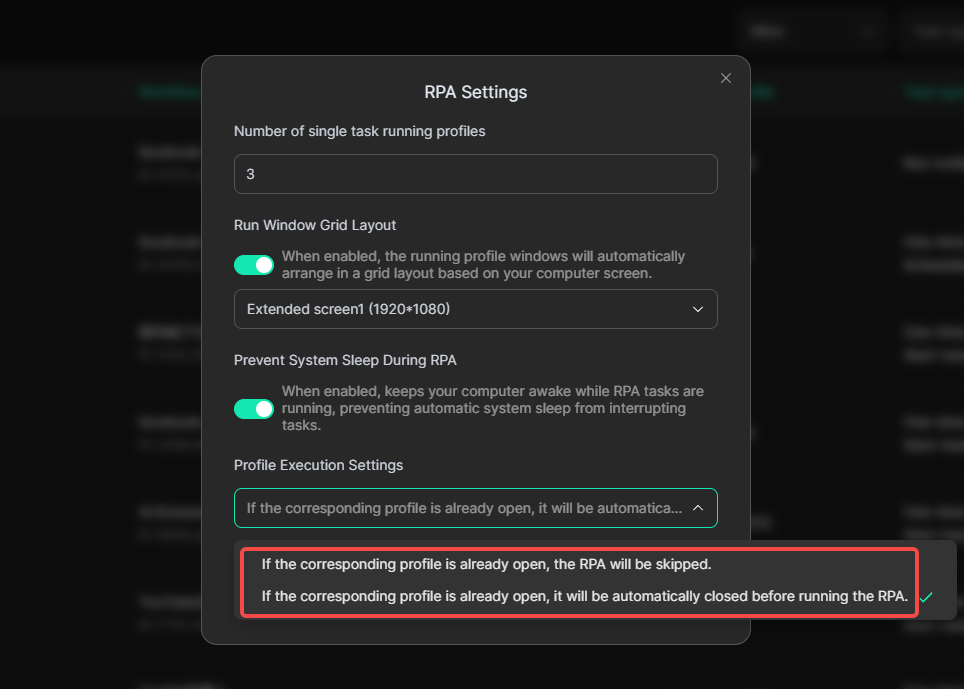
In Profile Execution Settings, you can choose what happens when the corresponding profile is already open before running the RPA task. You can choose one of the following options:
- If the corresponding profile is already open, the RPA will be skipped.
If the profile is already open, the RPA will skip it and will not run the task again. This is suitable when you do not want to interrupt an already opened profile.
- If the corresponding profile is already open, it will be automatically closed before running the RPA.
If the profile is already open, DICloak will close it first and then run the RPA task. This is suitable when you want the task to start from a fresh profile state.
3. Save the Settings
After finishing the setup, click Confirm to save the changes. To exit without saving, click Cancel.
Notes
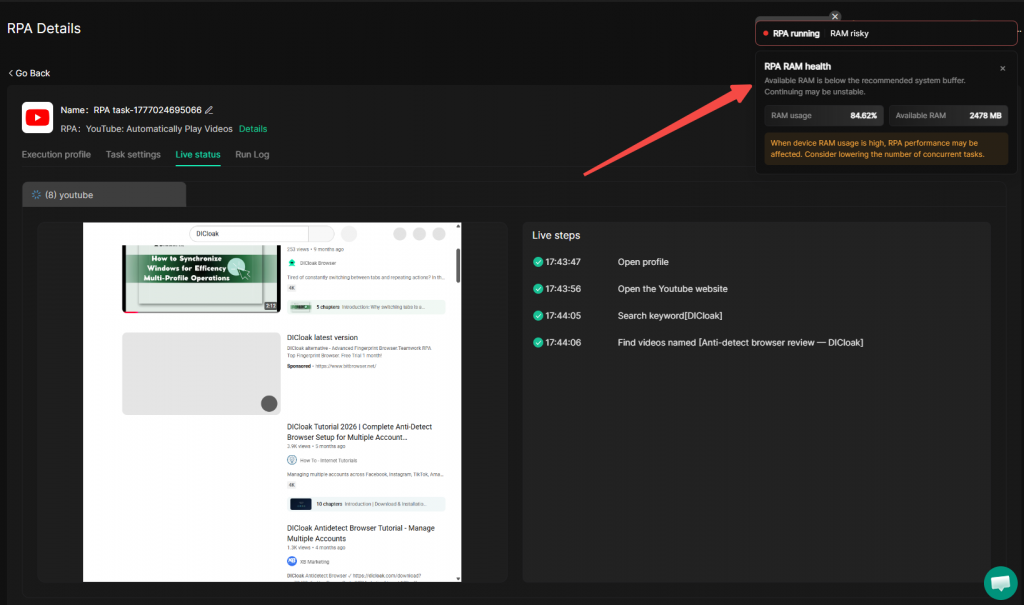
- Set Number of single task running profiles based on your computer performance. You can determine the number of profiles that run stably by testing in increments, starting from a low number and gradually increasing it. Running too many profiles at the same time may affect task stability, you can monitor RAM health during RPA execution to determine the maximum number of profiles that can run concurrently.
- For long-running RPA tasks, it is recommended to enable Prevent System Sleep During RPA.