If you’re unable to open a browser profile, it could be caused by several common reasons, such as:
1.Antivirus or security software blocking the connection.
2.Insufficient device storage space.
3.Proxy connection failure.
4.Excessive or corrupted cache files.
5.Kernel not downloaded
6.Kernel extraction failed.
7.Software version is too low
If you’re experiencing difficulties opening your profile, this guide will help you troubleshoot and resolve the issue. Follow the steps below to identify and fix common problems that may be preventing access to your profile.
1️⃣ Download the Right DICloak Antidetect Browser Version
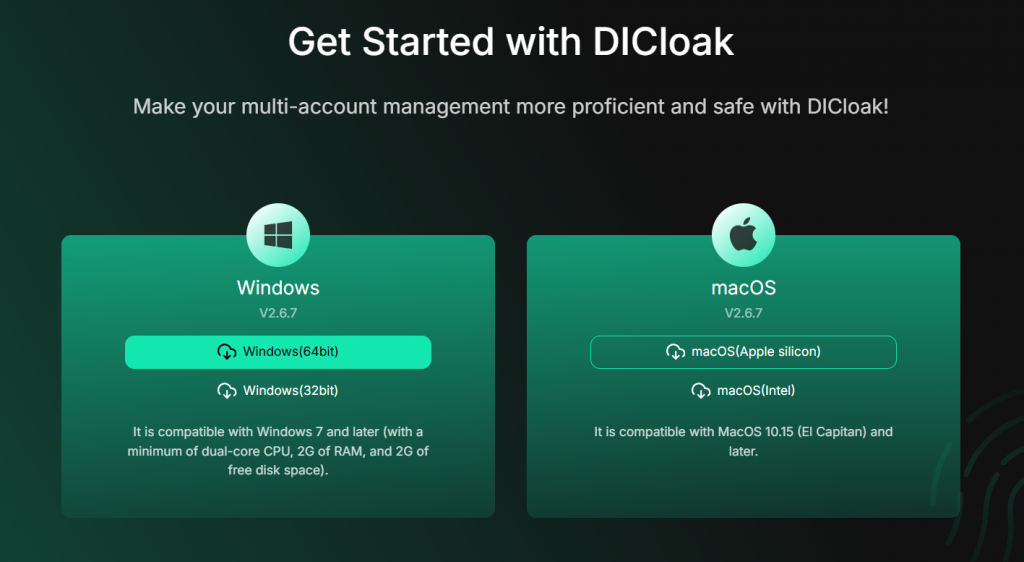
1.Go to the DICloak official website to download and install the software.
⚠️ All tool accounts can only be accessed through the DICloak Browser. They cannot be accessed via web, mobile phones, or tablets.
⚠️ Currently, only computer devices are supported. Please select the correct version based on your operating system:
💻 For Windows users
- Recommended system: Windows 10 or above
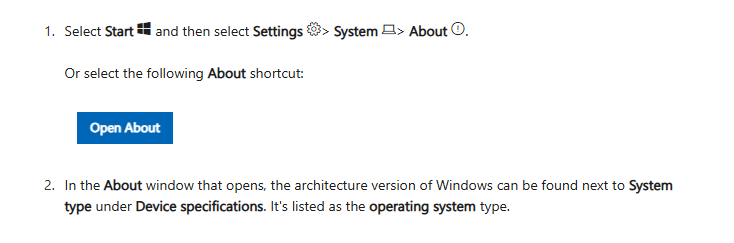
- Before installing, check whether your system is 32‑bit (x86) or 64‑bit (x64).
🍎 For Mac users (MacBook / iMac)
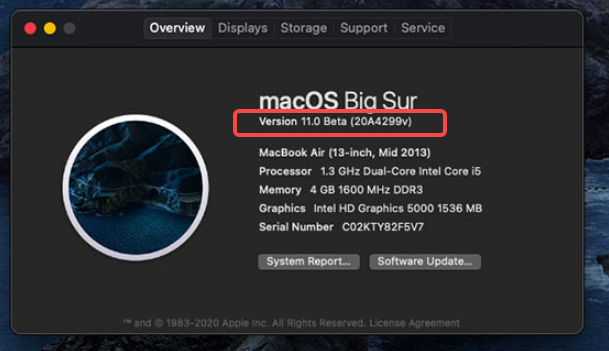
- Recommended system: macOS 11 or above (macOS Big Sur or above)
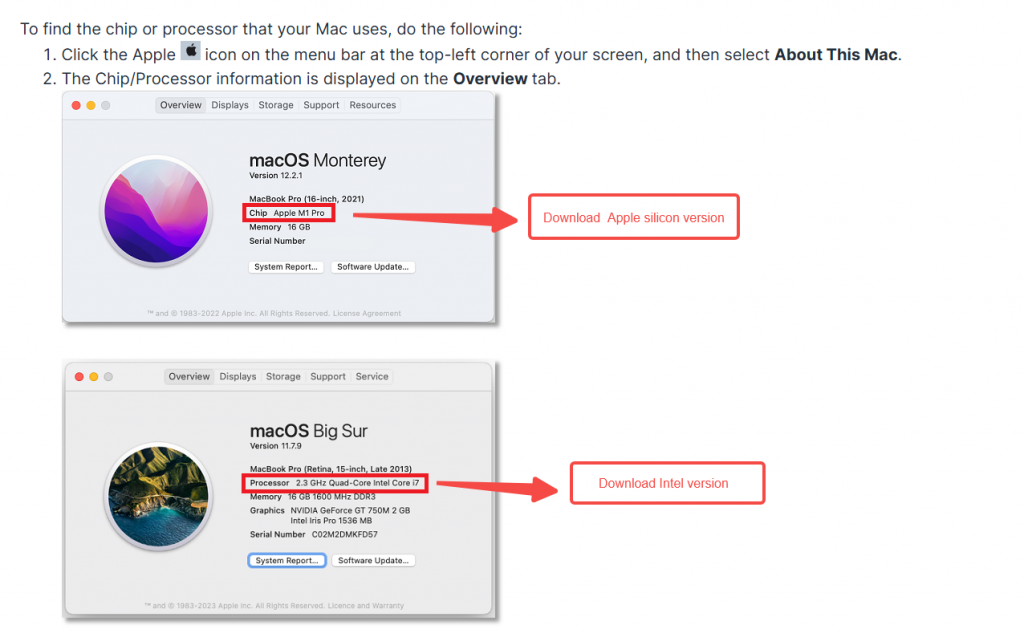
- Before installing, check your device’s chip type:👉 Go to “About This Mac” to see whether it uses an Intel processor or Apple Silicon (M1/M2 chip).
PS:If you have downloaded the wrong Mac version, like this:
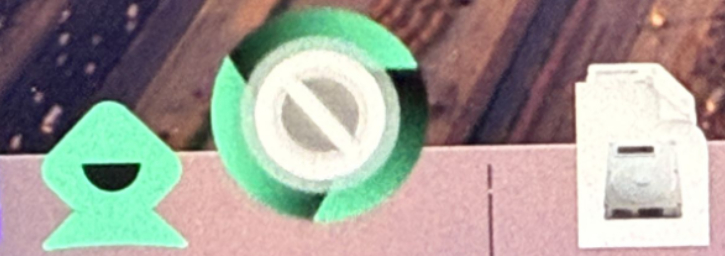
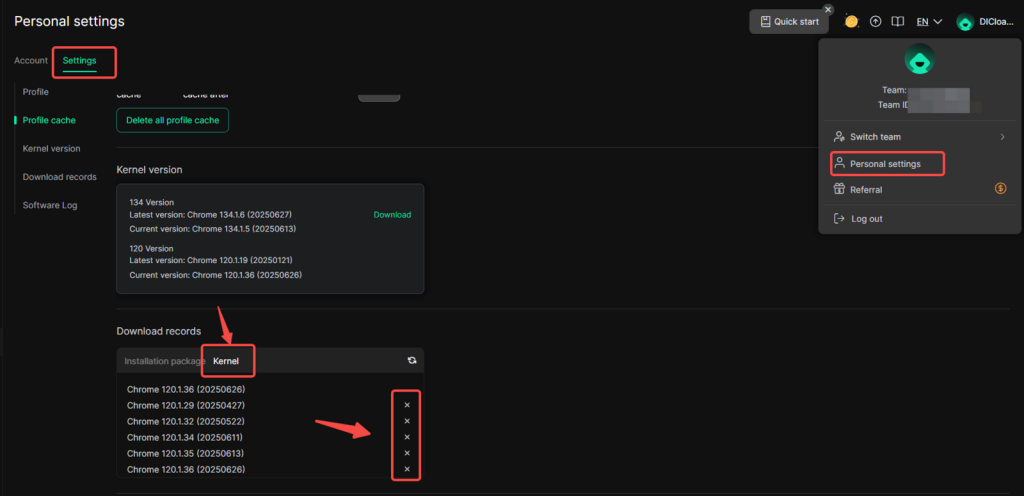
Please download the correct version. Then, click on the DICloak avatar, go to Personal Settings > Settings, find and click on Kernel, delete all previously downloaded Kernel files, and reopen your profile.
🐧 For Linux Users
- System Requirements: Ubuntu 22.04, Debian 11, Fedora 38 and later 64-bit Linux distributions.
- Before installation, verify that your system architecture is 64-bit:
- Open a terminal and run the following command to check:
uname -m - If the output is
x86_64, your system meets the 64-bit requirement.
- Open a terminal and run the following command to check:
- Download the Linux installation package and double-click it to install.
2️⃣ Unable to open Profile
📌 Case 1: Clicking “Open” shows no response
Please check whether your computer has antivirus software installed (such as RAV Antivirus, Norton 360, etc.) and your disk space usage.
✅ How to add DICloak to your antivirus whitelist:
Some antivirus programs may block DICloak from running. Follow these steps to add DICloak to the whitelist:
1.Open your antivirus software.
2.Find the settings section for Exclusions / Whitelist / Allowed Apps.
3.Add DICloak’s cache directory folder “.DICloakCache” to the exclusion list, then try opening the Profile again.
- Tip: You can find the cache folder path in DICloak by clicking your avatar (top right) → Personal Settings → Settings.
- Note: You may need to enable “Show hidden items” in your file explorer to see the “.DICloakCache” folder.
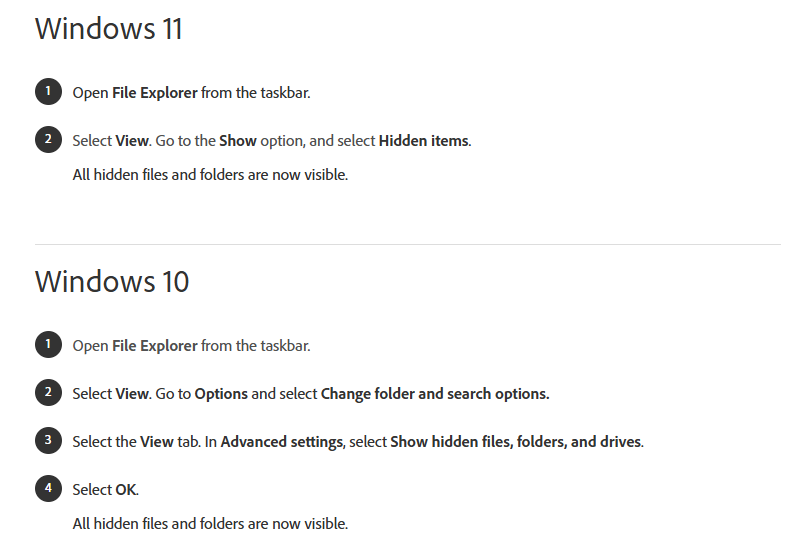
- If you cannot perform these steps, try temporarily disabling your antivirus software and reopening the Profile.
✅ How to check your disk space usage
Excessive read latency caused by high disk usage can also prevent the profile from starting up :
1.Open your device’s Task Manager and locate Performance to check the disk usage for the drive where DICloak cache files are stored.
If the usage is too high (exceeding 90%), you can change the cache file path to a different disk.
How to modify your DICloak cache file path, please check here: Personal Settings-Profile Cache Settings
📌Case 2: Failed to open profile
If you see the prompt “Failed to open profile” when opening a profile, please check the diagnostic conclusion and follow the corresponding troubleshooting steps.
✅ Subcase 1: Failed to start browser process
Diagnostic message:
“Failed to start browser process. Reason: The system could not create the browser process. This may be related to permissions, security software, or corrupted kernel files.”
or
“Failed to launch browser. Erro code : MAIN_PROGRESS_OPEN_ENV_ERROR. The client encounted an unknow erro when launching the profile.”
Common causes: Antivirus software blocking DICloak processes; insufficient file permissions; low disk space; corrupted or improperly downloaded kernel files.
Troubleshooting steps:
- Check available disk space: Ensure the disk where the DICloak cache folder is located has sufficient free space (at least 10 GB recommended). If space is insufficient, clean up the disk or change the cache folder path.
- Check antivirus software: Open all antivirus software installed on your computer (e.g., RAV Antivirus, Norton 360, 360 Total Security, Huorong, etc.) and add DICloak’s cache folder “.DICloakCache” to the whitelist/exclusion list. If you cannot add it, temporarily disable the antivirus and retry.
- Tip: You can find the cache folder path by clicking avatar (top right) → Personal Settings → Settings.
3. Fix kernel files: Click avatar (top right) → Personal Settings → Settings → Download Records → Kernel, delete all kernel files, then close and restart DICloak software, reopen the profile, and wait for the kernel to download automatically before trying again.
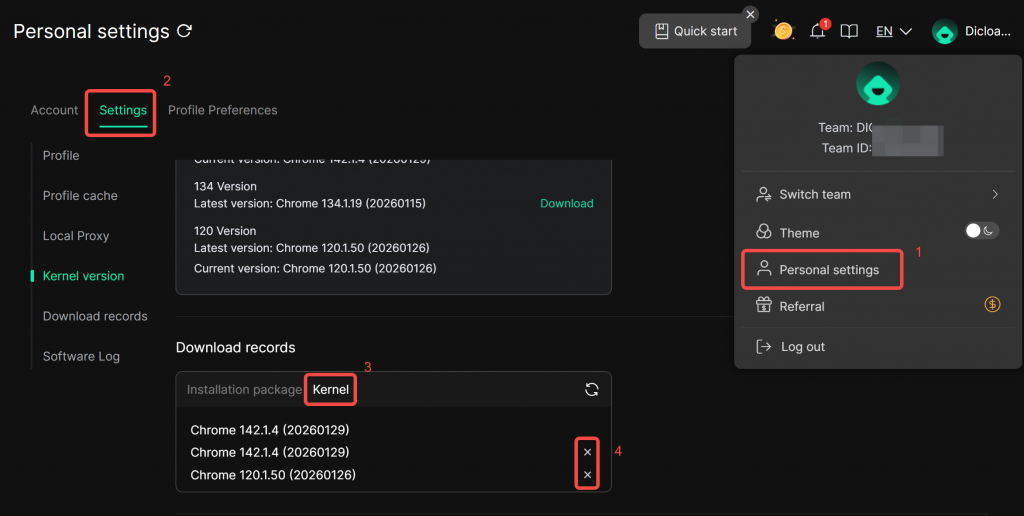
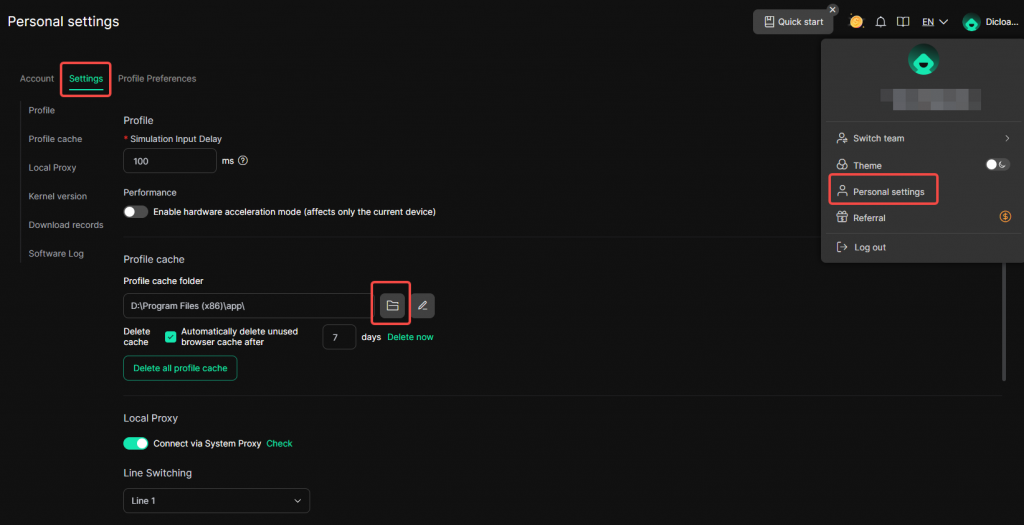
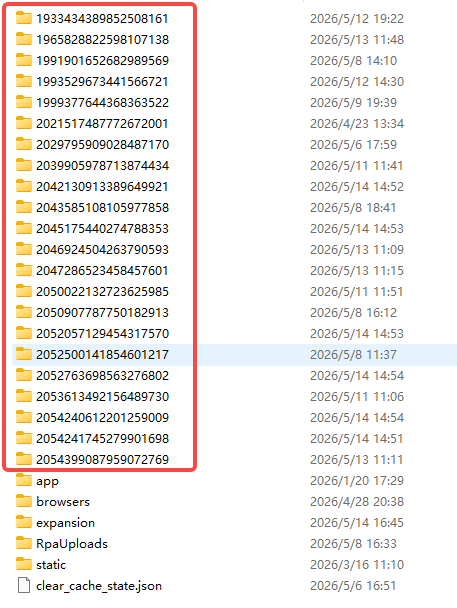
4. Reset cache folder: Click avatar (top right) → Personal Settings → Settings → Open profile cache folder, delete all folders named with numbers (if any), then reopen the profile.
✅ Subcase 2: Proxy connection failed
Diagnostic message: “Failed to open profile. Diagnostic conclusion: Proxy connection failed. The local network connection is normal, but cannot connect to the profile proxy.”
Common causes: Incorrect proxy configuration; proxy server unavailable or expired; device network (e.g., VPN, firewall) restricting proxy connections; proxy service provider’s concurrent connection limits.
Troubleshooting steps:
1. Check local network environment:
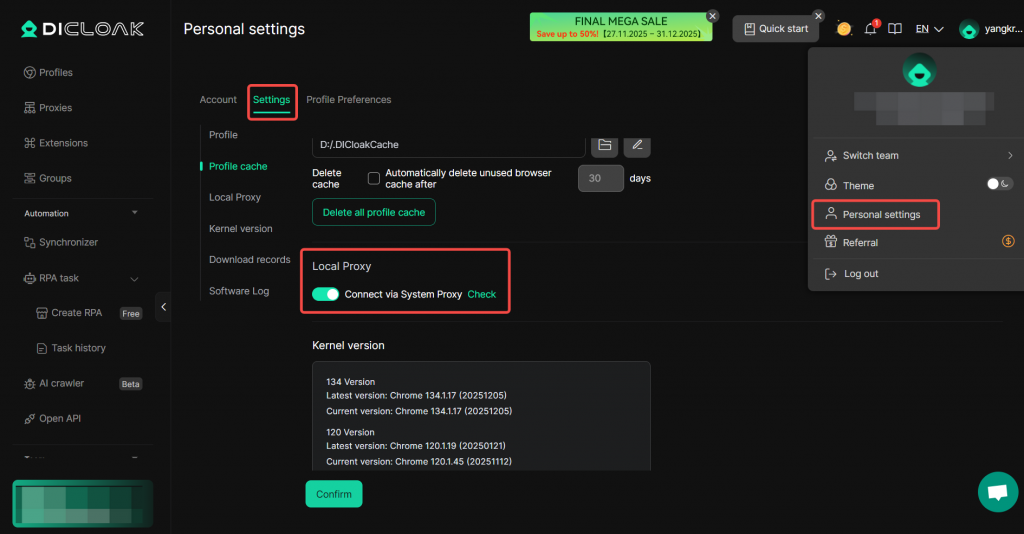
- If using a VPN, go to avatar (top right) → Personal Settings → Basic Settings and enable Local Proxy (proxy connection), then reopen the profile. If it still fails, try changing the VPN node or temporarily turning off the VPN. (Note: Some regions impose restrictions on accessing overseas internet services; in such cases, you need to switch to a VPN node that supports access to the target country to connect the proxy normally.)
- Check whether firewall or corporate network policies are blocking the proxy port (common ports: 1080, 3128, 8080). If necessary, temporarily disable the firewall or add an exception.
2. Check proxy:
(If you do not have permission to manage the proxy, contact your team administrator directly to report the issue and ask them to help troubleshoot.)
- Check proxy configuration: Go to Profiles → Edit the profile, verify the proxy type, host, port, username, and password. Pay special attention to the proxy protocol (HTTP/HTTPS/SOCKS5).
- Verify proxy validity: Use a third‑party proxy testing tool (e.g., proxyscrape) to check whether the proxy IP and port are reachable and the latency is normal. Alternatively, contact the proxy provider to confirm the proxy status.
- Check concurrent connection limits: Some proxy providers limit a single proxy to one connection at a time. Confirm with your proxy provider if there are any such limits.
- Replace proxy: If the above steps fail, replace the profile with a valid proxy IP or contact the proxy provider for assistance.
✅ Subcase 3: Device network unavailable
Diagnostic message: “Failed to open profile. Diagnostic conclusion: Device network unavailable.”
Common causes: Device not connected to the internet; unstable network; local network restricted (e.g., Wi‑Fi requiring login).
Troubleshooting steps:
- Check local network connection: Confirm the computer is properly connected to the internet. Try opening a browser and accessing a regular website (e.g., Google) to verify connectivity.
- Switch network: Disconnect the current network and connect to a mobile hotspot or another Wi‑Fi, then reopen the profile.
✅ Subcase 4: Timeout when opening a profile
If you open profile failed and show “Error: TIMEOUT_UNKNOWN” or “Timeout of 20000ms exceeded“
1.Check network conditions:
Make sure your network connection is stable and not restricted by firewalls or proxies.
1.1 Troubleshooting Steps:
- Check local network connection: Confirm your PC is connected to the internet. Try visiting common websites (e.g. Google) in your browser to verify network accessibility.
- Switch network: Disconnect from the current network, connect to a mobile hotspot or other Wi‑Fi, then reopen the profile.
2.Check disk space:
Ensure the disk where the DICloak cache folder is located has sufficient free space (at least 10 GB recommended). If storage is insufficient, clean up the disk or change the cache path.
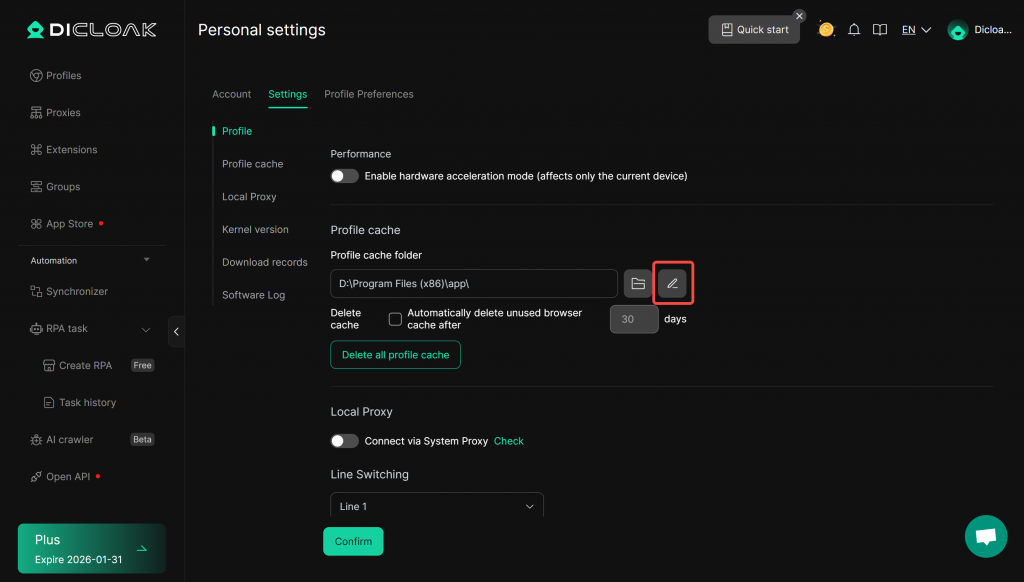
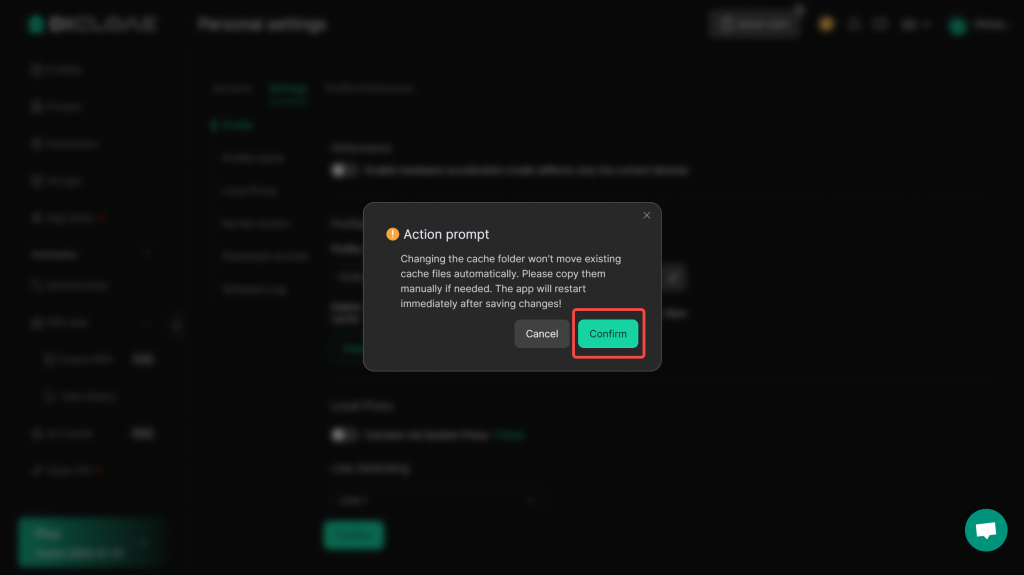
2.1 Steps to change DICloak cache file path:
- Click the avatar in the upper‑right corner, then click Personal Settings.
- Go to Basic Settings → Profile Cache to view the current profile cache directory.
- Click the edit icon on the right‑hand side, select a new path, click “comfirm” and save the changes.
3.Reset the cache folder:
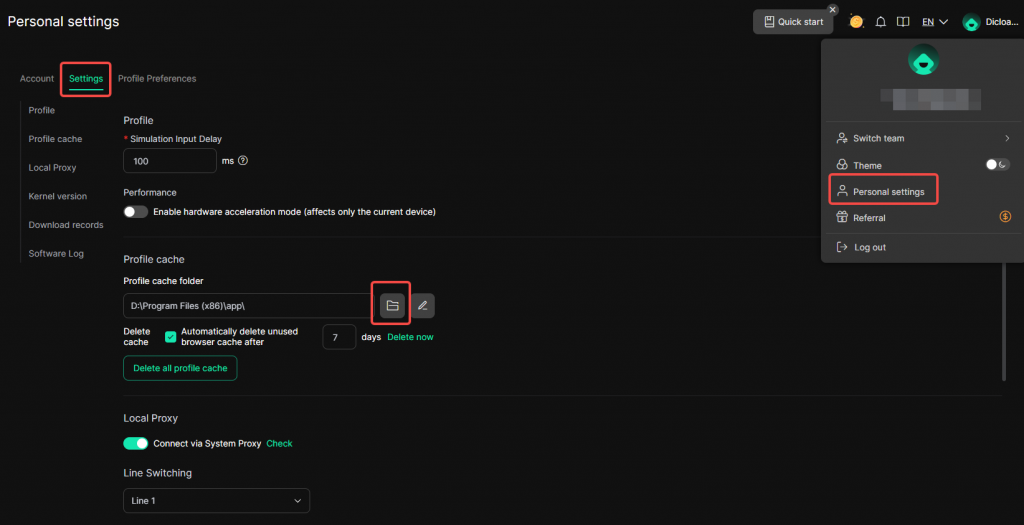
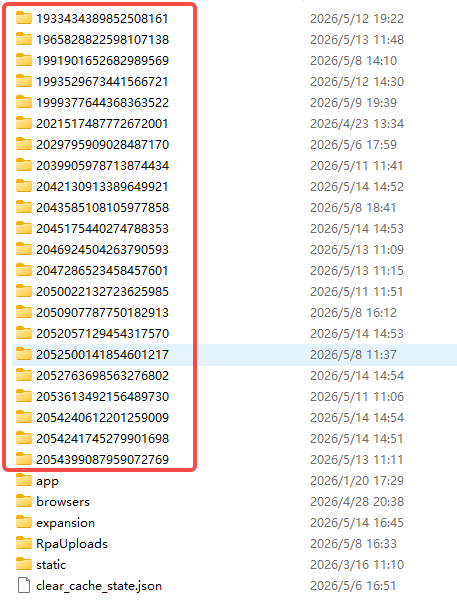
- Click the avatar (upper‑right) → Personal Settings → Basic Settings → Profile Cache .
- Delete all numerically‑named folders (if any), then reopen the profile.
✅ Subcase 5: Main cloud data erro when open the profile
Diagnostic message: “MAIN_CLOUD_DATA_ERROR”
Common causes: caused by excessive data volume or data corruption
Troubleshooting steps:
1. First, ensure your network connection is stable.
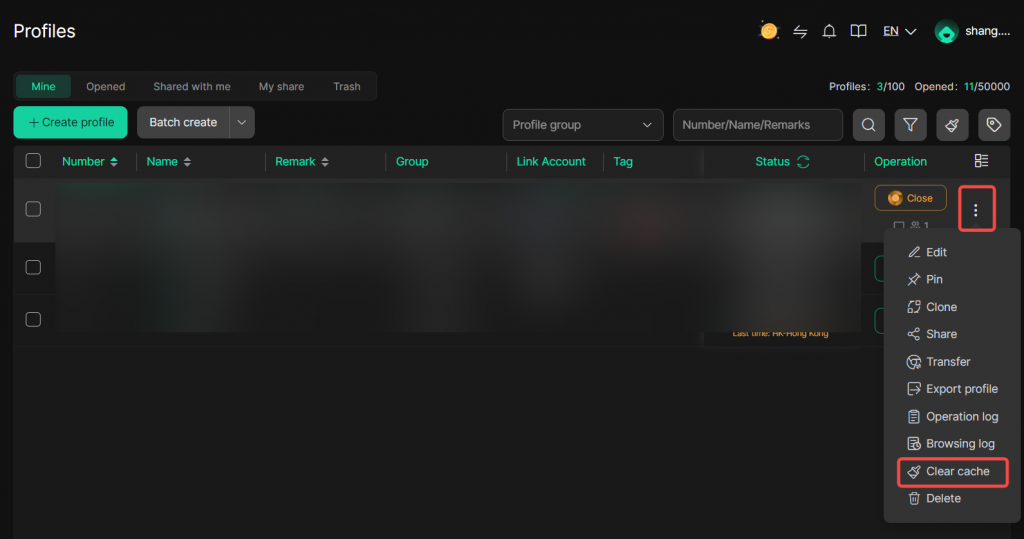
2. Clear the cache files:
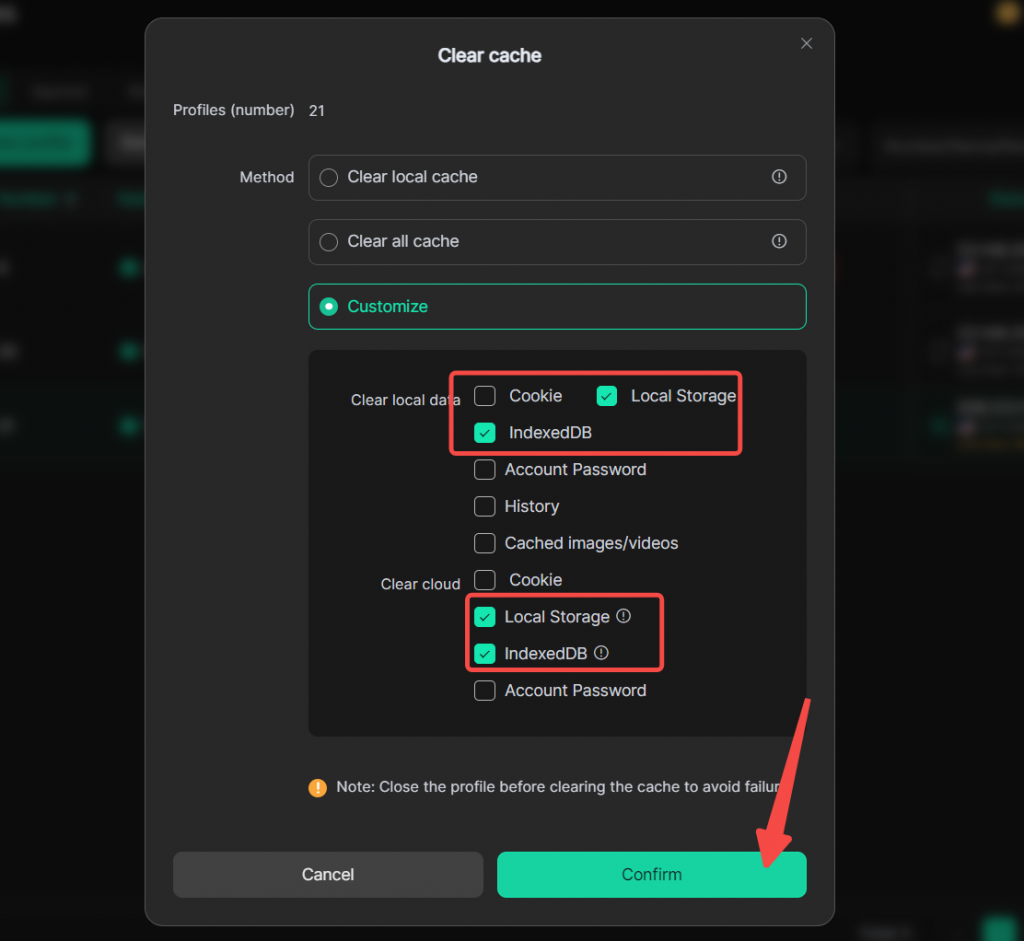
Locate the problematic profile, expand the function menu under the action bar, and select [Clear cache] > [Custom]. Check the [Local Storage] and [IndexedDB] options for both local and cloud data to clear them, then restart the profile.
If the issue persists after performing these steps, we recommend creating a brand-new profile; please do not use the clone function to create it.
📌Case 3: Failed to open profile, abnormal extensions detected
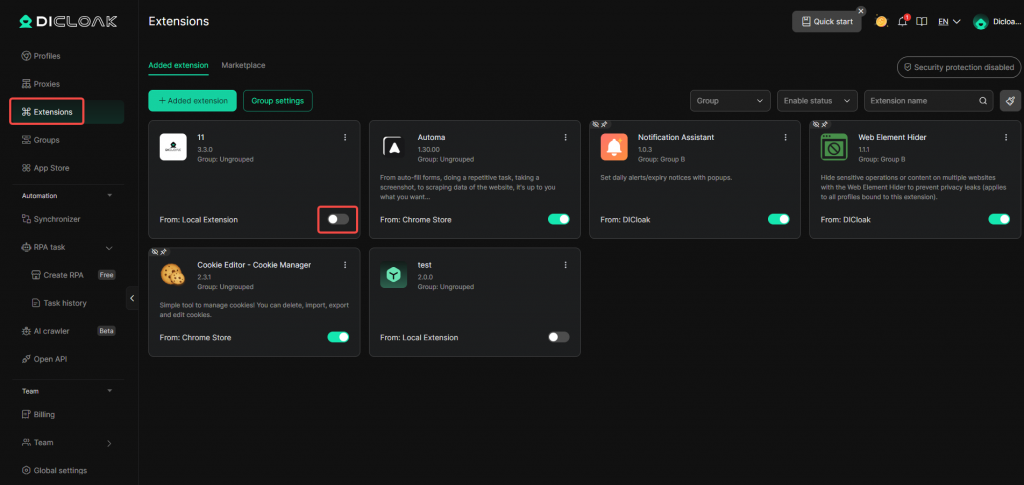
✅ Method 1:
Go to Extensions, disable and re-enable the extension showing the abnormality, then reopen the profile. If you do not have permission, please contact your administrator for assistance, or try Method 2.
✅ Method 2:
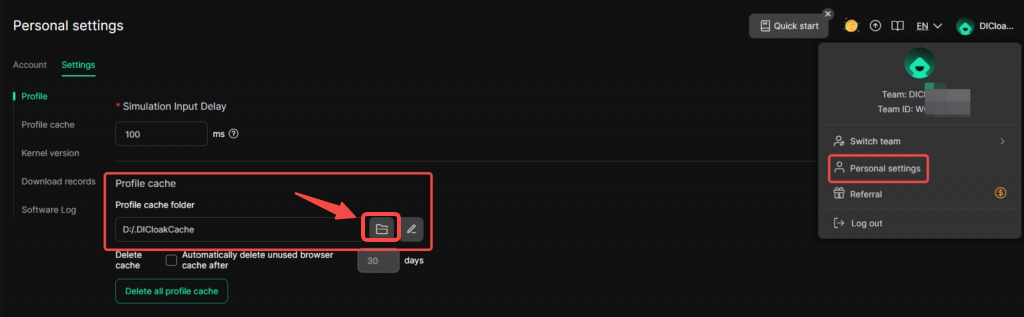
Click avatar (top right) → Personal Settings → Settings →click the “folder” and open the cache folder.
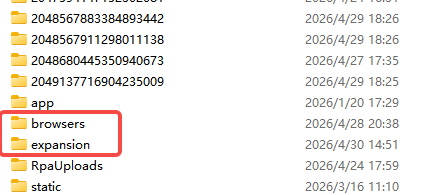
Find and delete the “expansion” and “browsers” competely and then reopen the profile.
📌 Case 4: The profile must be locked before it can be opened
1.Check your device version, storage and network
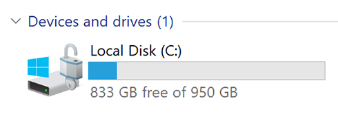
1.1 Make sure your hard drive has enough free space.
1.2 Confirm that your internet connection is stable and not restricted by a firewall or proxy.
1.3 Verify that the installation package you downloaded corresponds to your Windows system type or Mac chip type. If you downloaded the wrong version, please re-download the correct installation package from the official website and install it.
1.4 Check if your system version is too low. DICloak currently supports macOS 11 (macOS Big Sur or higher) and later versions, as well as Windows 10 and higher. If your system version is lower than these requirements, consider upgrading your system or replacing the device to resolve the issue.
1.5 If you are using a Mac and the browser kernel version is above 138, ensure your macOS version is macOS 12 or higher. If your system version is below 12, consider upgrading the system version, replacing the device, or downgrading the browser kernel to version 134 (if you do not have permission to do so, please contact your administrator) to resolve the issue.
2.Clear the cache folder
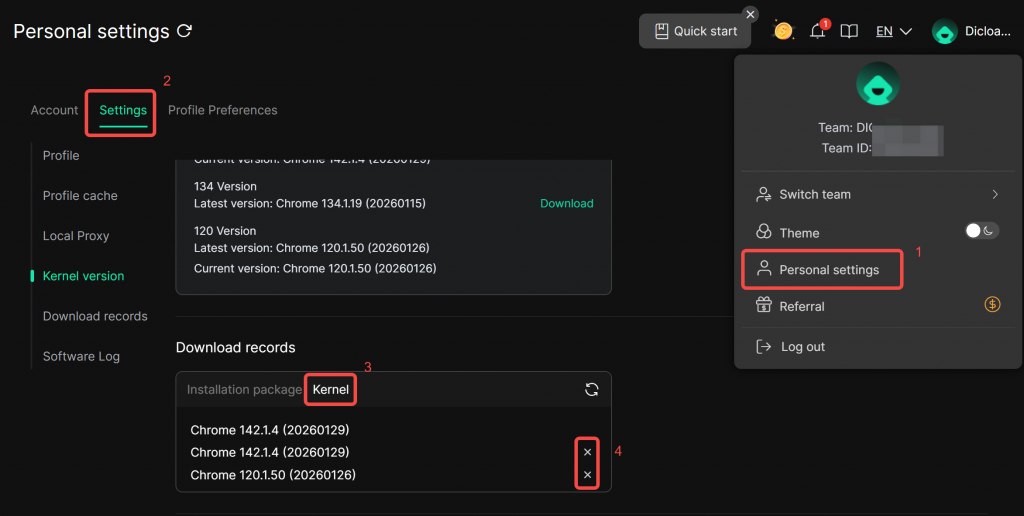
2.1 Click your profile avatar in DICloak to open Personal Settings.
2.2 Go to Settings, find Download records → Kernel, and delete all kernel files.
3.Reopen DICloak software
Close the DICloak browser software, restart the software, reopen the profile, and wait for the kernel to finish downloading before opening the profile again.
📌 Case 5: “Failed to lock profile”
If you encounter an “Failed to lock profile” and receive the a erro code “LOCK ENV FAIL”, this is usually due to network instability. It should automatically recover in 5 minutes. If it doesn’t recover after a while, please try switching to a different network or connecting to your mobile hotspot to refresh and try again.
📌 Case 6: “Kernel for this profile is missing”
Please refer to this guide to resolve the issue: Tutorial on solving “Kernel for this profile is missing”
📌 Case 7: “Kernel Download Complete, Extraction Failed”
Please refer to this guide to resolve the issue: Tutorial on solving “Kernel Extraction Failed”
📌 Case 8: “No Kernel Selected: The Browser Kernel for the Profile is Empty”
This error is usually caused by using an outdated version of the DICloak software. Kernel versions 142, 143 , 147, 150, 151, 152, 155 are only supported in v2.7.18 and above. Please update your software version to use the new kernel versions.
📌 Case 9: “Extension Load Failed, Profile Will Not Open”
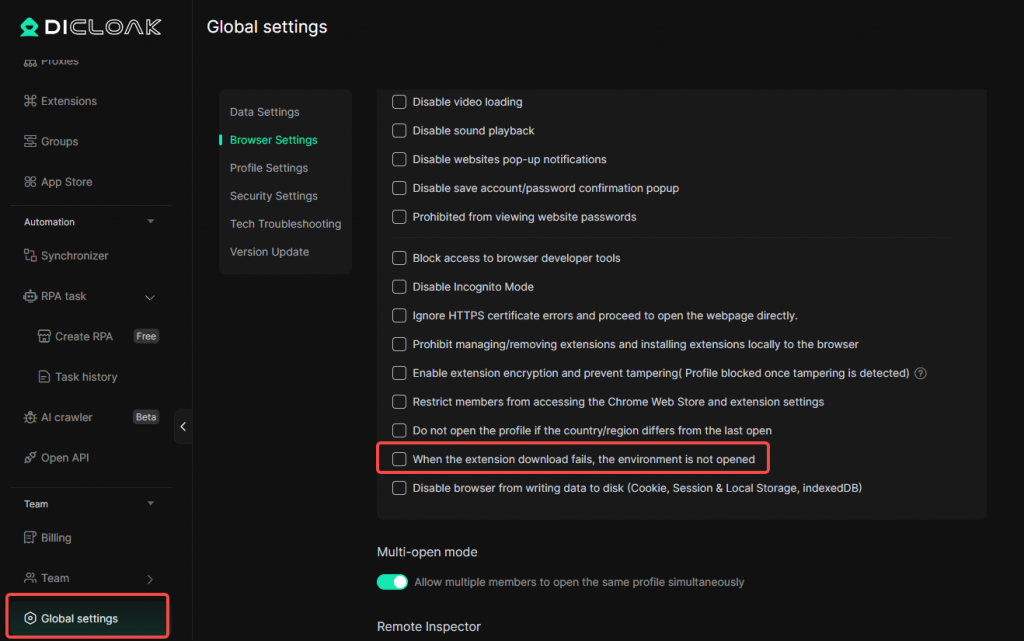
If you see the prompt “Extension download Failed, Profile Will Not Open” when opening a profile, it is usually because you have enabled the option “When the extension download fails, the environment is not opened” in your browser settings. When this option is enabled, the system will prevent the profile from opening if the required extension fails to download, in order to avoid normal usage issues caused by missing extensions.
Extension load failures are often related to unstable network connections or insufficient disk space. You can try the following solutions:
- Check whether your current network is stable. Try switching to another network or connecting to a mobile hotspot, then reopen the profile.
- Check whether your device has enough disk space. If the disk where the cache folder is located is low on space, click your avatar (top‑right) → Personal Settings → Basic Settings → change the cache folder path to a disk with more available space (e.g., the C drive), then reopen the profile. Before switching, make sure the target disk has sufficient free space.
📌 Case 10: “The country/region is different from the last time it was opened”
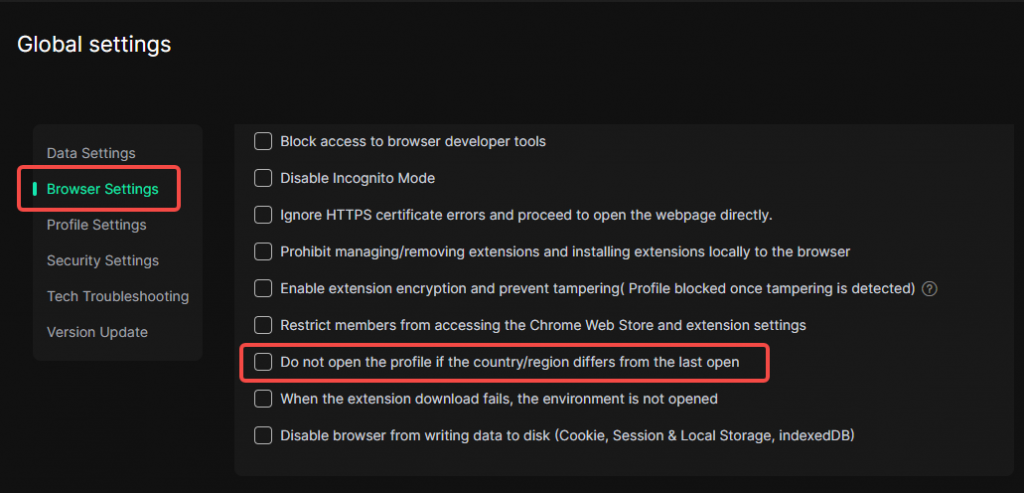
If you see the prompt “The country/region is different from the last time it was opened” when opening a profile, it is usually because the option “Do not open the profile if the country/region differs from the last open” has been enabled. When this option is enabled, the system will prevent the profile from opening if it detects that the exit IP’s country/region differs from the last time, in order to protect account security from sudden regional changes.
- If you are an administrator, go to Global Settings or edit the individual profile, find Browser Settings, uncheck the option “Do not open the profile if the country/region differs from the last open”, and then reopen the profile.
- If you do not have permission to modify Global Settings or edit profile settings, please contact your administrator for assistance.
If the above steps still do not resolve your issue
please contact DICloak Technical Support via the following methods for further assistance