You can configure the profile operation permissions for members within your team and assign specific profiles to designated members. This is achieved through the following settings:
- Set Functional Operation Permissions for Members
- Set Profile Groups
- Set Profile field visibility restriction
1. Functional Permissions for Member Groups
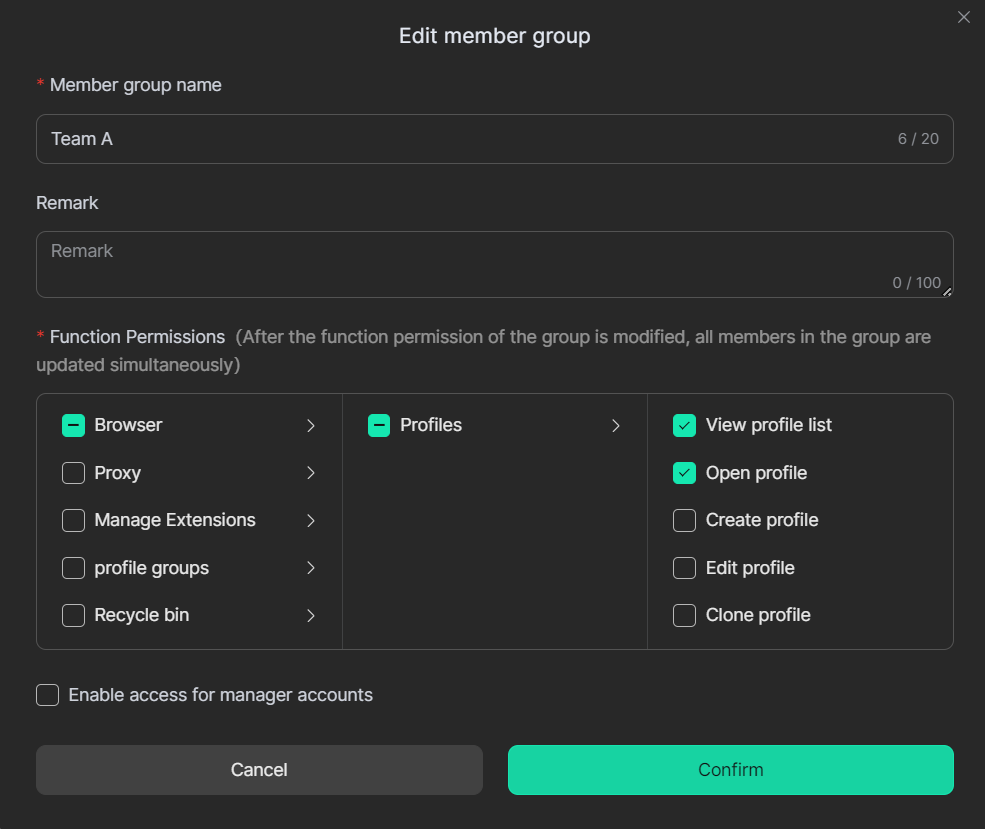
This function allows you to set which functional sections and action buttons are visible to members.
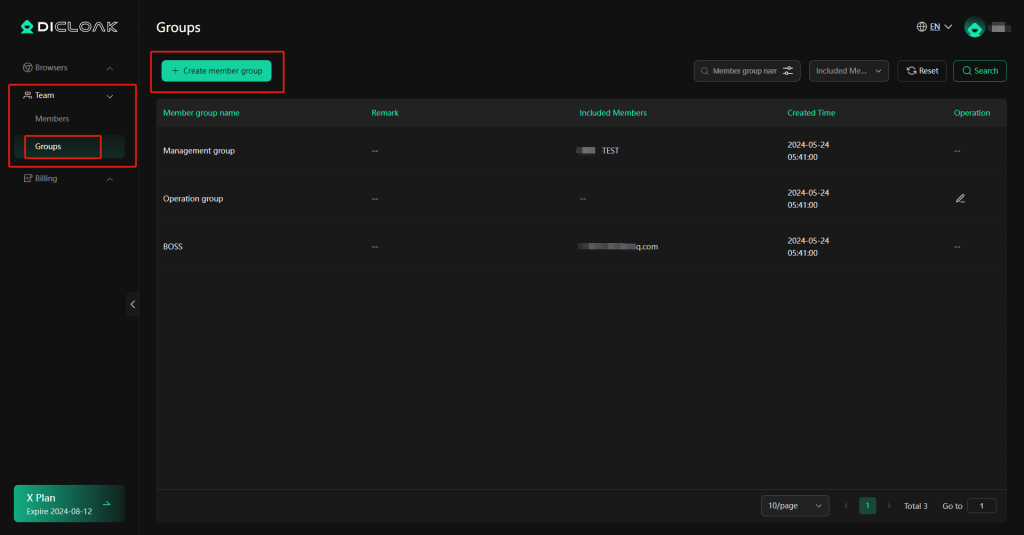
1.1 Create Member Group
Navigate to Team > Groups, where you can create a new member group or edit existing ones.
For regular members, you may only need to check the options for viewing and opening profiles.
1.2 Assign Groups in the Member List
- Go to the Members to edit or batch-assign the corresponding member group for members.
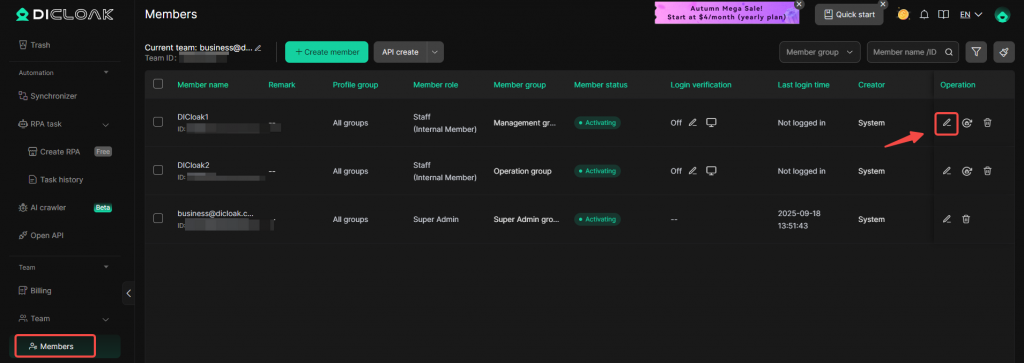
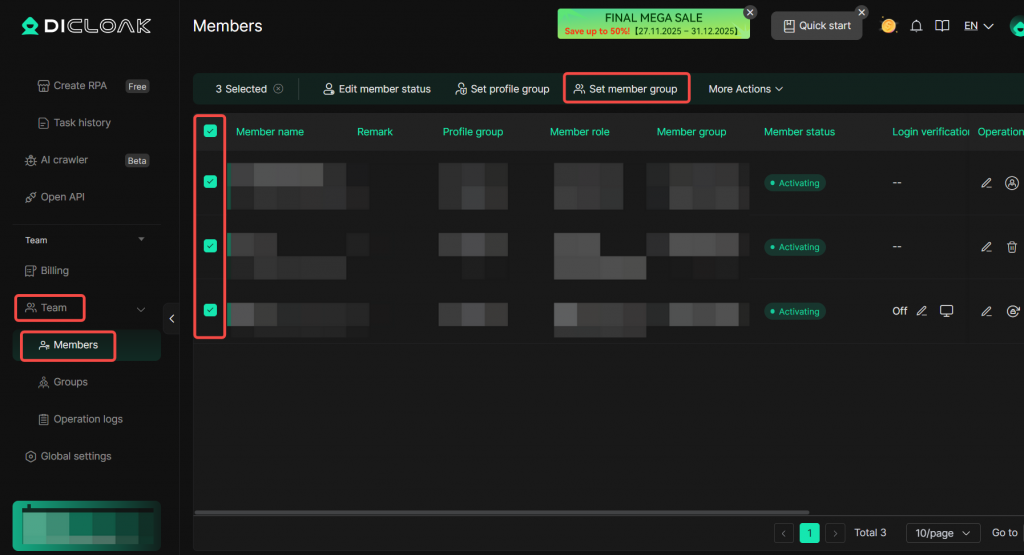
- Select the corresponding Member group.
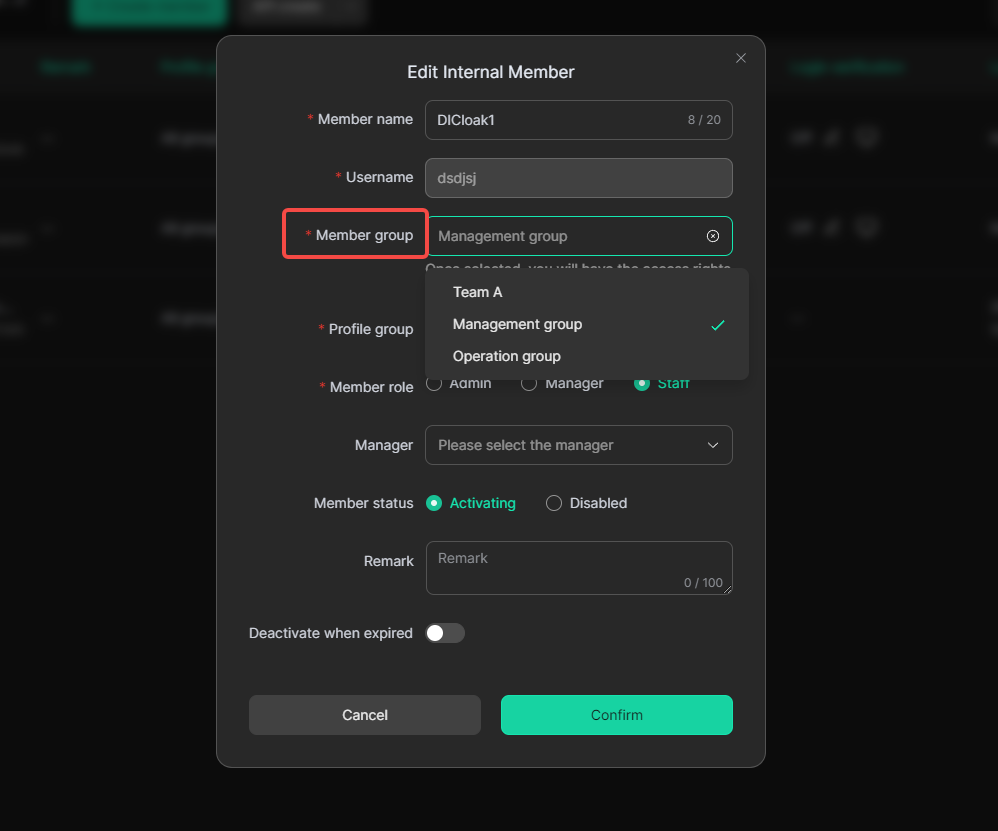
2. Profile Groups
This function restricts which profiles members can access.
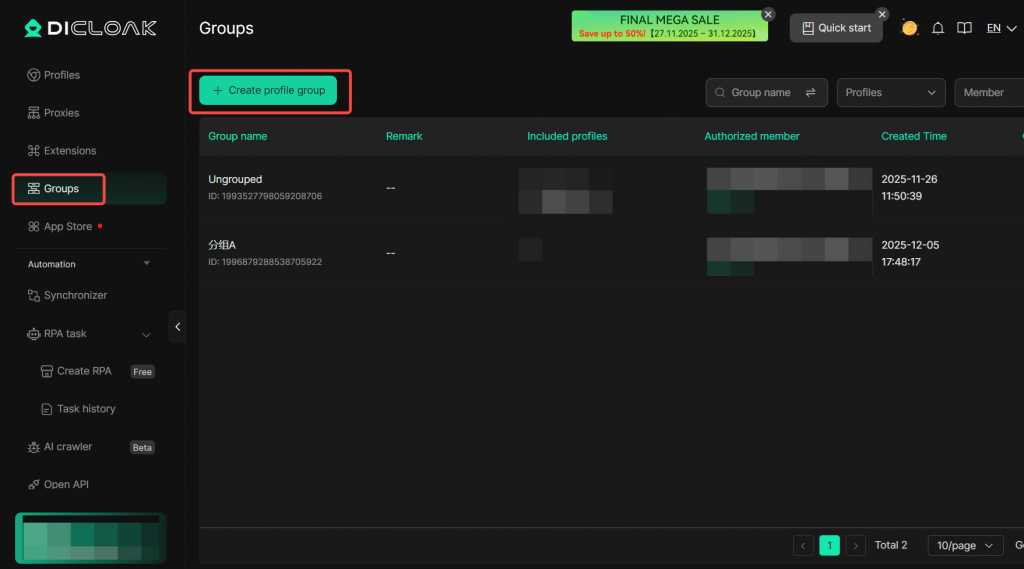
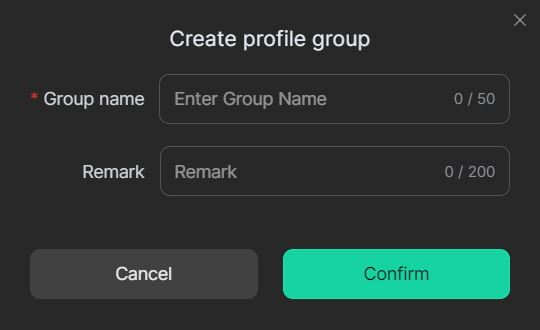
2.1 Create a Profile Group
- Go to Profile Groups from the left navigation bar and create a profile group.
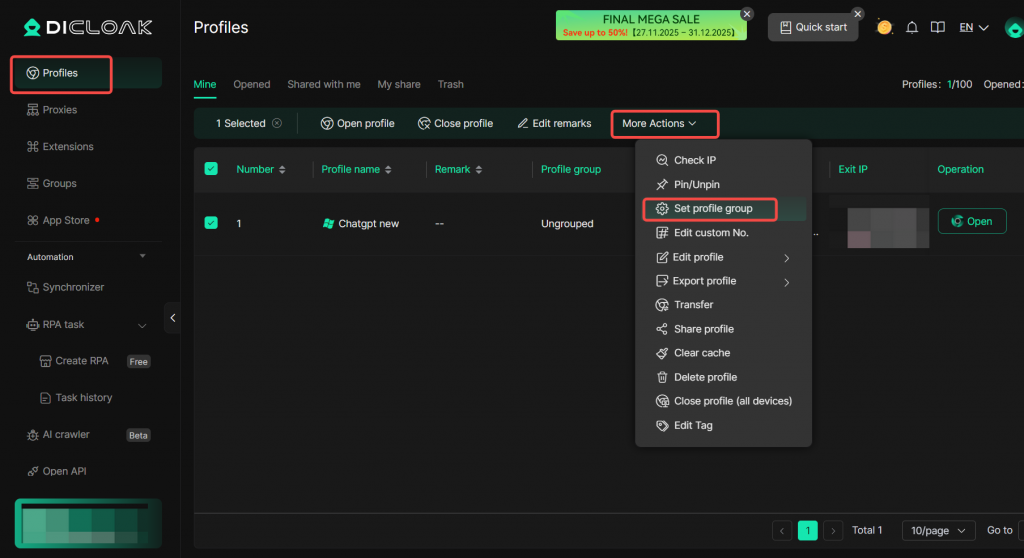
- Go to Profiles to set the profile group for a profile.
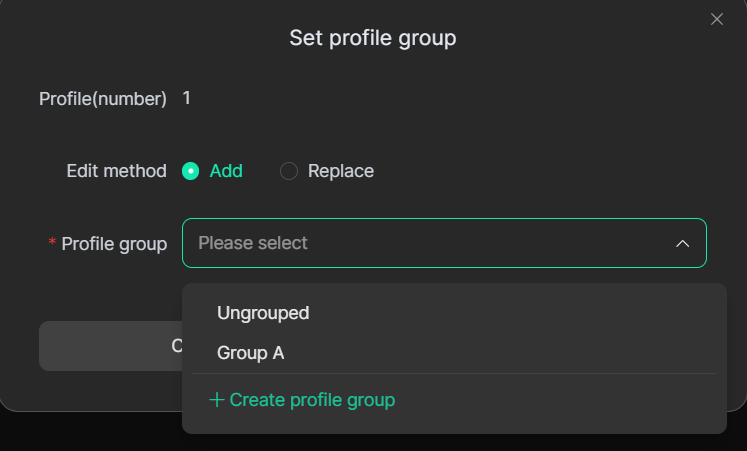
- Select the corresponding Profile group. You can also create a profile group directly here.
2.2 Assign Profile Groups via the Member List
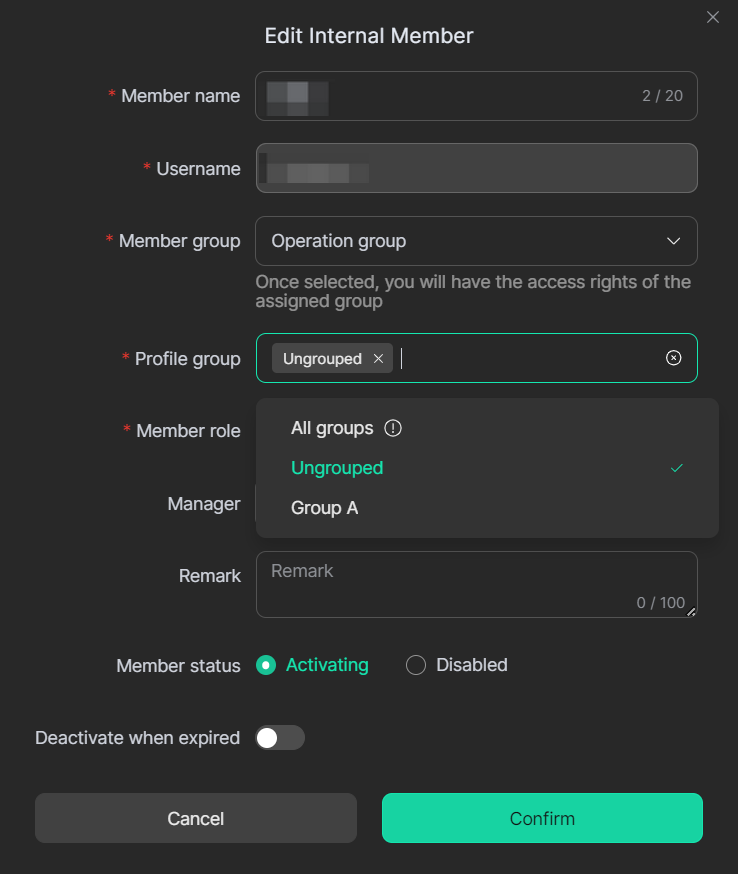
Go to Team -> Members from the left navigation bar, then edit or batch-assign profile groups for members.
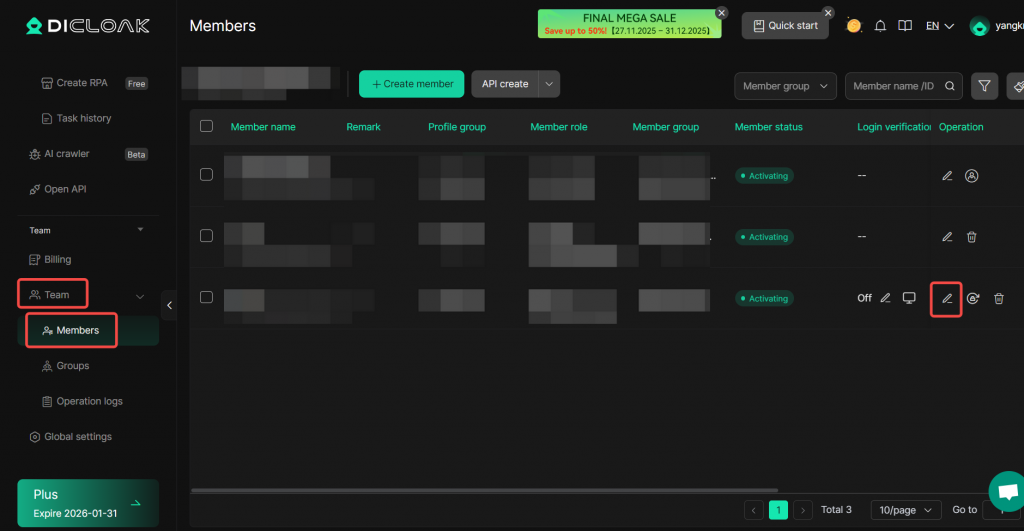
- Select the Profile group(s) accessible to this member. Multiple selections are allowed.
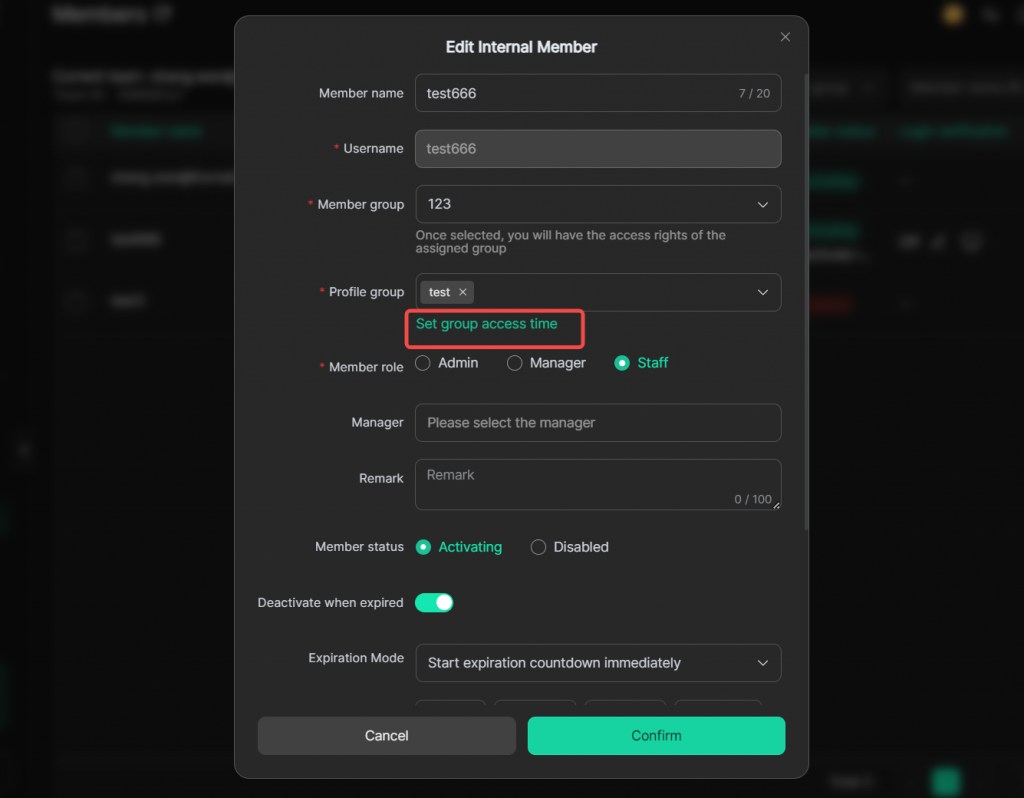
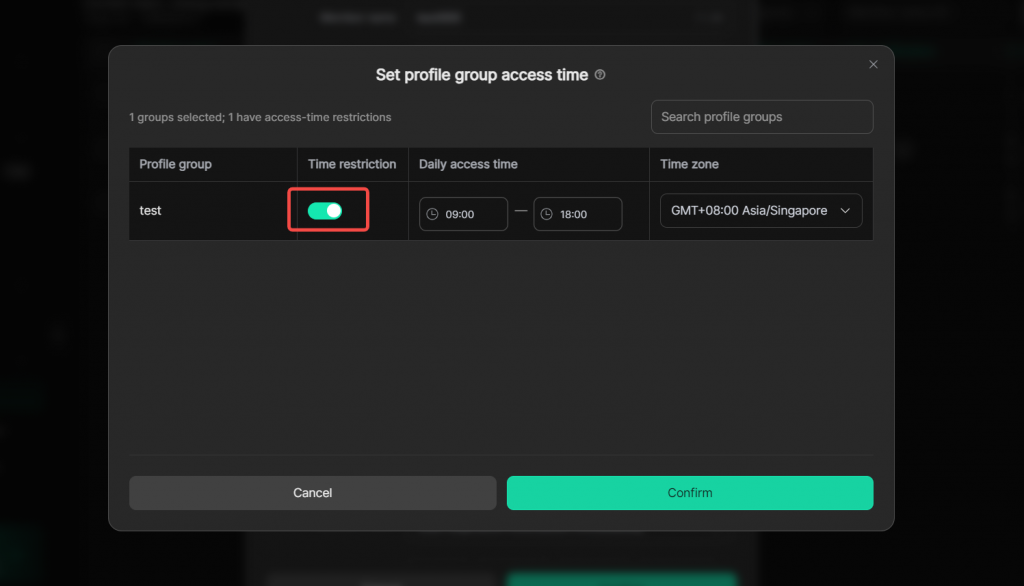
- Once you assign an profile group to a member, you can go to [Set group access time] to configure time restriction, daily access time and time zone for their access to this group.
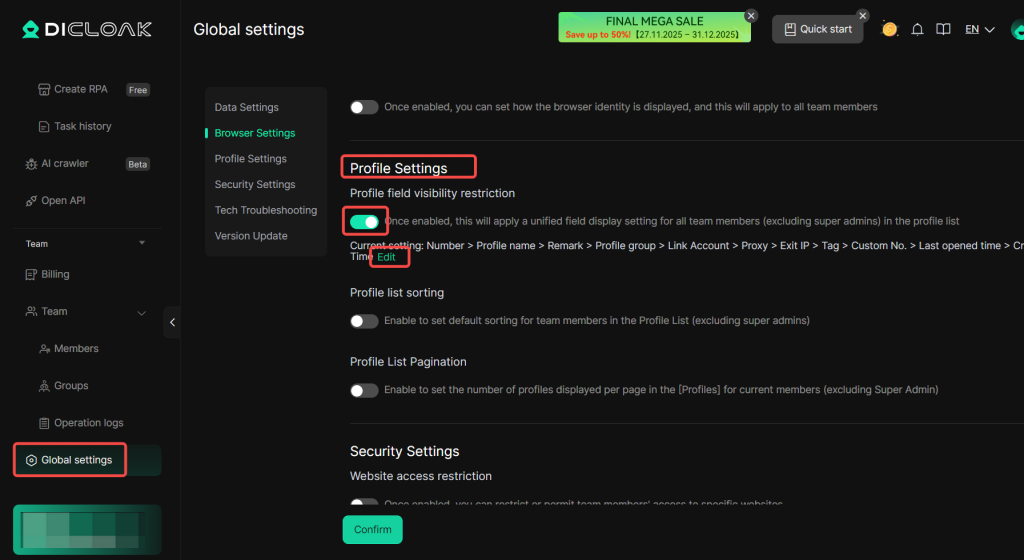
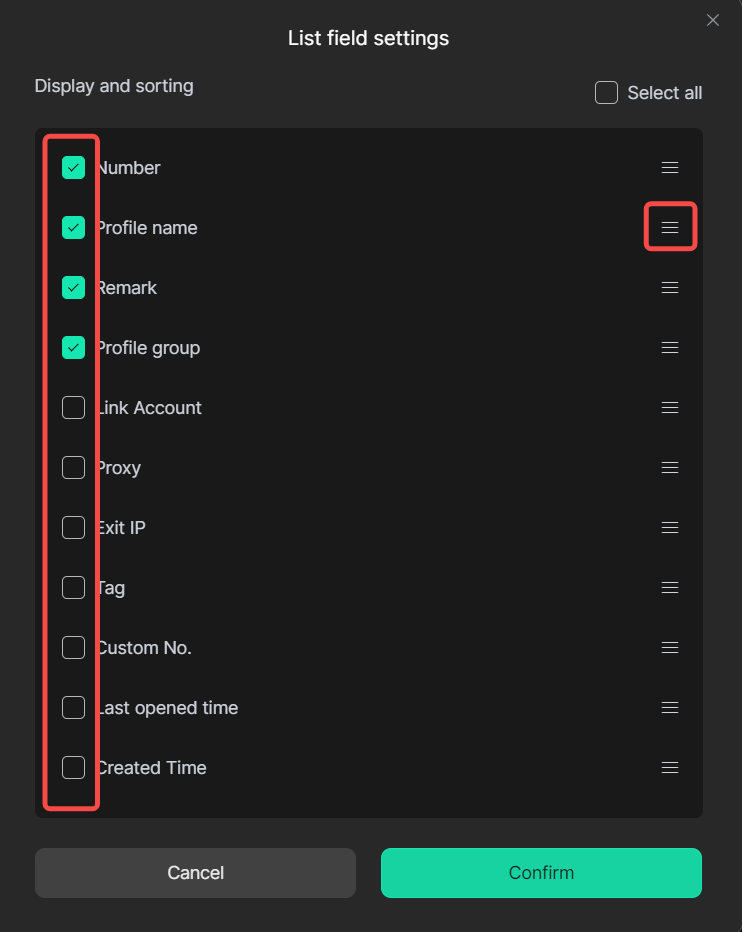
3. Profile Field Visibility Restriction
This function sets which field information in Profiles is visible to member accounts.
- Go to Global Settings from the left navigation bar. Under Profile Settings -> Profile field visibility restriction, click Edit, check the profile fields visible to members, and arrange their order. This only takes effect for members other than the super administrator.