When you configure tools like ChatGPT on DICloak and share access with members, you may be concerned about:
- Members viewing, copying, or tampering with the account password;
- Unauthorized theft of account login cookies;
- Members sharing the account with external parties;
- Sensitive actions by members going undetected, making it difficult to trace security issues.
DICloak’s Antidetect Browser uses encryption methods to protect account passwords, cookies, and other sensitive information, reducing the risk of your tool account being stolen.
1. Essential Security Settings
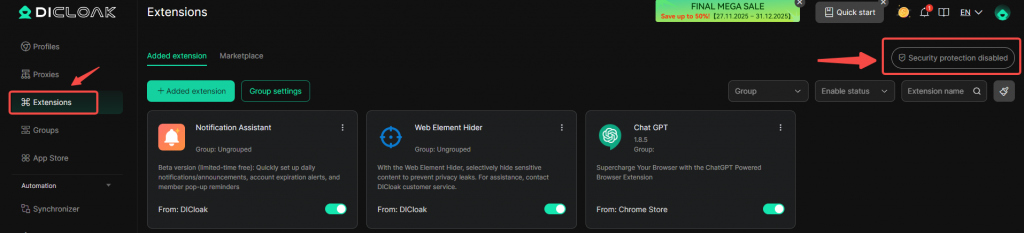
Go to Extensions and enable Security Protection features.
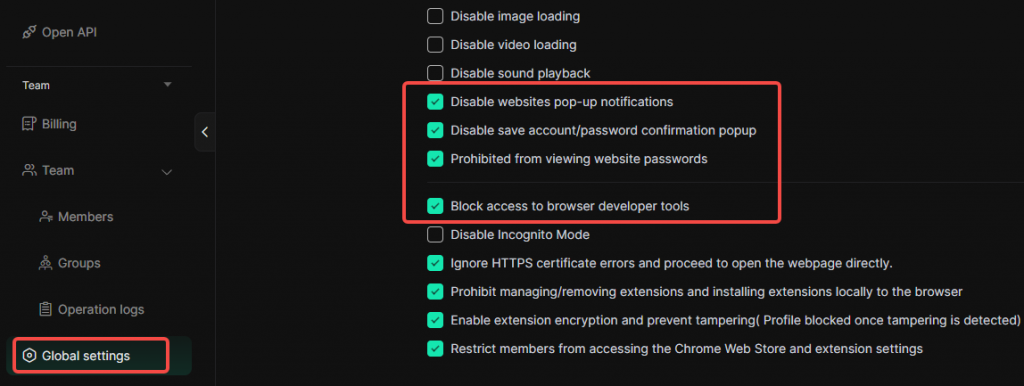
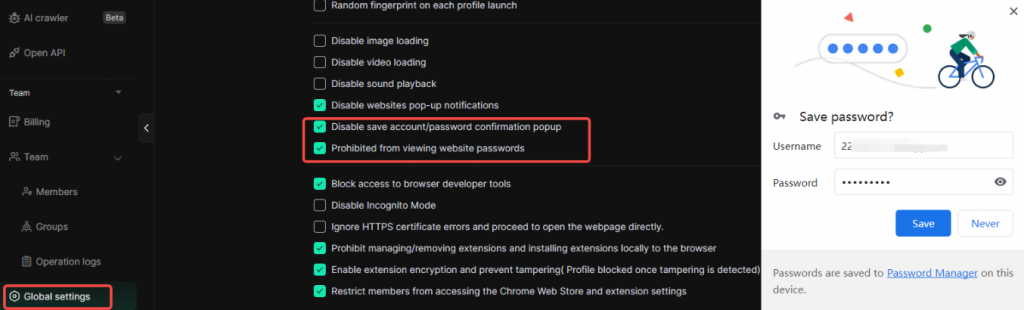
Go to Global Settings and enable Password Security features.
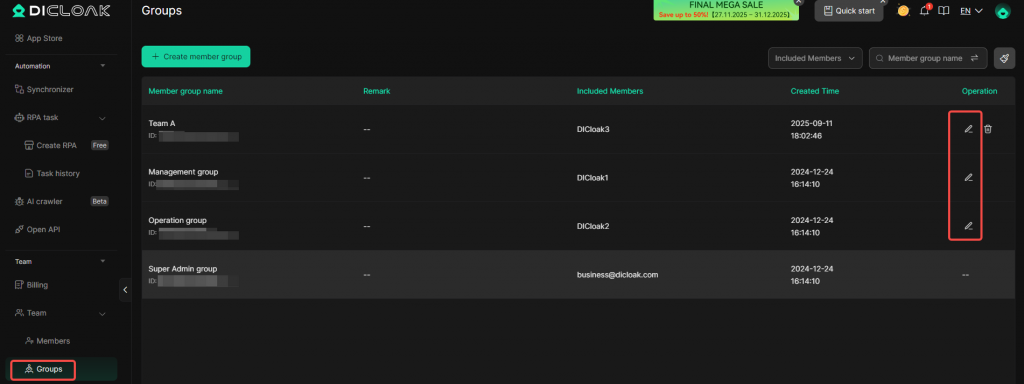
Assign appropriate operational permissions to members
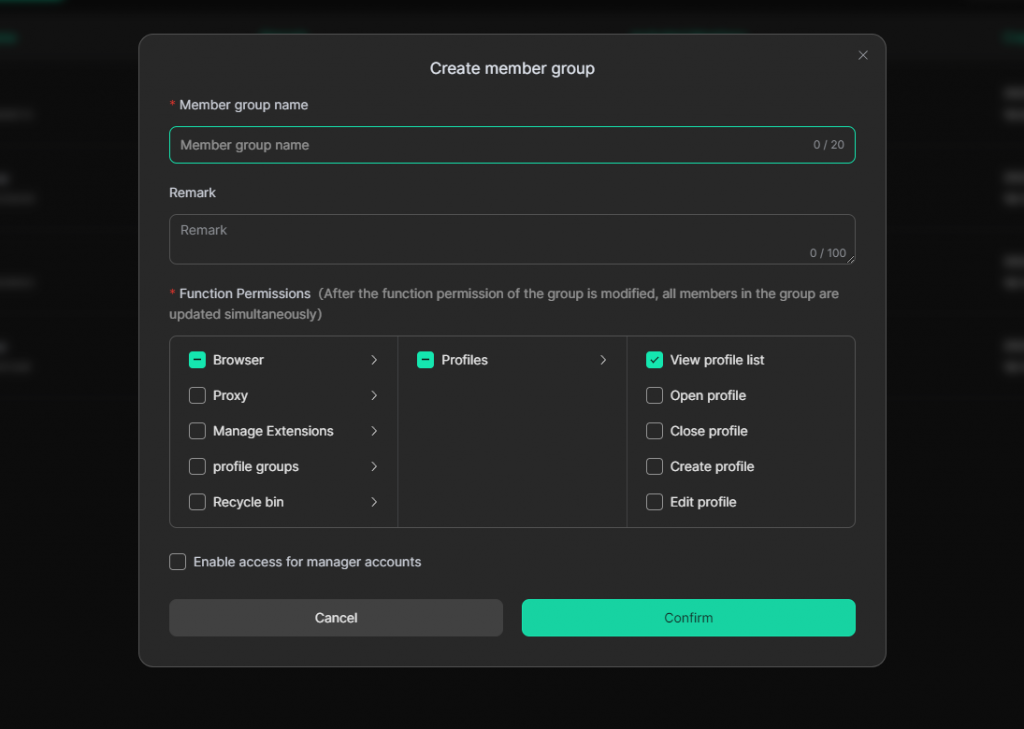
- Only assign the two operational permissions: View profile List and Open Profile, and uncheck all other permissions.
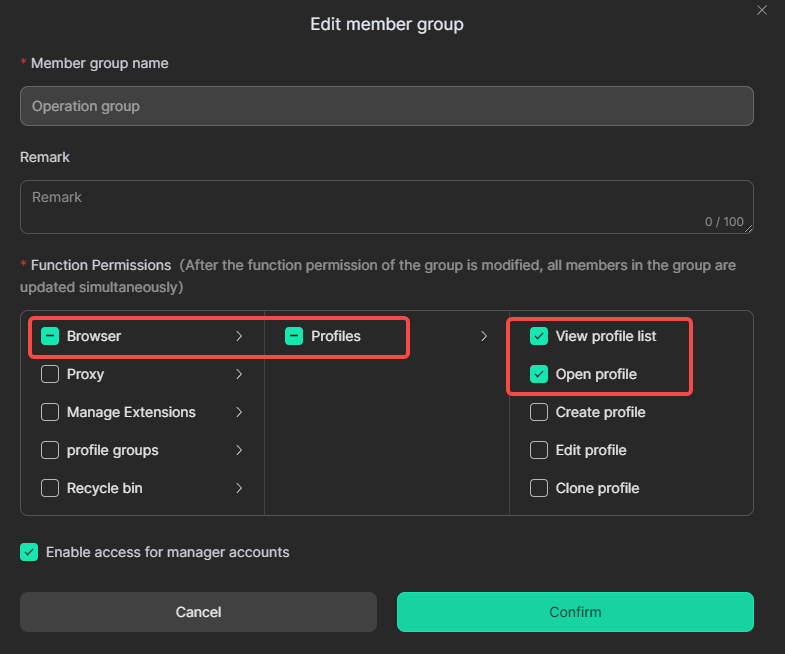
2. Detailed Explanation of Security Features
2.1 Tool Account Password Security
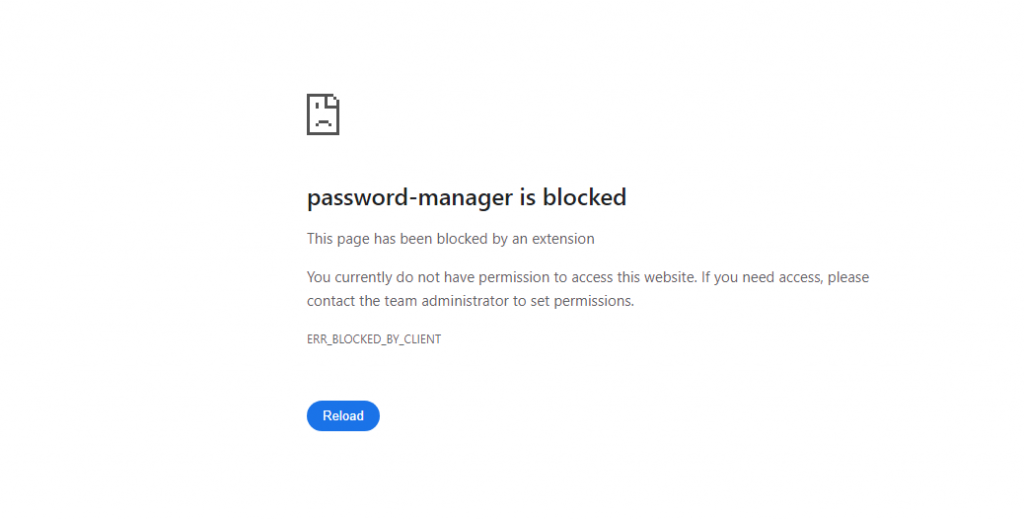
- Enable Disable websites pop-up notifications and Disable save account/password confirmation popup feature, so members will not be able to view, modify, or copy account passwords, nor will they have access to the password manager.
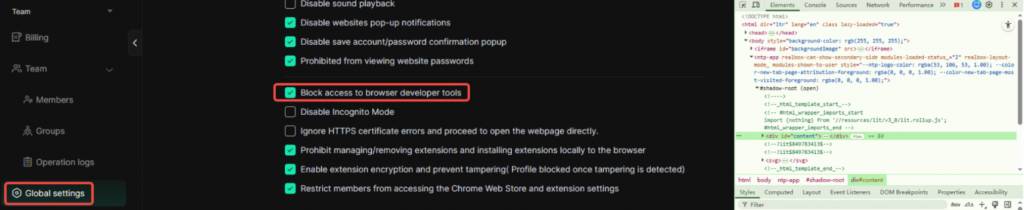
- Enable Block access to browser developer tools feature so members will not be able to use the Inspect feature or access DevTool.
2.2 Extension Security Features
- Security Protection Feature:
- Prevent members from uploading, removing, or modifying extensions to obtain login information such as passwords or cookies.

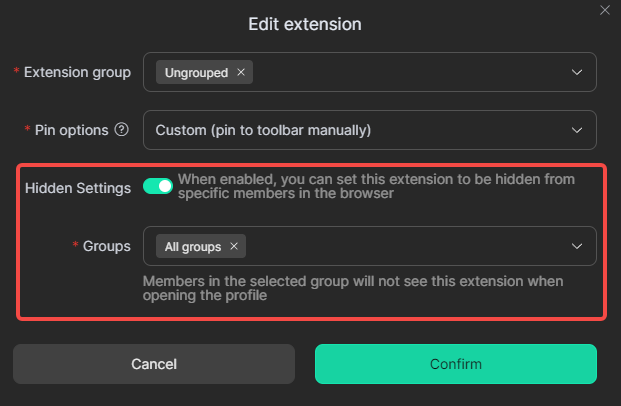
- Hide Extension Feature:
- Hide the display of extension tools on webpages and prevent members from accessing and editing extension management pages.
2.3 Cookie Encryption
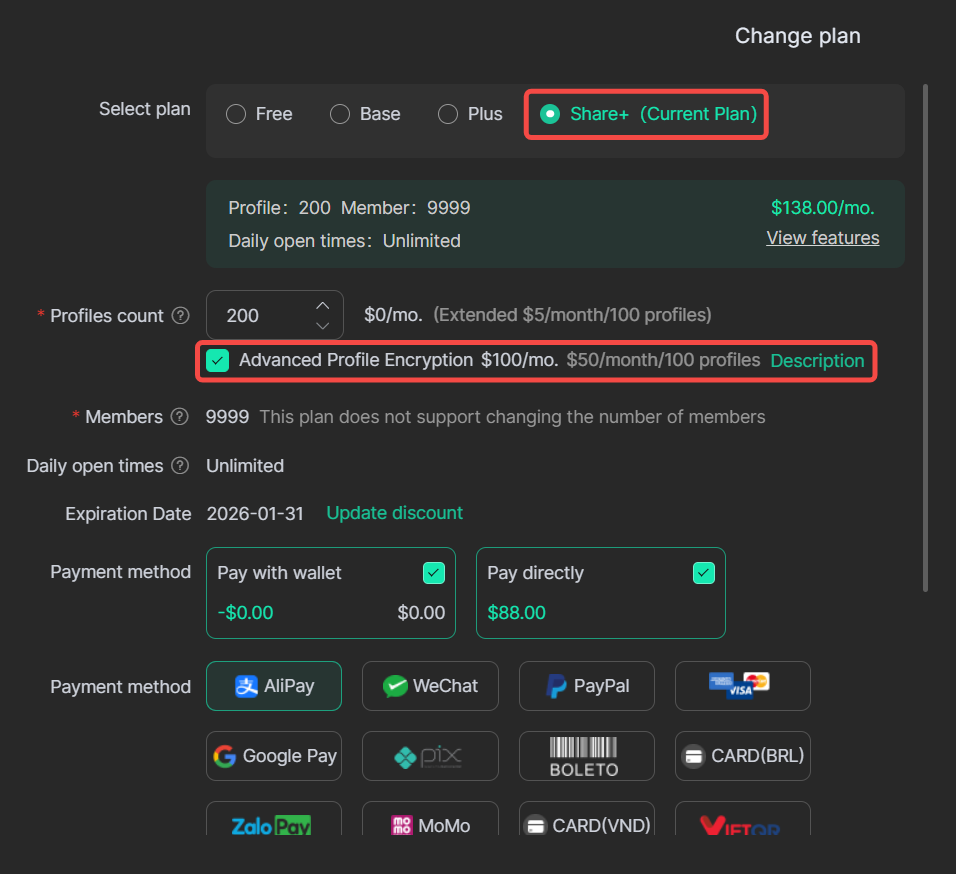
This feature is only available with the Share+ Plan. If needed, you can purchase it by going to [Billing] > [Change plan].
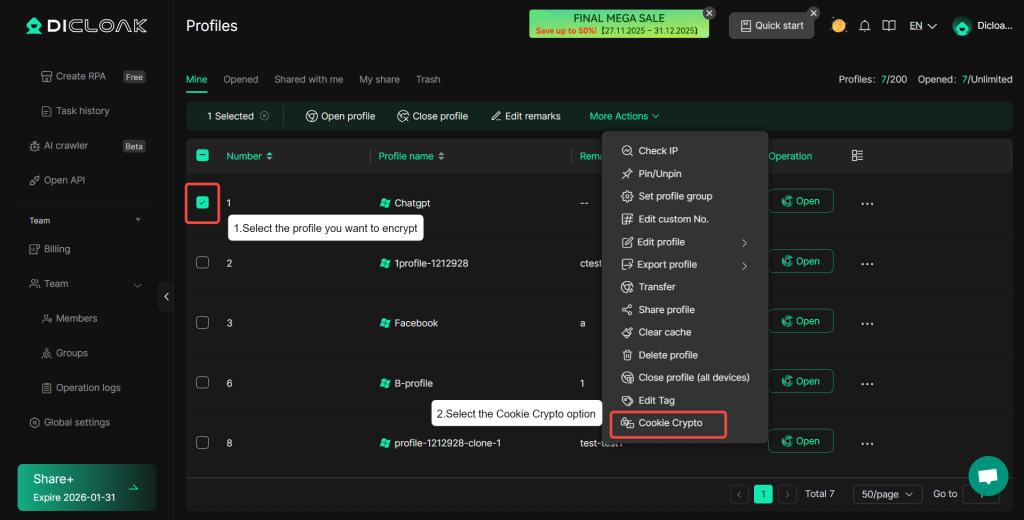
The Cookie Encryption enhancement prohibits all members from viewing and copying Cookies in profiles, and performs comprehensive encryption upgrade on Cookie content to avoid your tool accounts being stolen.
2.4 Hide Webpage Elements Extension
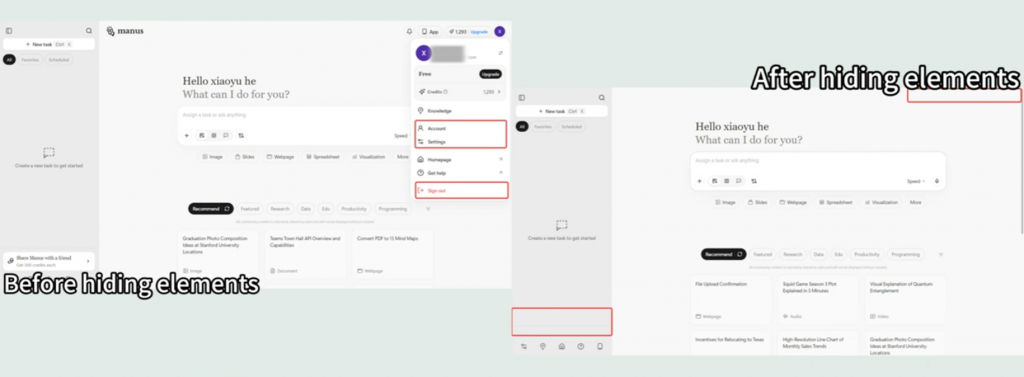
- Web Element Hider:
- Use the Web Element Hider extension tool to hide webpage elements containing sensitive account information.
2.5 Website Access Restrictions
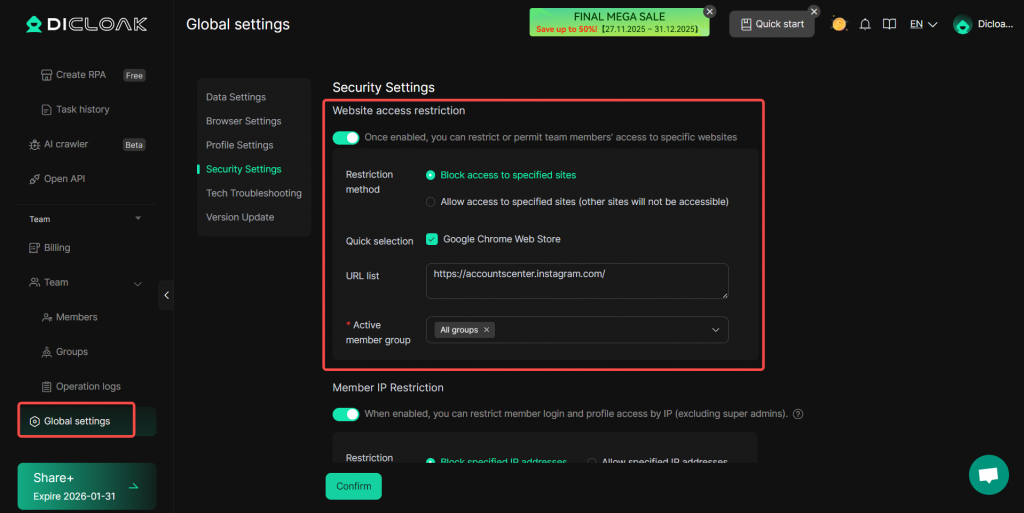
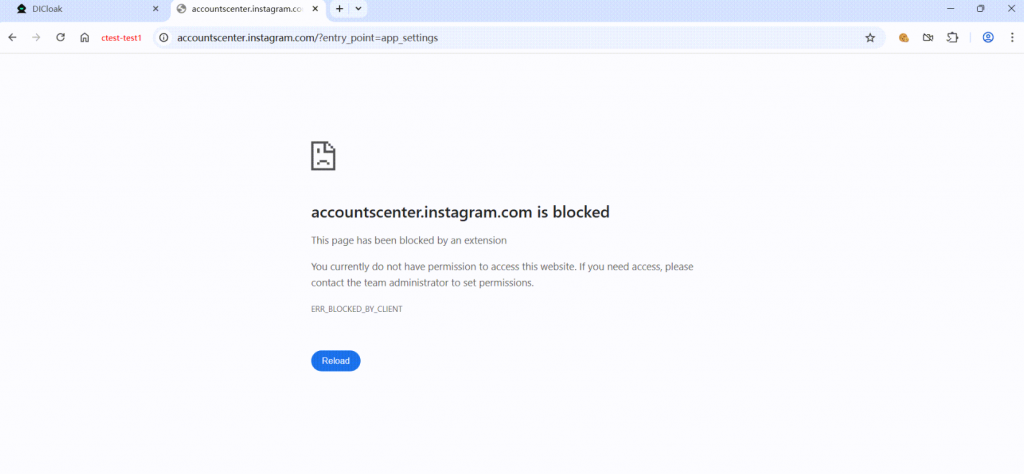
Go to [Global Settings](Or customize settings for a specific profile), enable [Website access restriction] under [Security Settings], and add the URLs of platform account management pages or other privacy‑sensitive webpages to the URL list.
2.6 Disable Packet Capture Software
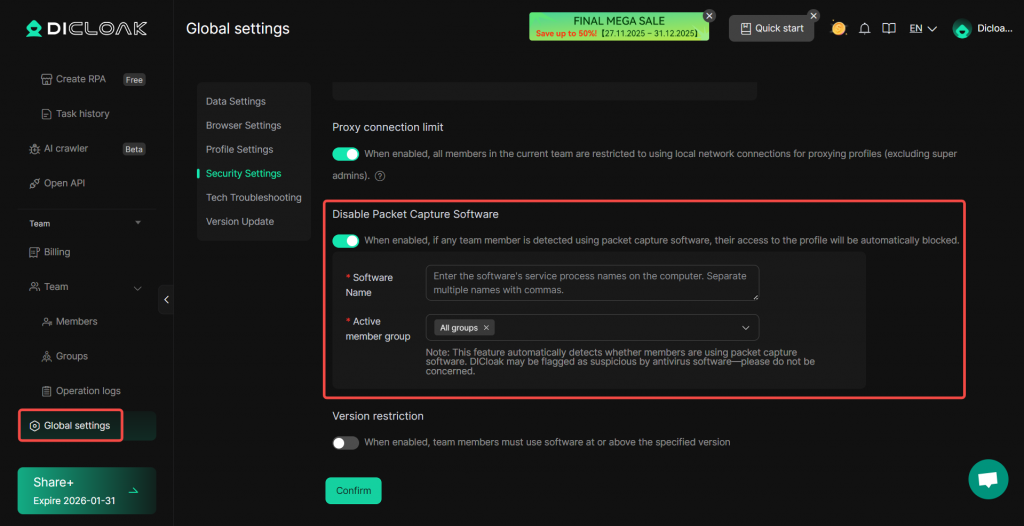
Navigate to [Global Settings] > [Disable Packet Capture Software]. You can add the names of common packet capture tools (as they appear in Task Manager) to the software list to prevent members from using such tools to steal platform account information.
3. Managing Member Permissions
3.1 Member Login Verification Settings
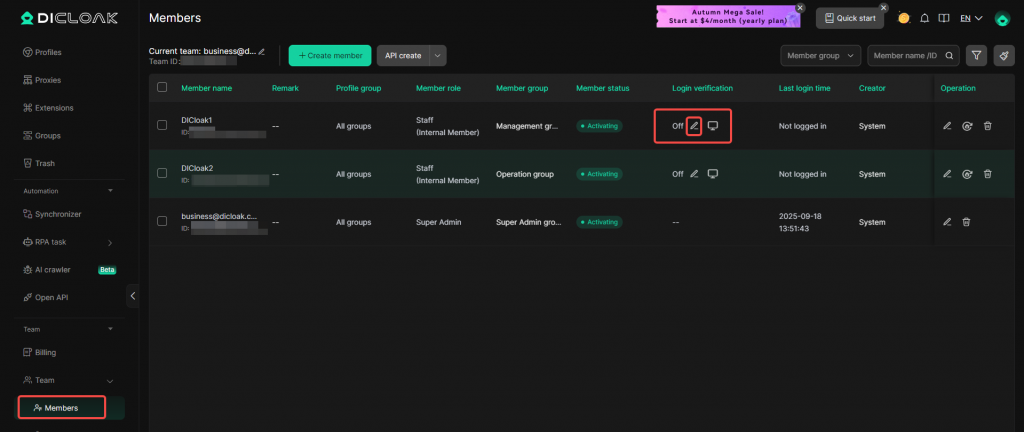
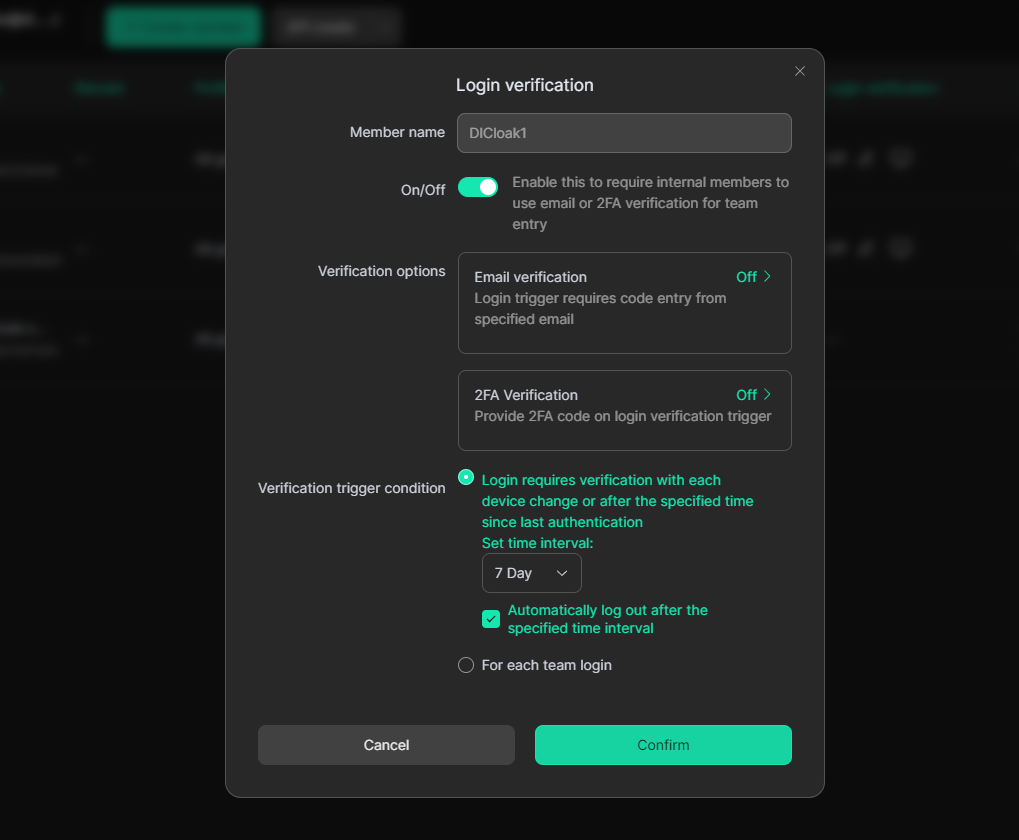
Enable 2FA (Two-Factor Authentication) for member’s DICloak accounts. When logging in, members will need to obtain a verification code from the administrator to prevent them from sharing the account with others. Here’s how to set it up: Important Note: Currently, 2FA is only supported by internal members. If you use 2FA Verification, your members will need to contact the team admin for the 2FA verification code when logging in from new devices.This feature can prevent members from sharing login account information at will.
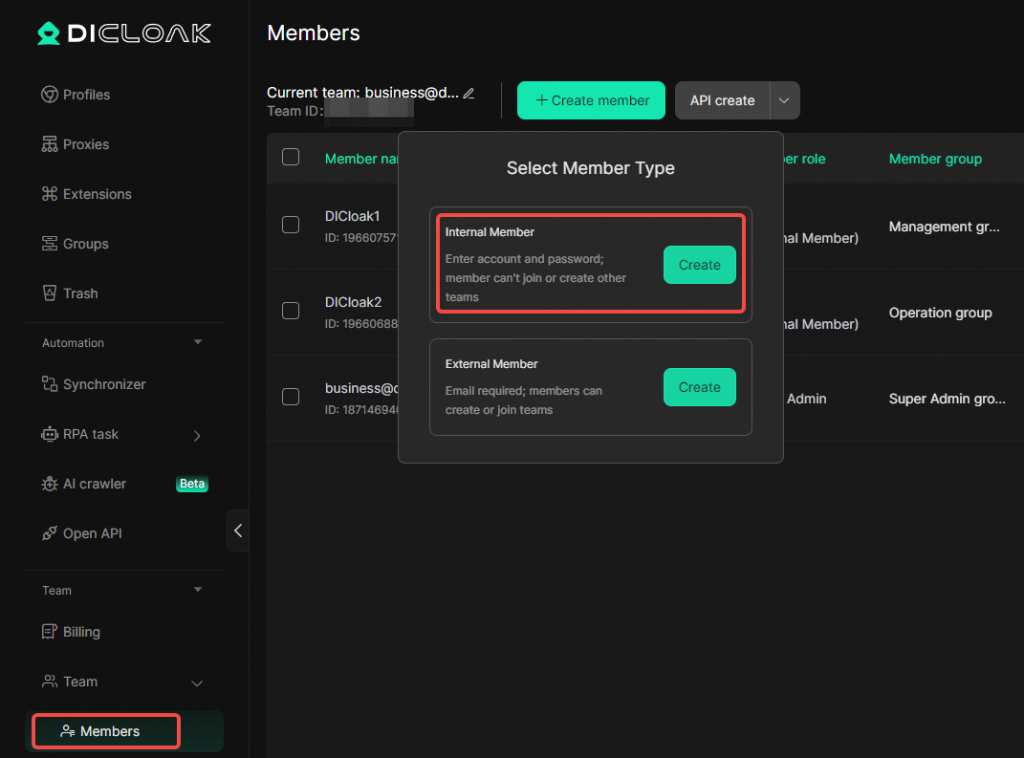
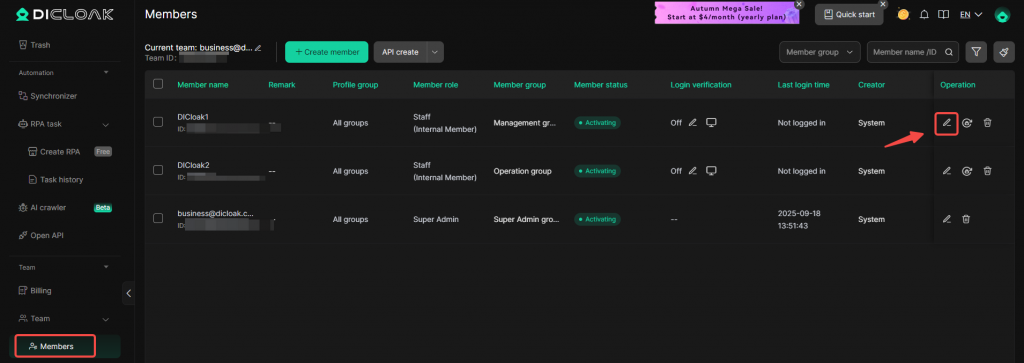
- Go to the member list, find the internal member account for 2FA Verification setup, click [Edit], and enable 2FA.
3.2 Member Permission Settings
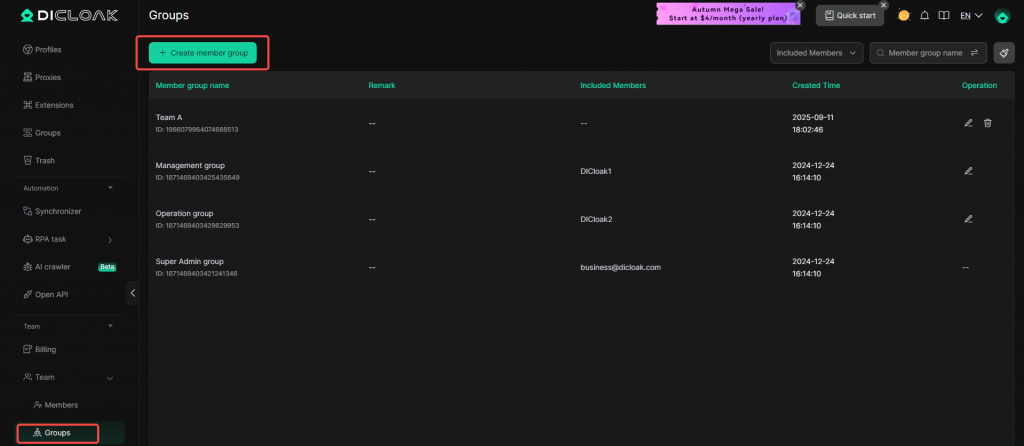
Assign specific browser features to members to avoid unauthorized actions. Here’s how to set it up:
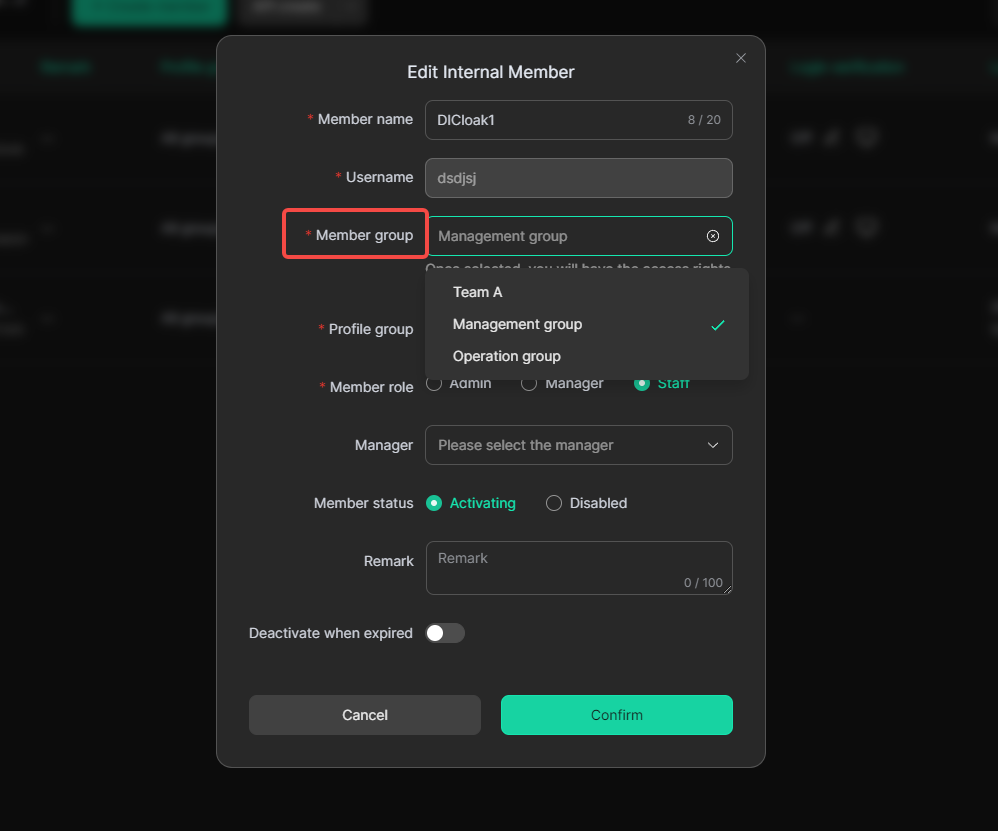
- Go to the [groups] list to create the corresponding member group and set the permissions.
- Go to the member list to assign the corresponding member group to the members and save the settings.
3.3 Member Activity Logs
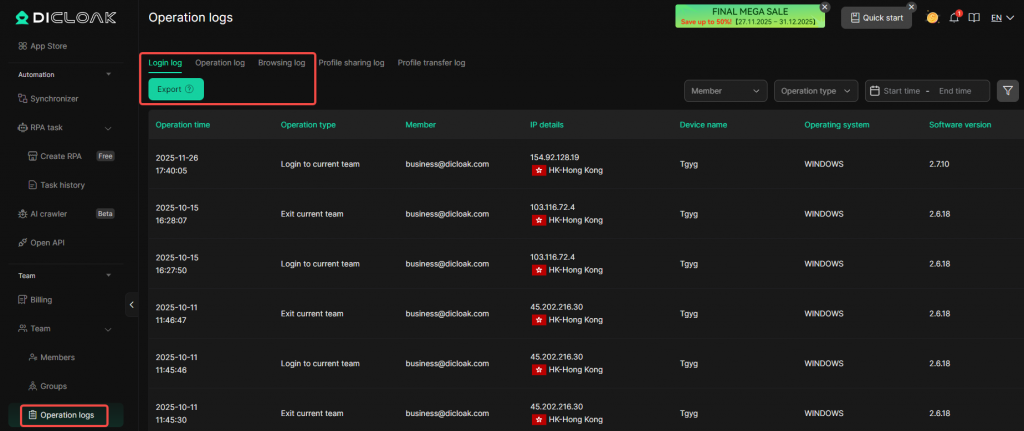
DICloak provides Login Logs, Operation Logs, and Browsing Logs, supporting log data imports. This allows administrators to clearly track members’ device login status, actions within the software, and daily browsing activity. It helps administrators quickly identify users engaging in abnormal behavior and take management actions accordingly.
3.4 Member Login Device Management
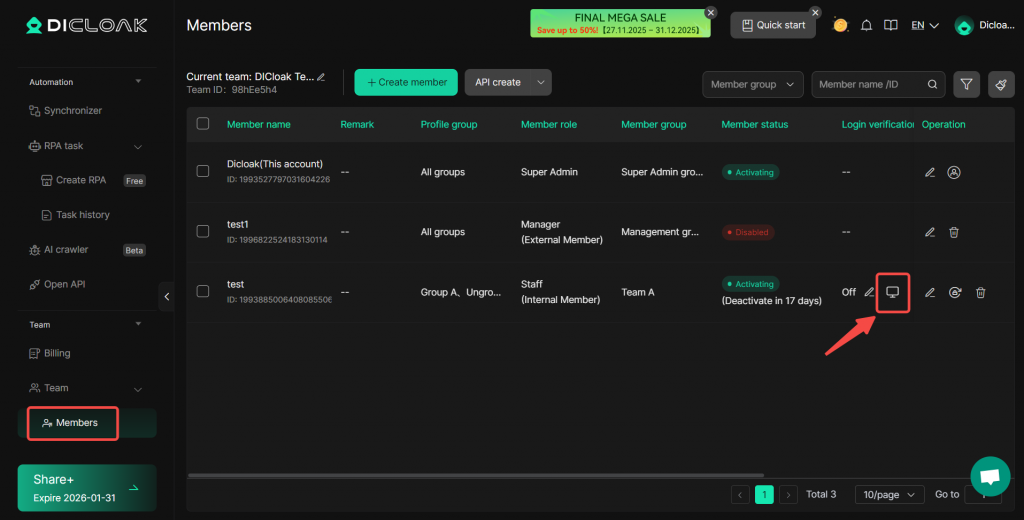
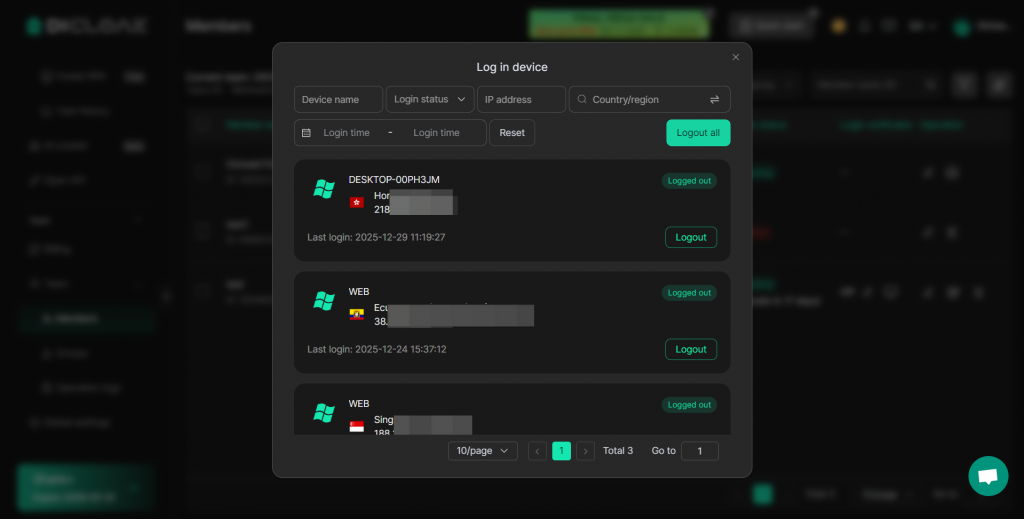
Go to [Team] > [Members], click the “Device” icon to view the devices that have logged into the member’s account, and log out suspicious devices.
4. Contact Exclusive Customer Support
If you encounter any issues with settings, please contact DICloak’s exclusive customer support for assistance.