Bookmark settings in the browser are an essential and practical feature. With bookmarks, you can easily mark and save frequently visited web pages, allowing you to quickly access important websites and pages during your daily browsing, saving you time and effort.
The Benefits and Functions of Bookmark Settings Include:
- Quick Access: Bookmarks allow you to quickly access your frequently used web pages, avoiding the hassle of typing the URL or searching every time.
- Organized Management: You can categorize and organize your bookmarks according to your personal needs, creating folders and setting labels, making your bookmarks more orderly and easier to manage.
- Cross-Device Sync: Most browsers support cross-device bookmark synchronization, meaning you can sync your bookmarks across different devices—whether it’s a computer, tablet, or phone, you can access the same bookmarks.
DICloak now supports the bookmark import feature. Below are the detailed instructions for using it.
1. Export Bookmarks from Chrome
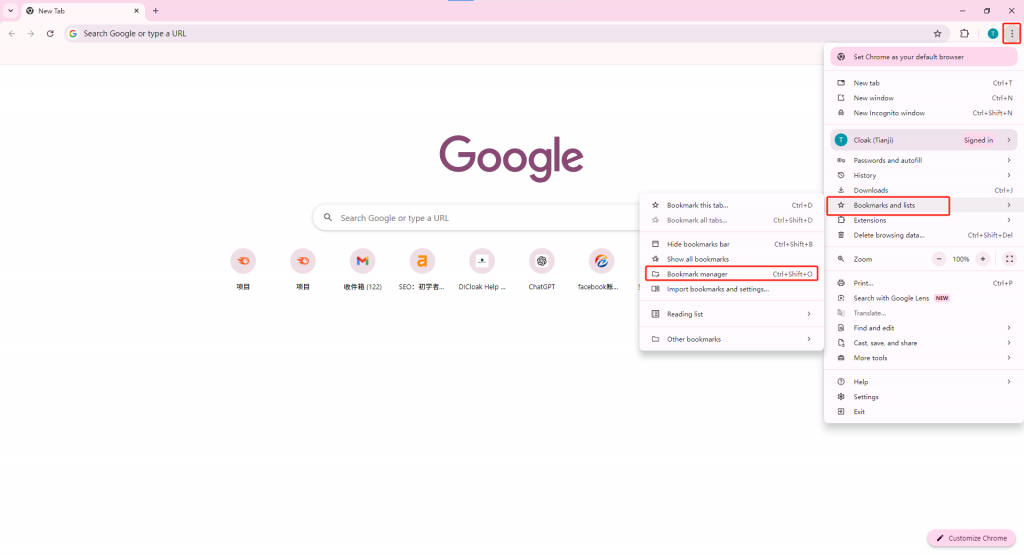
- Click the Chrome browser’s settings button, select Bookmarks and List, then go to Bookmark Manager.
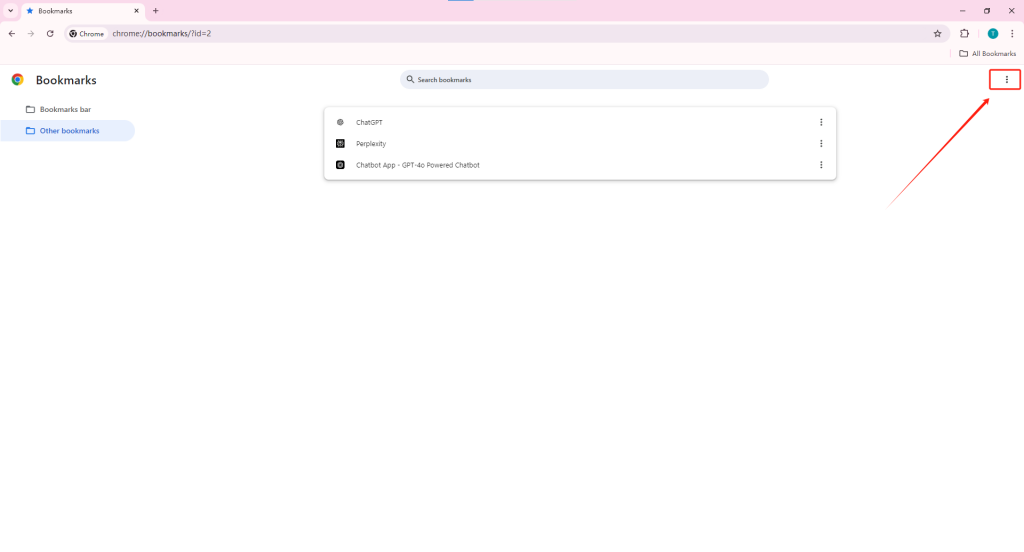
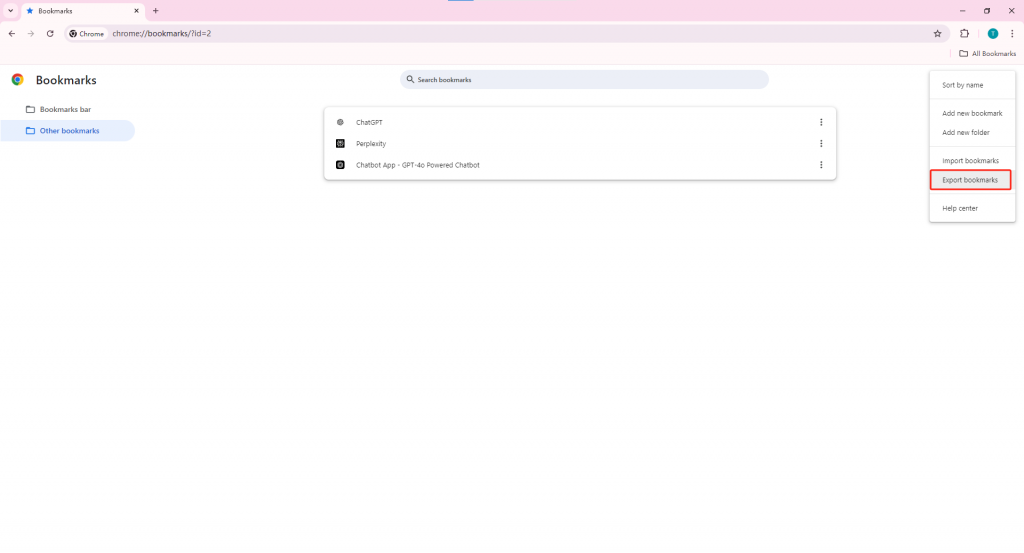
- Click the three dots in the top-right corner and choose Export Bookmarks.
2. Open Global Settings
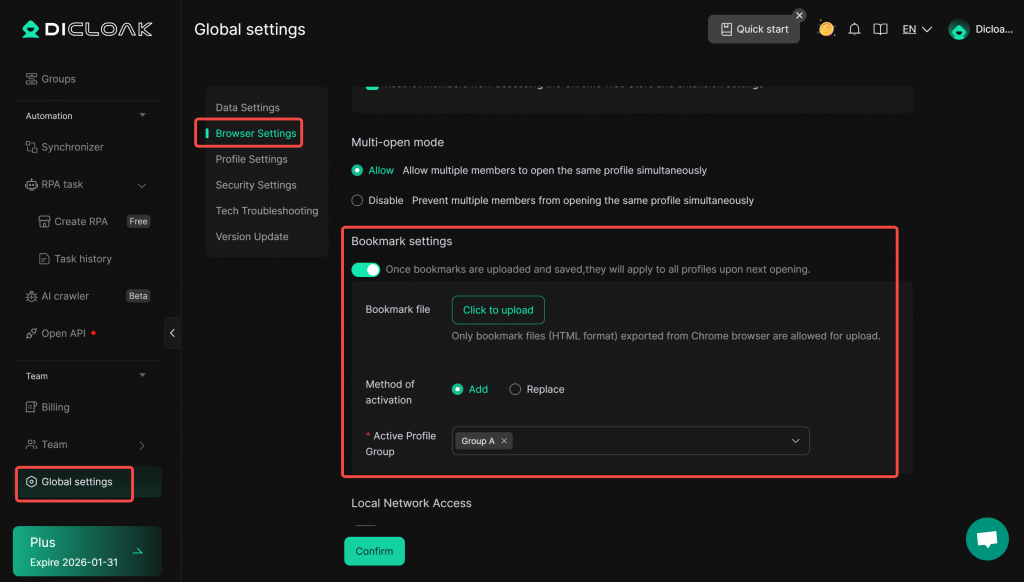
- Click [Global Settings] in the left navigation bar. Under [Browser Settings], find [Bookmark Settings].
3. Bookmark Settings
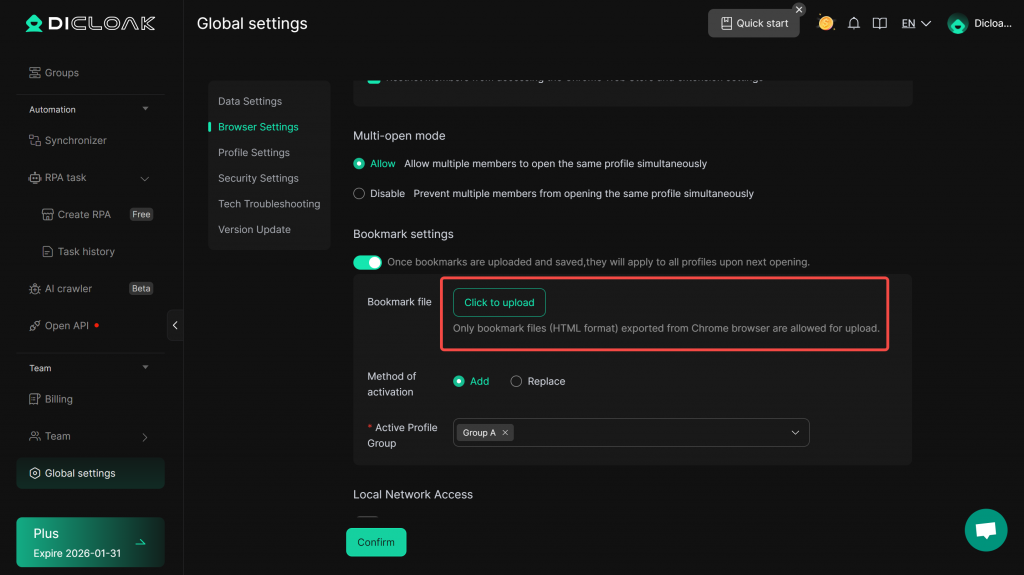
- Enable Bookmark Settings. Click “Upload” to select the bookmark file (in HTML format) exported from the Chrome browser.
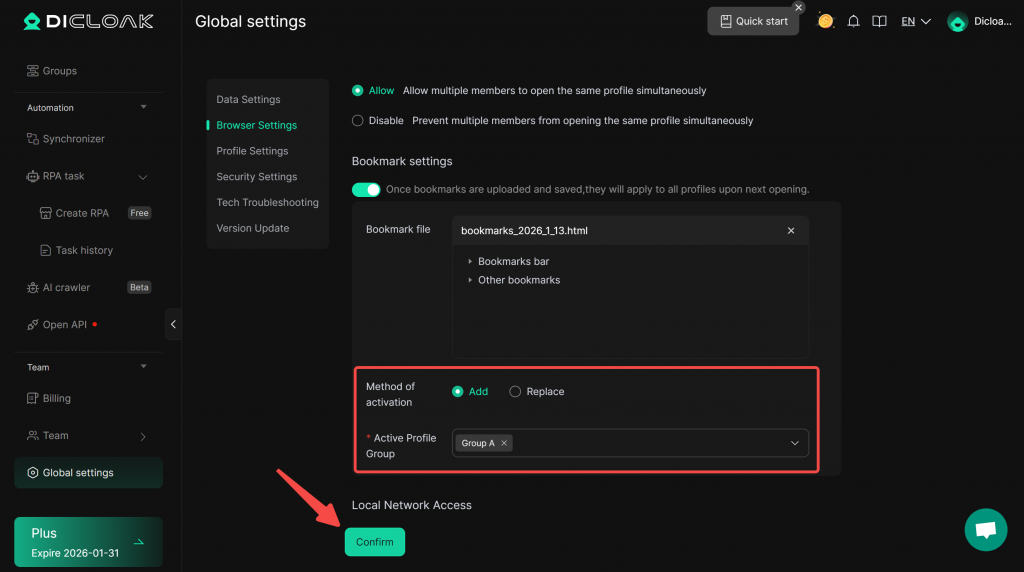
- Choose the Method of activation: “Add” (adds bookmarks to the existing bookmarks in the profile browser) or “Replace” (replaces the existing bookmarks in the profile browser with the uploaded ones).
- Set the Active Profile Groups: The uploaded bookmarks will only take effect for profiles within the selected profile groups.
- Click “Confirm”.
4. Profile Settings
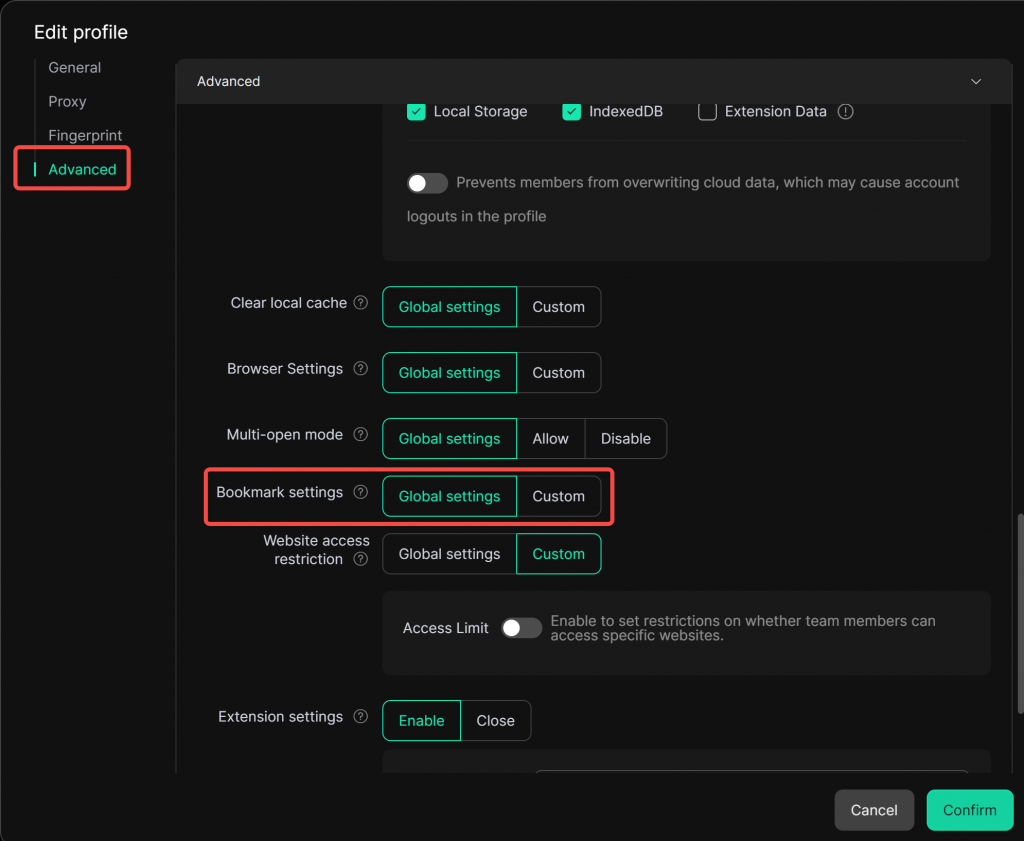
In [Profiles], “Edit” a profile.
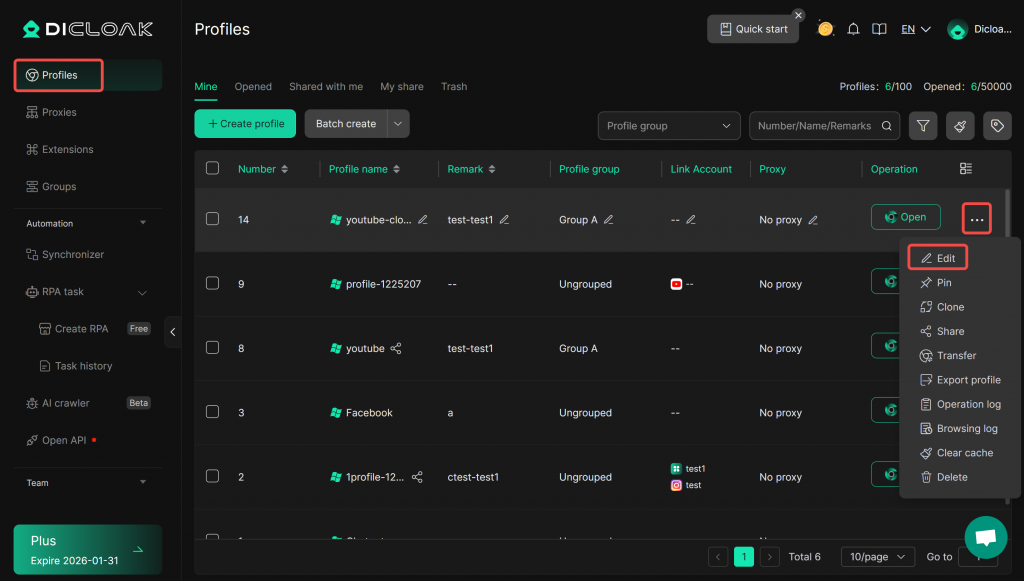
Under [Advanced], Set [Bookmark Settings] to “Global Settings” to apply the bookmark content configured in the [Global Settings] above. Alternatively, choose “Custom” to configure bookmark content individually for this profile.