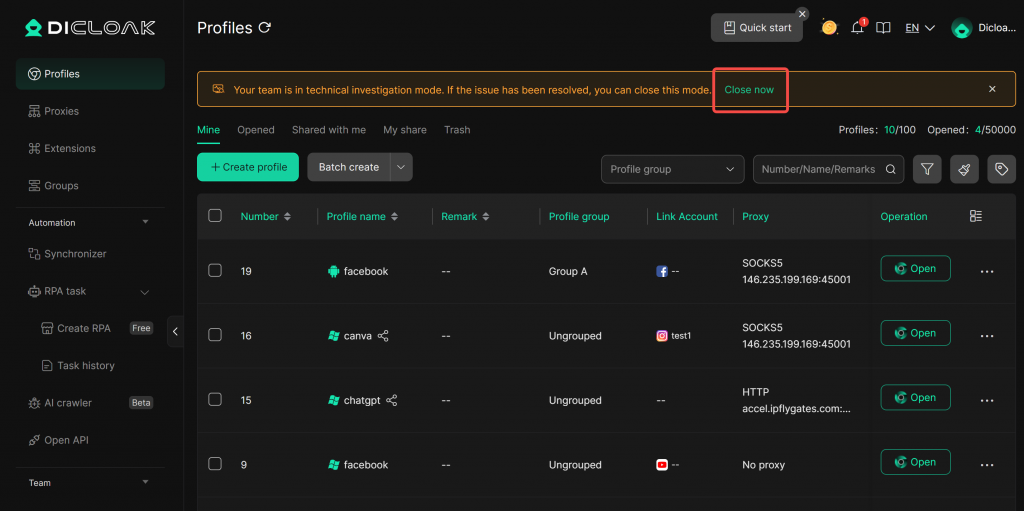
If your team encounters software issues, such as abnormal operation or performance problems, you can enable technical troubleshooting mode and contact us. DICloak’s technical team will access your team through the troubleshooting mode to perform detailed diagnostics and troubleshooting to quickly identify and resolve the issue, restoring the software to normal operation.
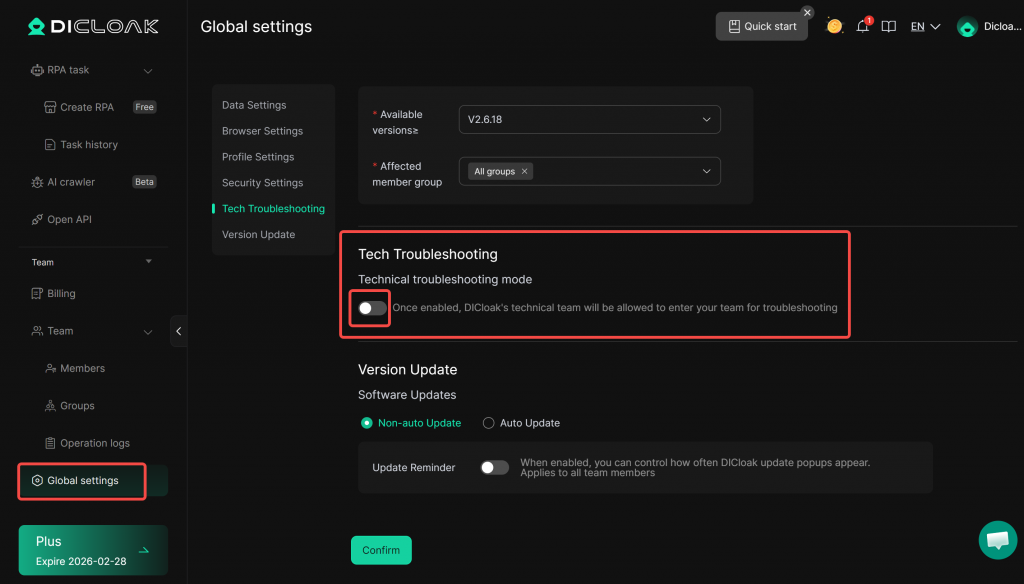
1.Enter Global Settings
Open and log in to the DICloak software. In the left navigation bar, find Global Settings. Scroll to the bottom of the page to find “Technical Troubleshooting Mode.”
2.Enable Technical Troubleshooting Mode
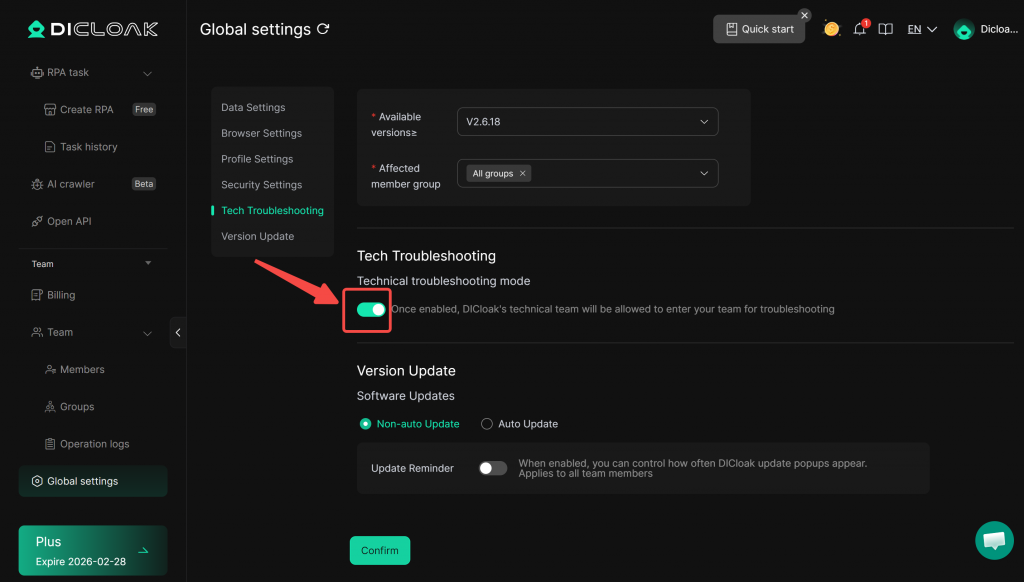
Once troubleshooting mode is enabled, DICloak’s technical team will be allowed to access your team for troubleshooting.
3.Disable Technical Troubleshooting Mode
If you have enabled troubleshooting mode, a notification will appear above the Profiles. After troubleshooting is complete, you can click “Close now” to turn off the technical troubleshooting mode.