By adding extensions to the browser, you can significantly enhance its functionality and practicality. Leveraging the specific tools and services provided by these extensions enables you to quickly complete diverse tasks, reducing manual operations and saving time. Furthermore, the integration of extension capabilities ensures flexibility and compatibility within the profile browser, allowing you to maintain efficiency and security when handling complex tasks or accessing specific websites. This leads to a dual improvement in both work efficiency and quality. Combined with the independent profile management of the fingerprint browser, your online activities become more private, providing solid assurance for team collaboration and individual business operations.
1. Add Extension
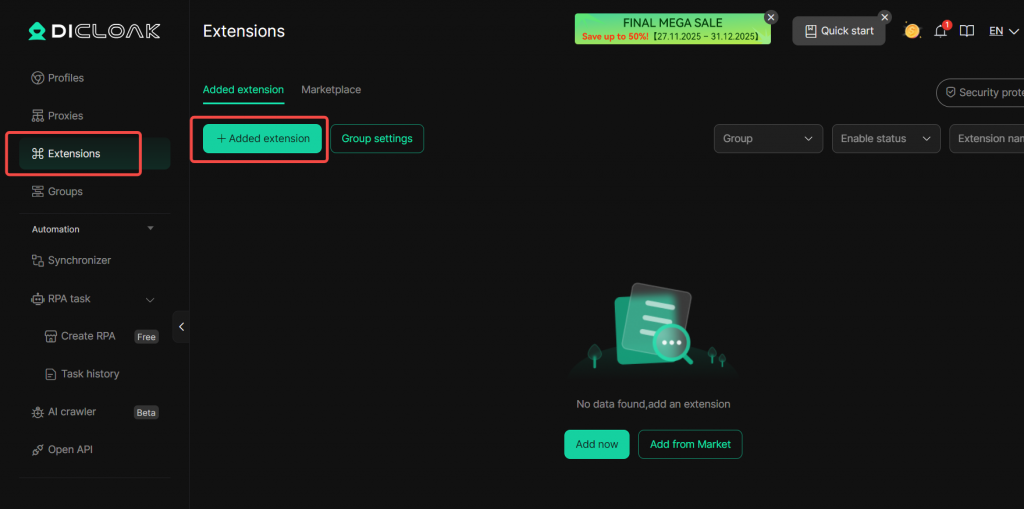
Open and log in to the DICloak software, locate Extension Management in the left navigation bar, and click Add Extension.
Method 1: Get from Chrome Store
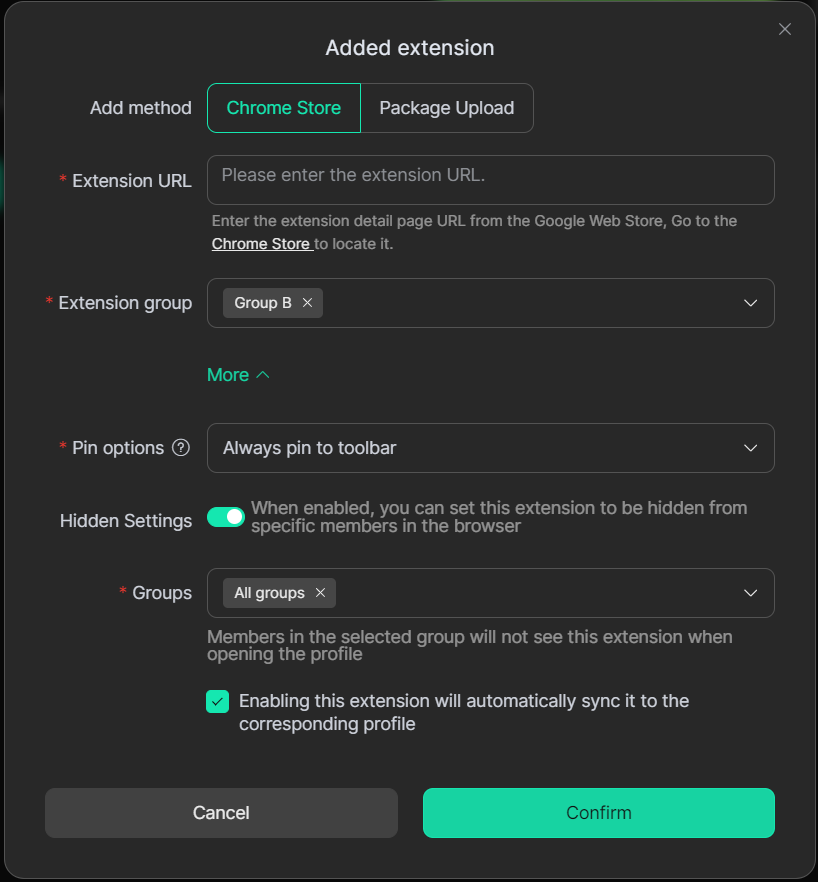
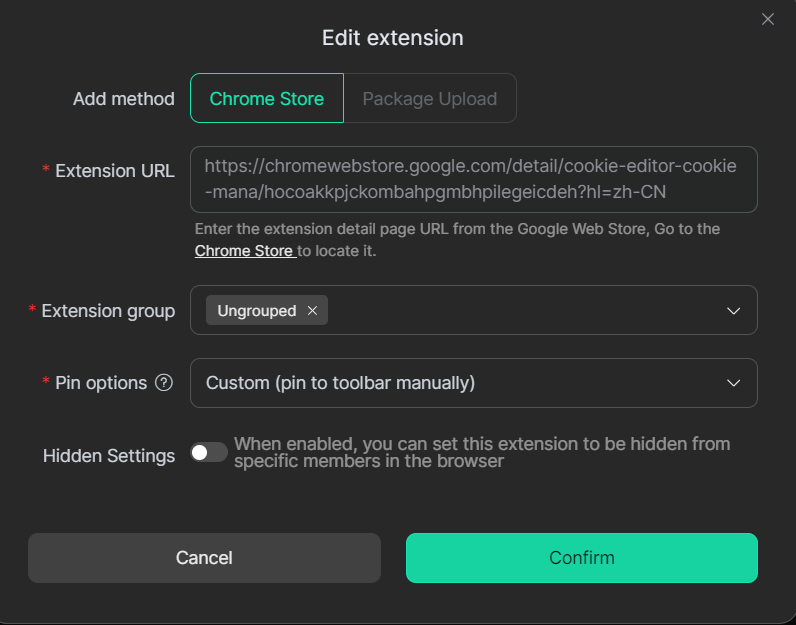
Edit the Extension URL, Extension Group, Pin options, and Hidden Settings.
- Extension URL: Enter the URL of the extension from the Chrome Web Store.
- Extension Group: Select the group to place the extension in.
- Pin options: You can set whether to automatically pin this extension to the browser’s top extension toolbar every time a profile is opened.
- Hidden Settings: You can hide the extension from specified member groups.
- “Enable this extension will automatically sync it to the corresponding profiles”: If enabled, the extension will be activated immediately.
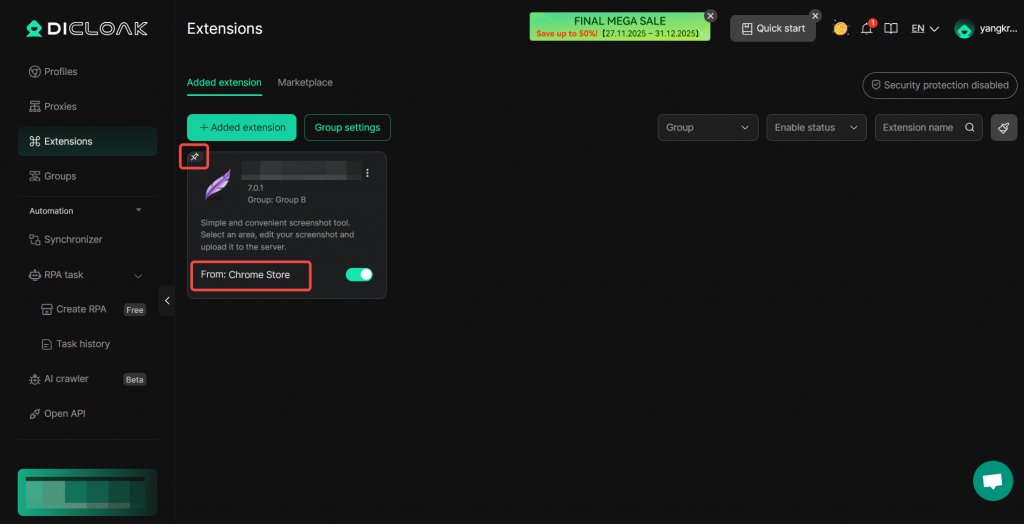
If “Always pin to toolbar” is selected, the added extension will be permanently displayed in the browser toolbar.
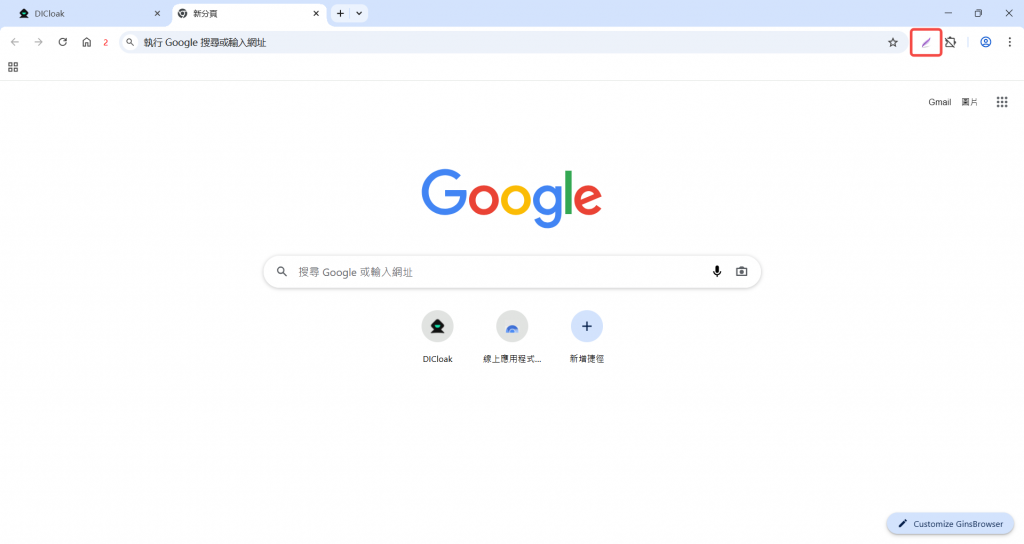
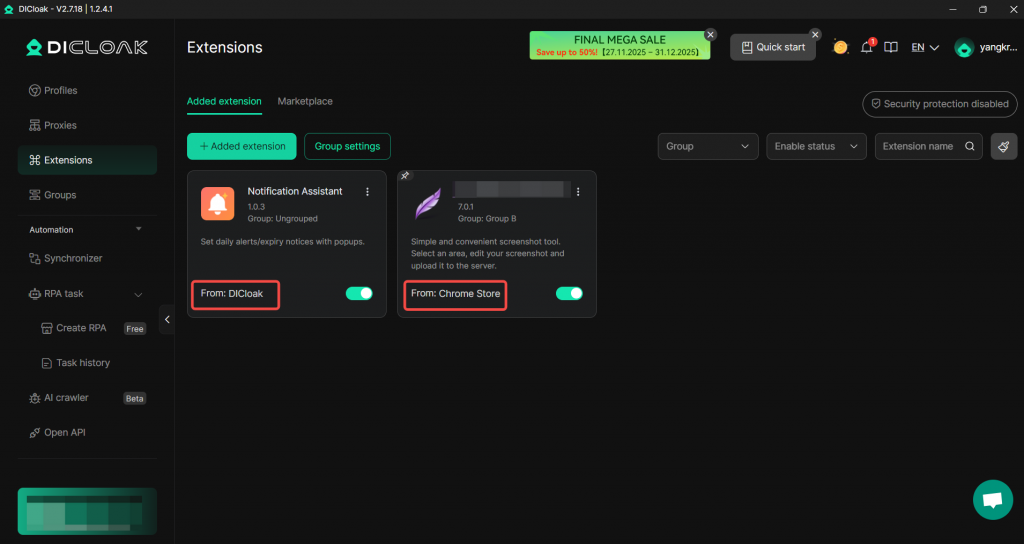
Extensions added via URL will be displayed in the extension list, with the provider shown as “Chrome Store“. If you selected “Always pin to toolbar“, a pin icon will be displayed next to the extension name.
Method 2: Upload Extension Package
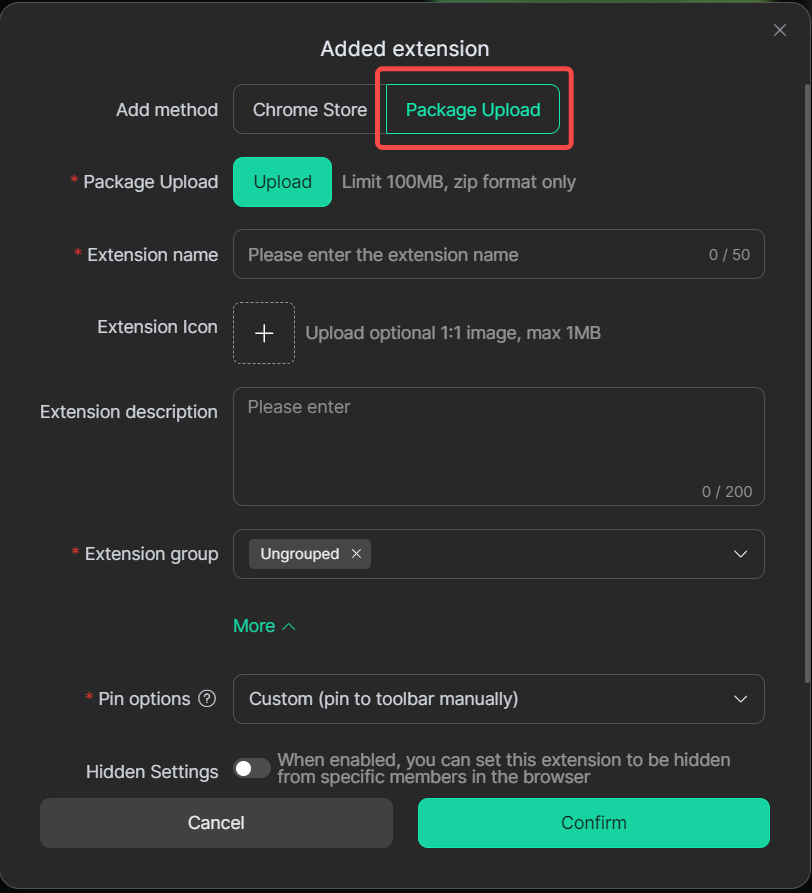
Upload an extension installation package in ZIP format. Edit the Extension Name, Extension Icon, Extension description, Extension group, Pin options, and Hidden Settings, then click Confirm to add the extension.
- Package Uploak: Upload in ZIP format, not exceeding 100MB.
- Extension Name: Within 50 characters.
- Extension Icon (Optional): Please upload a 1:1 aspect ratio image, not exceeding 1MB.
- Extension description (Optional): Can describe the purpose and functionality of the extension.
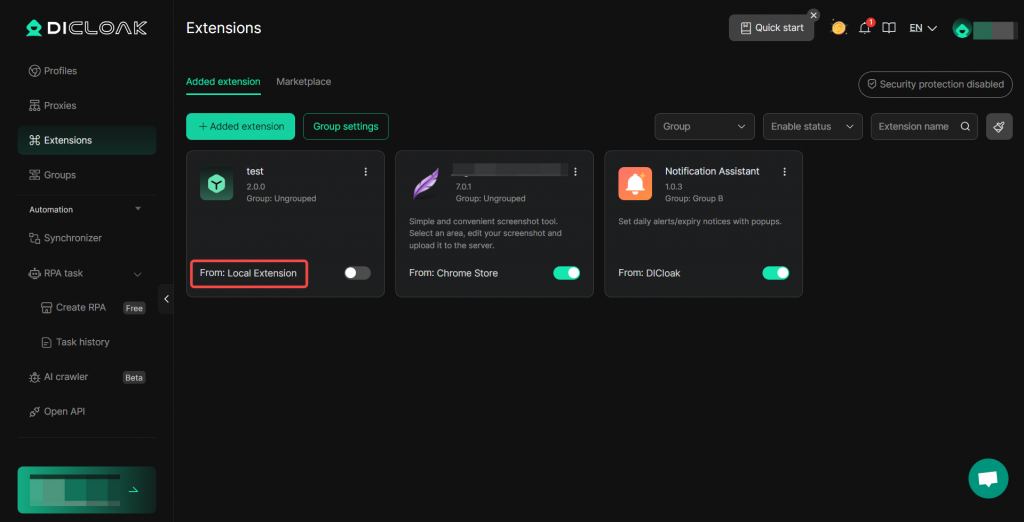
Extensions added via uploaded package will be displayed in the extension list, with the provider shown as “Local Extension“.
Method 3: Add from Marketplace
Go to Extensions -> Marketplace, where you can search by name to add extensions.
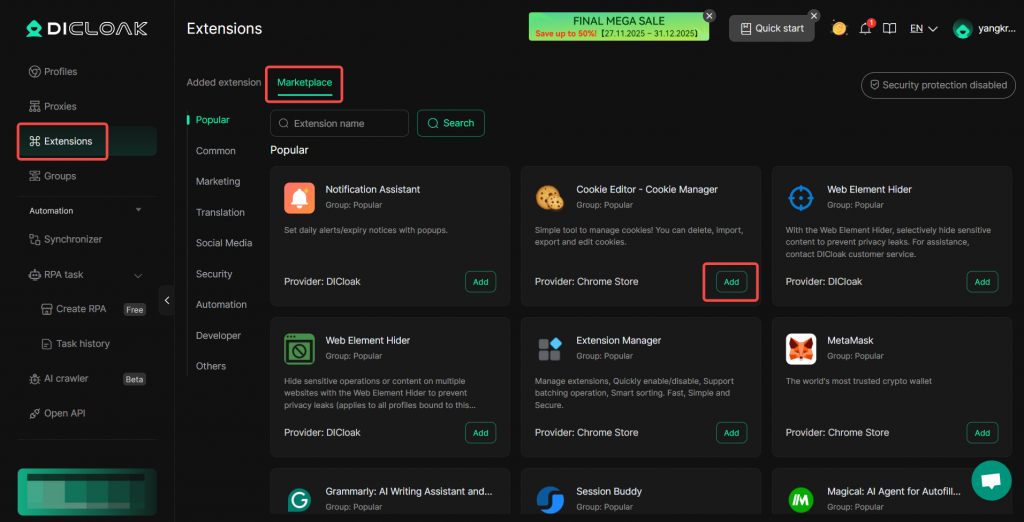
Extensions added from the marketplace will be displayed in the extension list, with the provider shown as “Chrome Store” or “DICloak“.
2. Enable Extension
You need to click the toggle switch for the extension to be synchronized to the browser profiles.
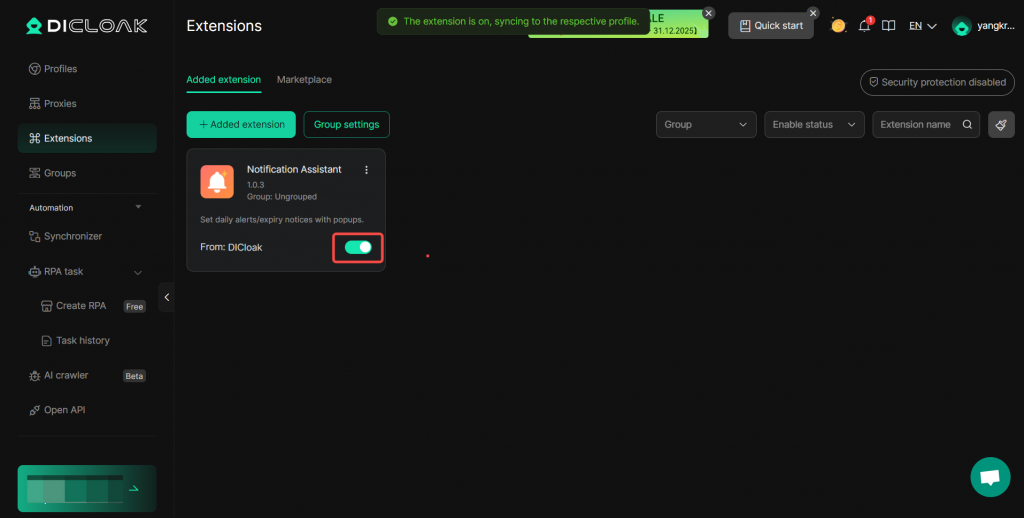
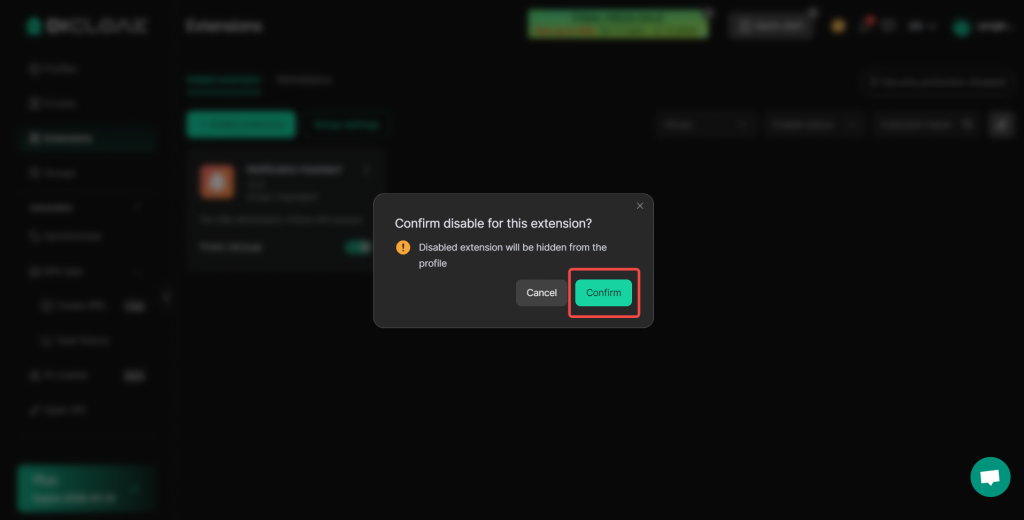
If you do not need to use an extension, you can choose to disable it by clicking its toggle switch.
Click Confirm to disable the extension. Once disabled, the extension will no longer appear in the corresponding profiles.
3. Bind to Profile
Navigate to Profiles from the left sidebar, then edit or batch edit profiles.
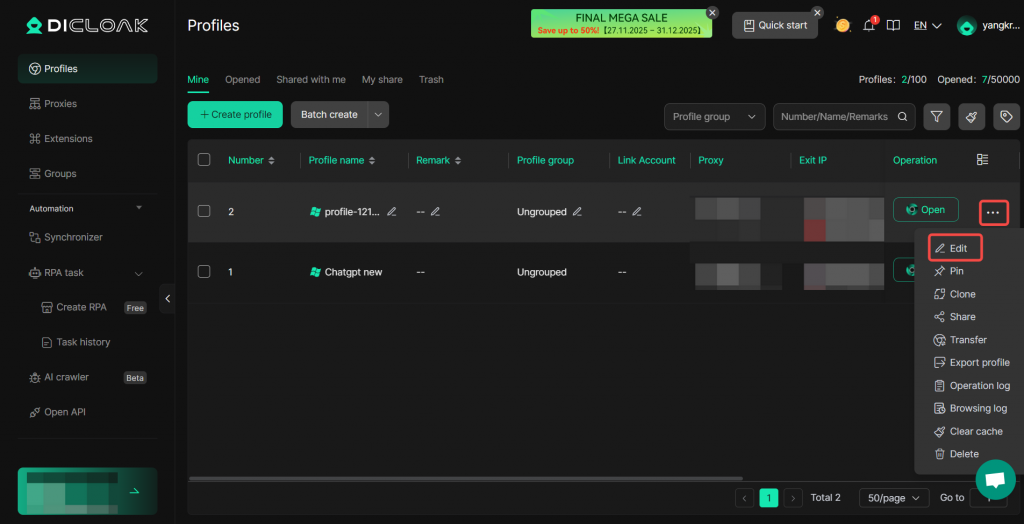
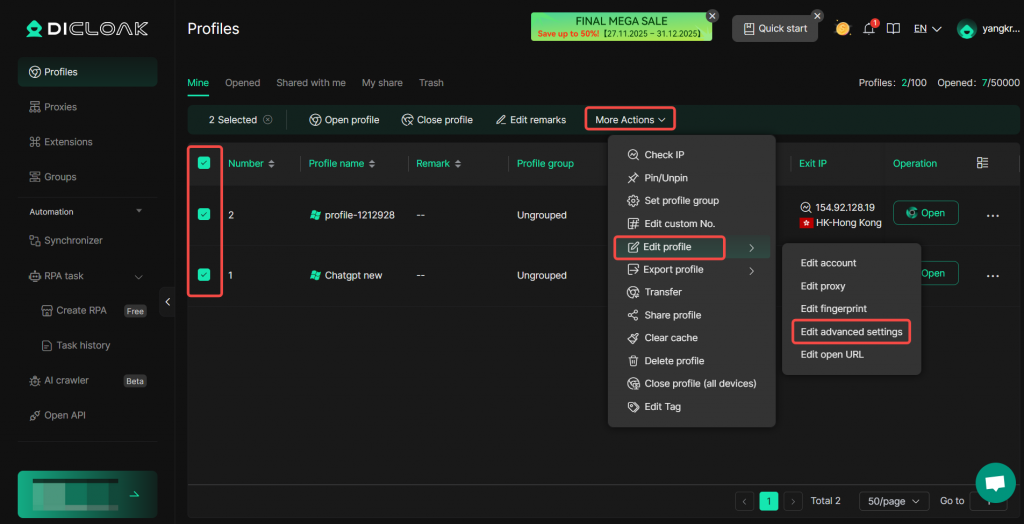
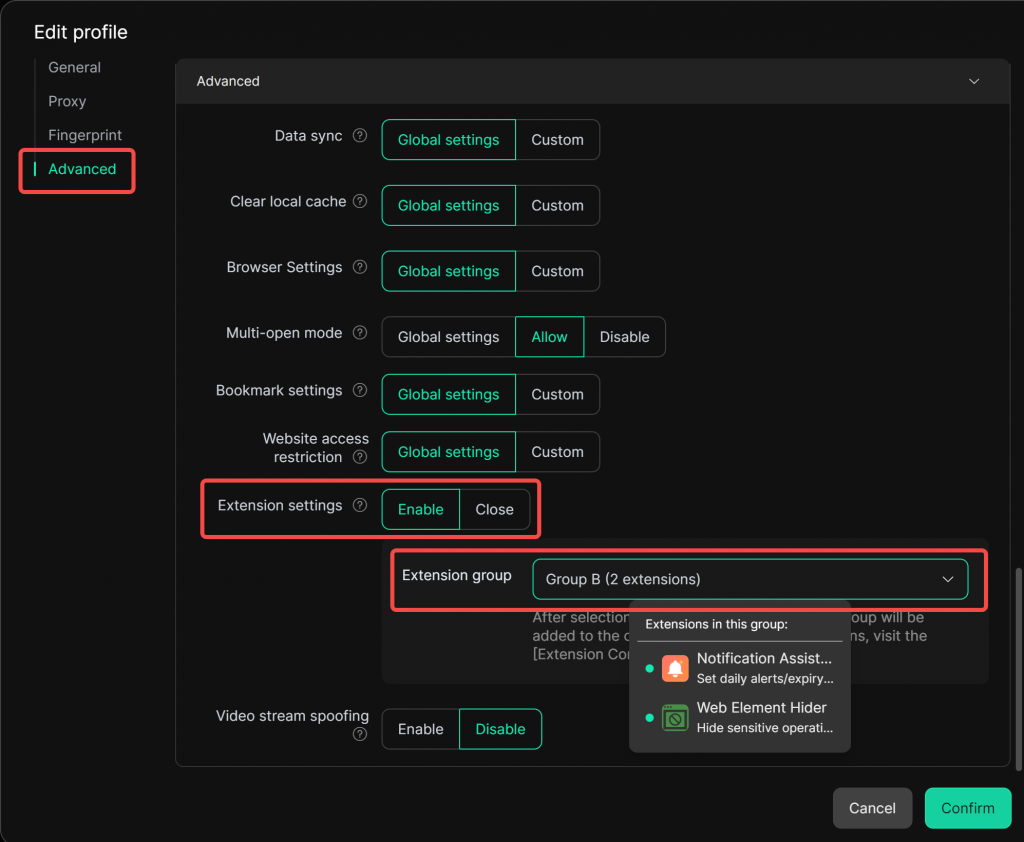
Go to Advanced, enable Extension settings, and select the extension group to be used by that profile.
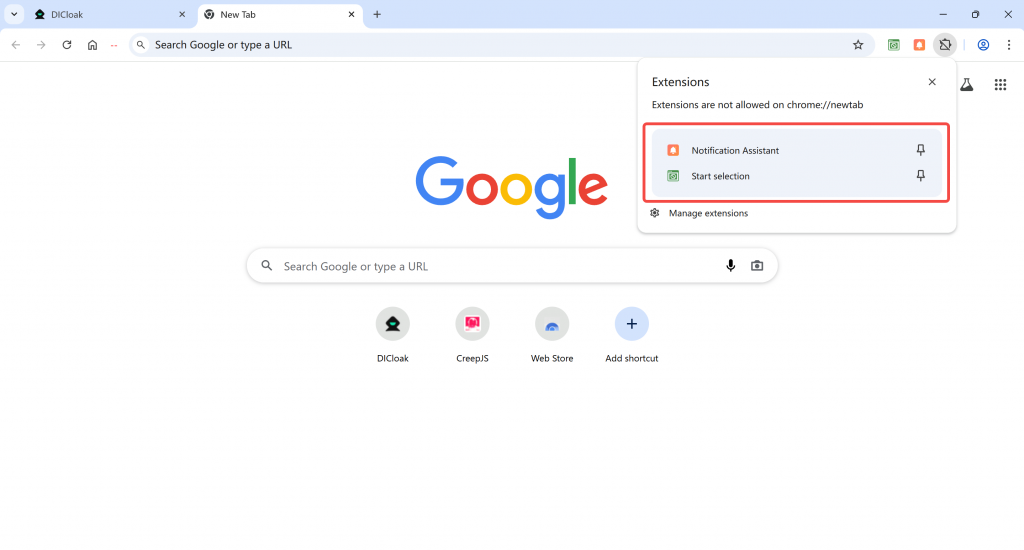
Once set up, all enabled extensions included in the selected extension group will appear in the profile.
4. Update Extension
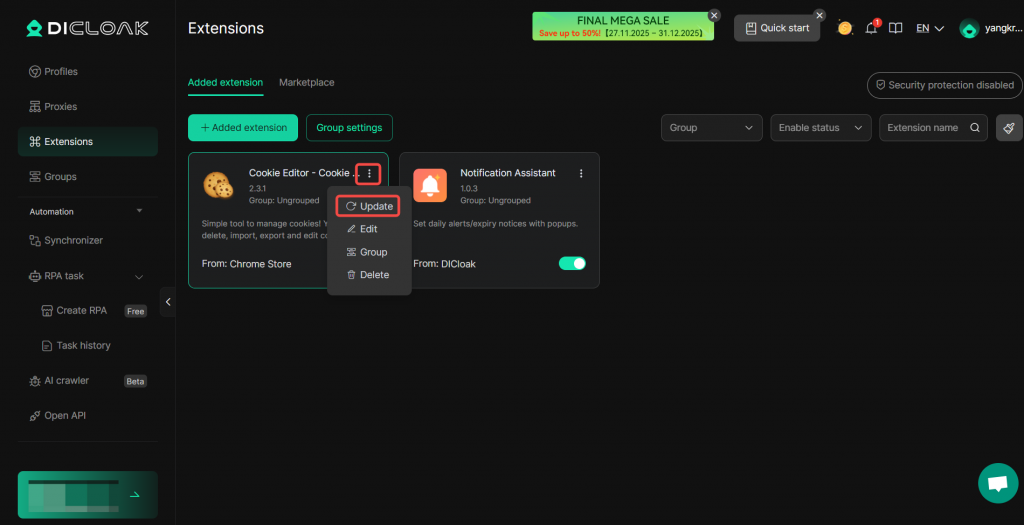
When an extension from the Chrome Store updates its version, you can synchronize extensions provided by the Chrome Store to the latest version.
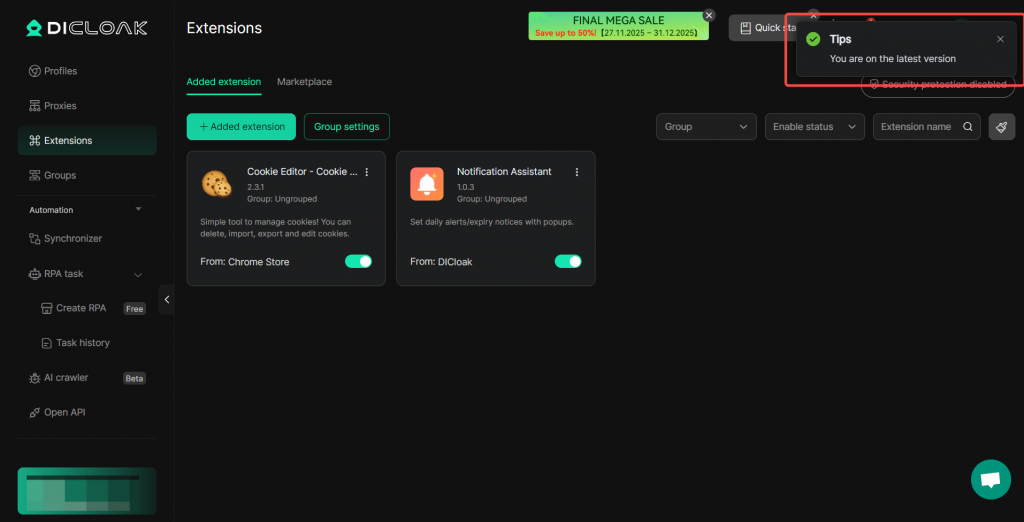
Click Update. A prompt saying “You are on the latest version” indicates your extension has been updated to the newest version.
5. Edit Extension
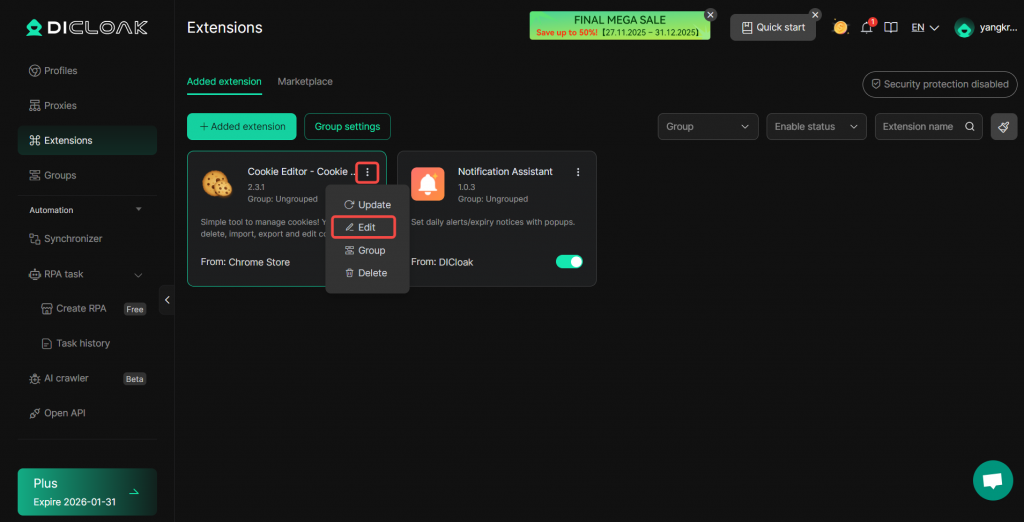
If you want to modify an extension’s related information, you can click Edit.
6. Delete Extension
If you want to delete an extension, you can click Delete.
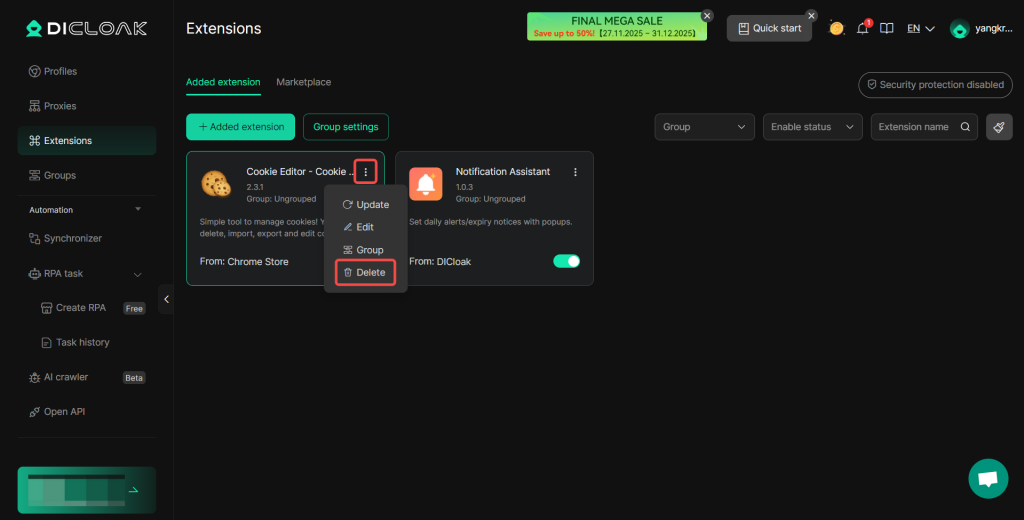
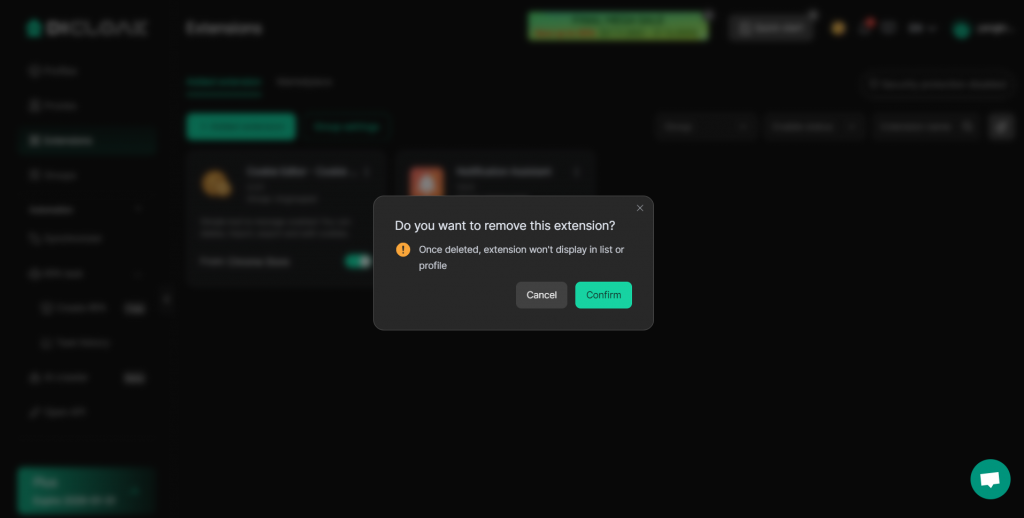
Click Confirm to delete the extension. Please note that this operation is irreversible. After deletion, the extension will no longer appear in the extension list or browser profiles.
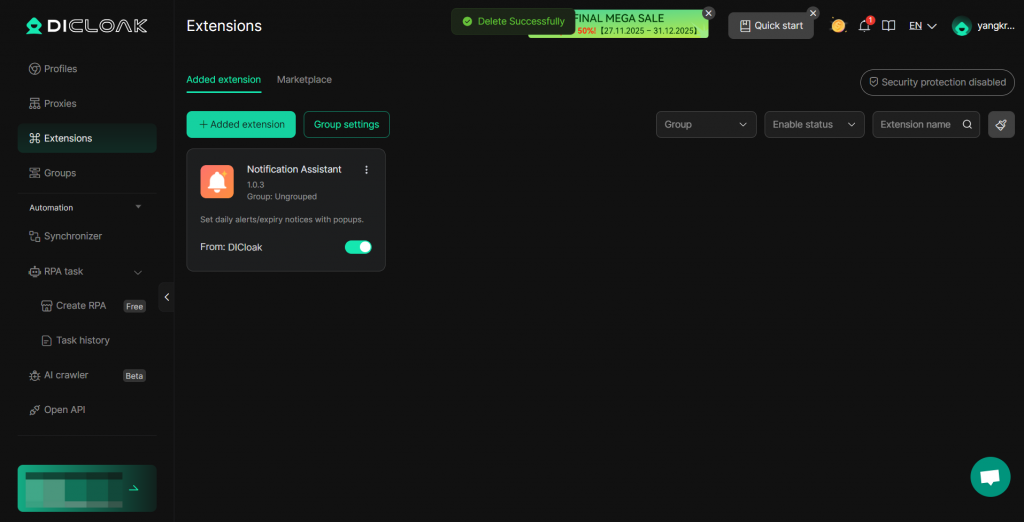
A “Delete successfully” prompt will appear.
7. Security Protection Mode
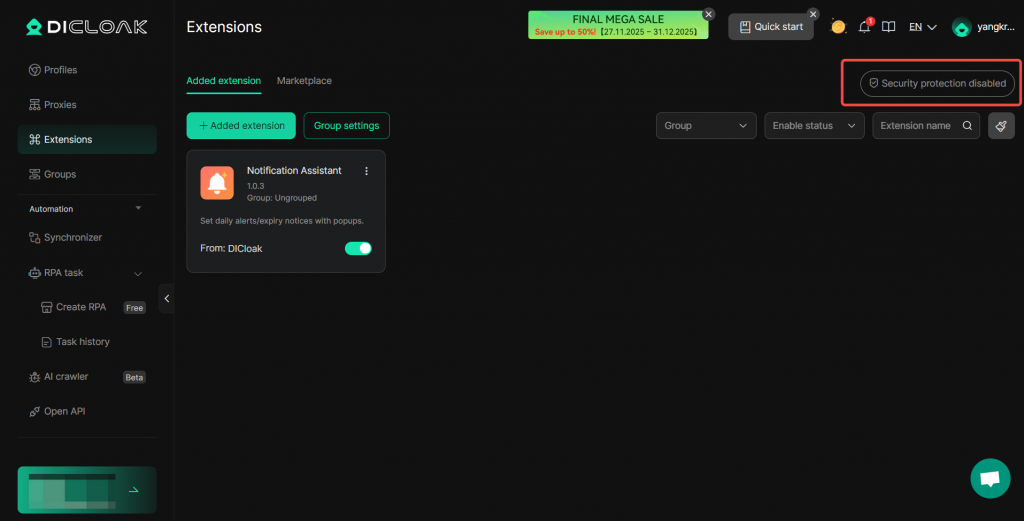
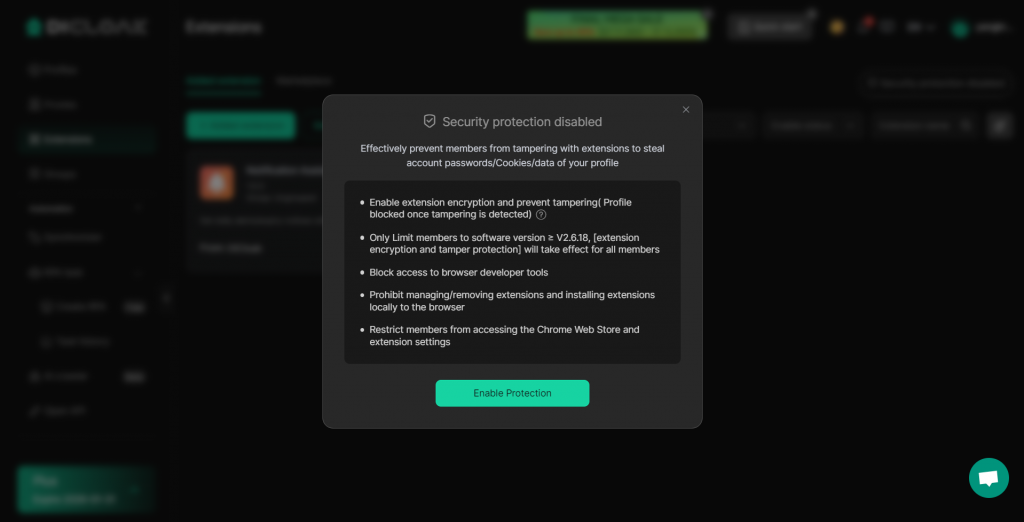
In Extensions, enabling Security Protection can effectively prevent team members from tampering with extensions.
8. Extension Group Management
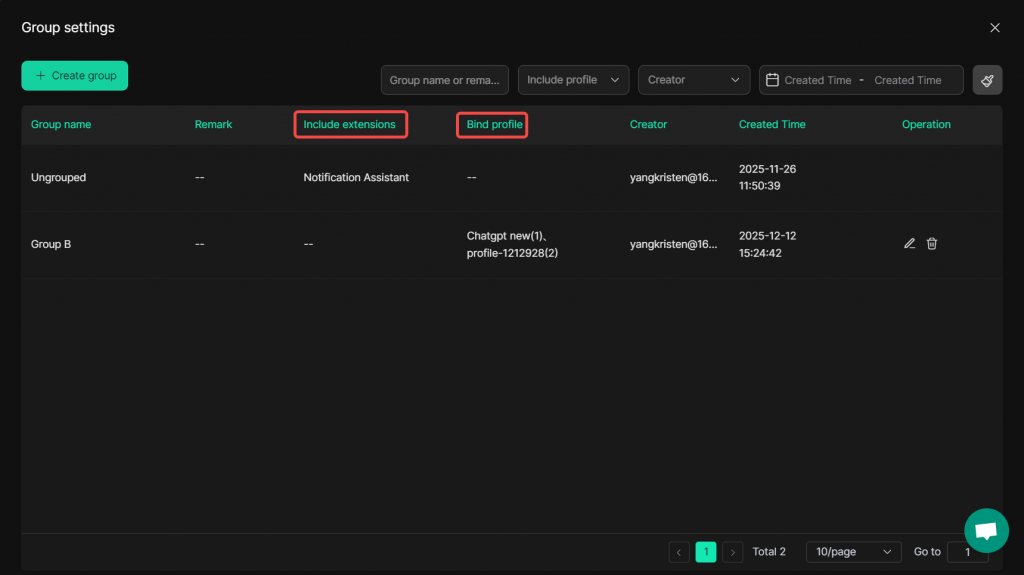
Click Extensions -> Group settings.
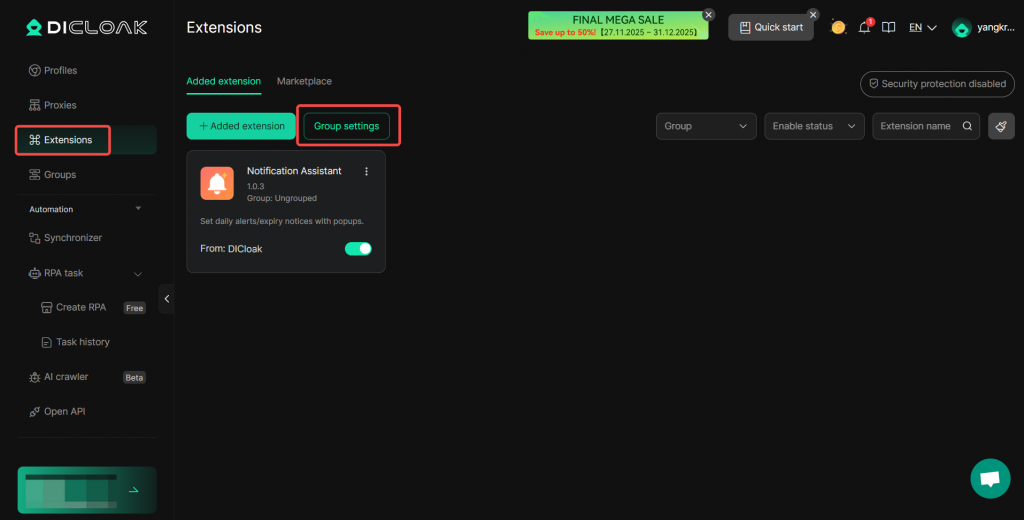
You can view the extensions included in an extension group and the profiles already bound to it.