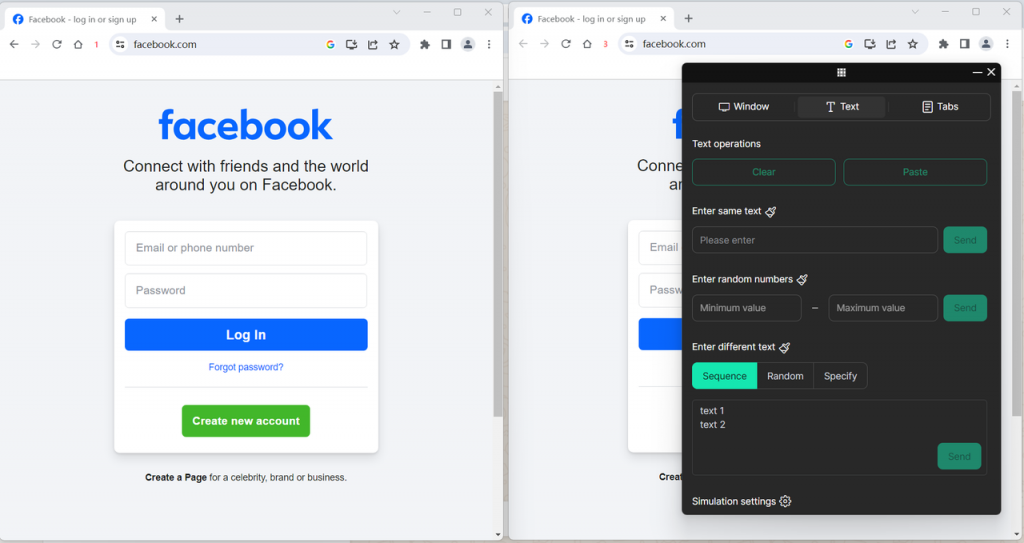
For the plus plan, DICloak offers a window synchronization feature. Once activated, the selected windows will perform the same actions as the master control window. By using window synchronization to execute operations such as mouse clicks, keyboard inputs, and page scrolling, you can complete repetitive tasks all at once, saving time, reducing operational complexity, and ensuring consistency and accuracy.
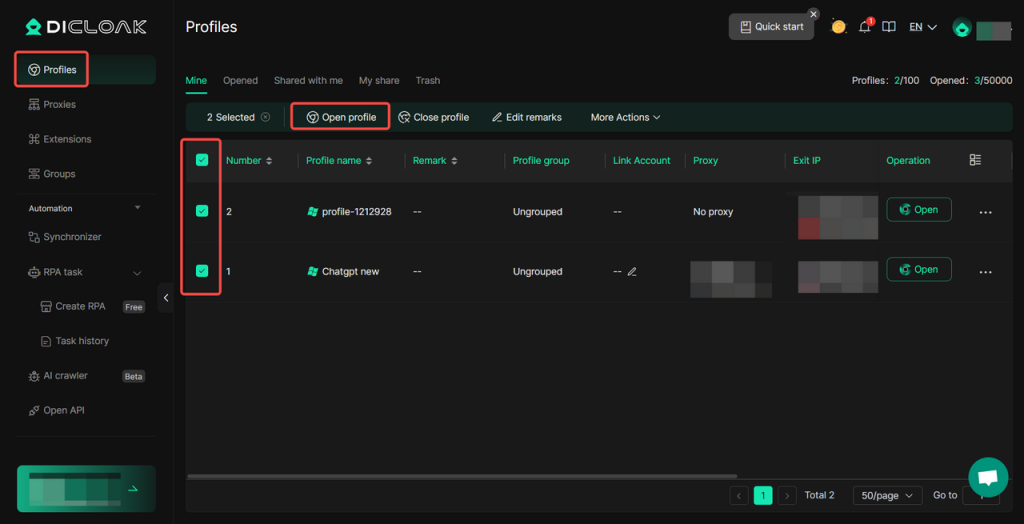
1. Open All Profiles to Be Synchronized
Go to Profiles and open the target profiles in batches.
2. Start Window Synchronization
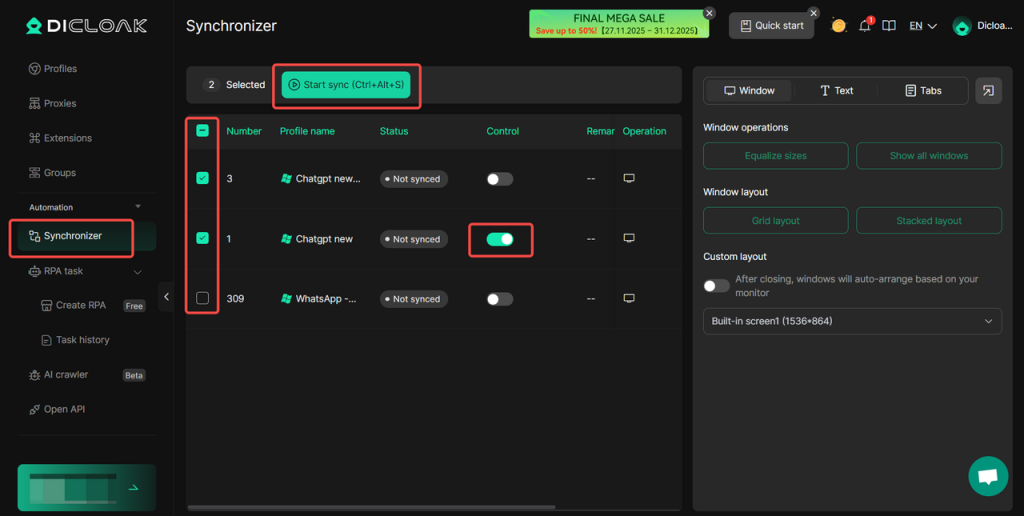
Navigate to Synchronizer from the left sidebar. Select all profiles to be synchronized, set a master control window, and click Start sync.
3. Configure Synchronization Settings
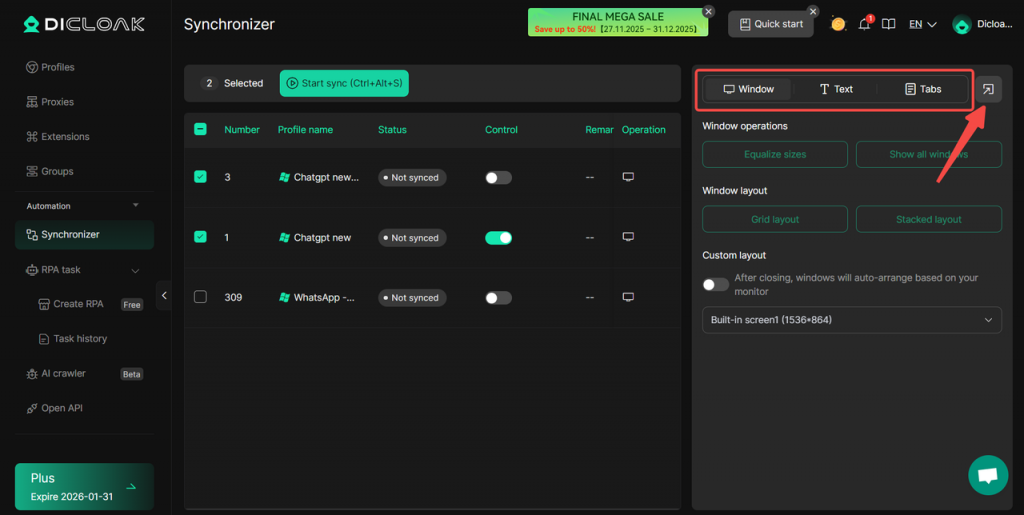
- Window: Configure window synchronization operations and layout.
- Text: Set text operations and input content. Supports entering different texts or random numbers for different windows. Delayed input and clicking can also be configured.
- Tabs: Configure tab operations and Open URL.
Click the button in the top-right corner to detach the operation interface into a separate window for easier control. Clicking and entering text directly in the main window will synchronize the operation in other windows.