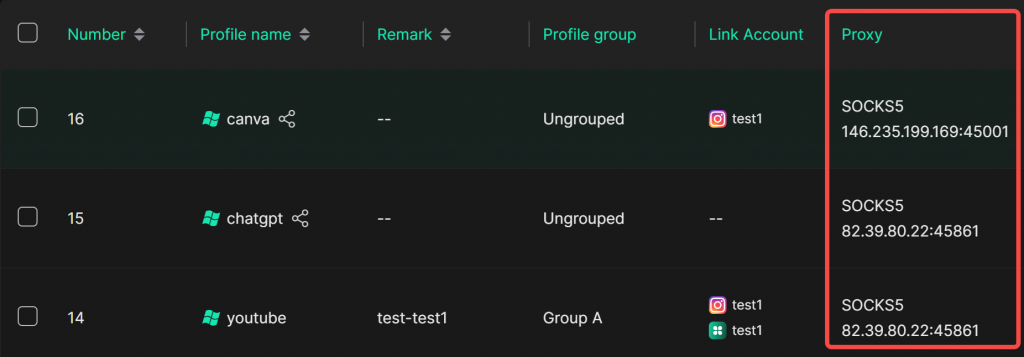
In the DICloak software, you can use proxy groups to better manage multiple proxy configurations and randomly assign proxies from a specific region to your profiles. This guide explains how to create proxy groups and how to use them for random proxy assignment in the profile list.
I. Setting Up Proxy Groups
You can assign a proxy group to a single proxy or batch assign groups to multiple proxies.
1. Set Proxy Group for a Single Proxy
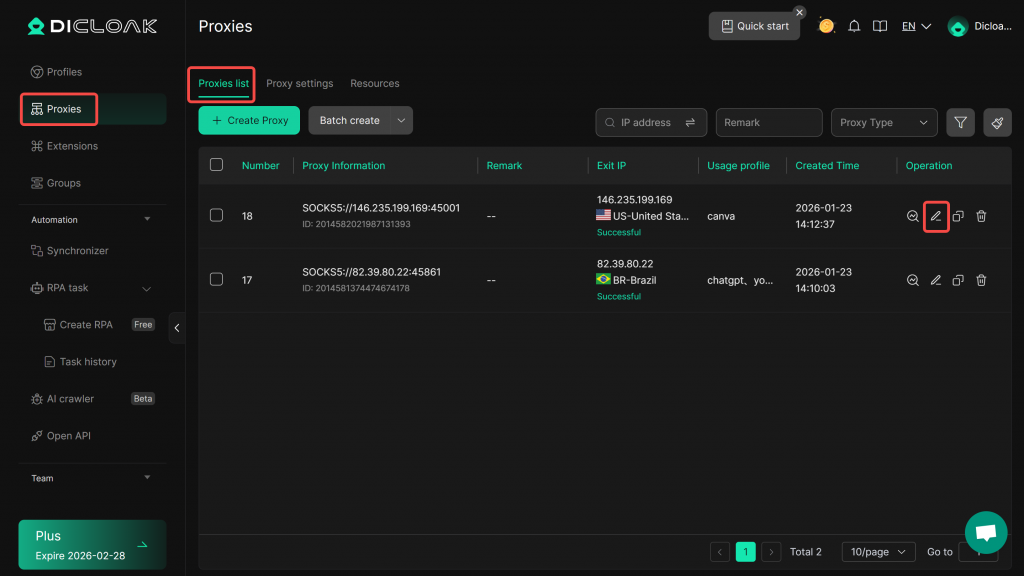
- Go to [Proxies] and edit the target proxy in the [Proxy List].
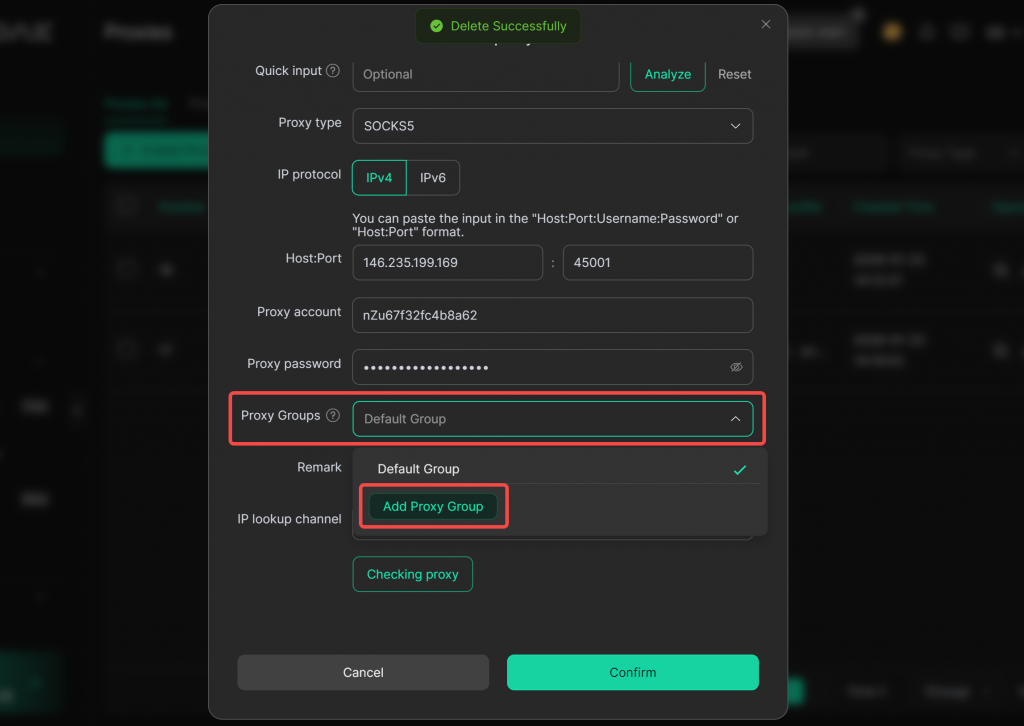
- All proxies without a specified group are automatically placed in the “Default Group”. To create a new group, click “Add Proxy Group”, enter a name, and select it.
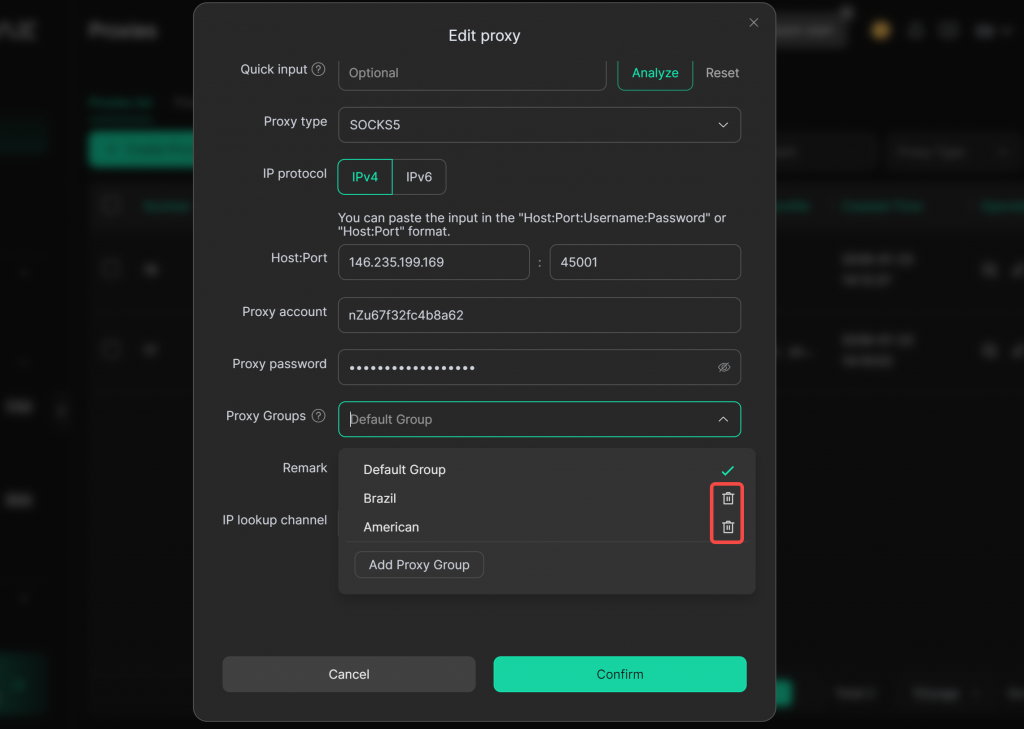
- In the proxy group selection list, you can delete any group except the “Default Group”.
2. Batch Set Proxy Groups
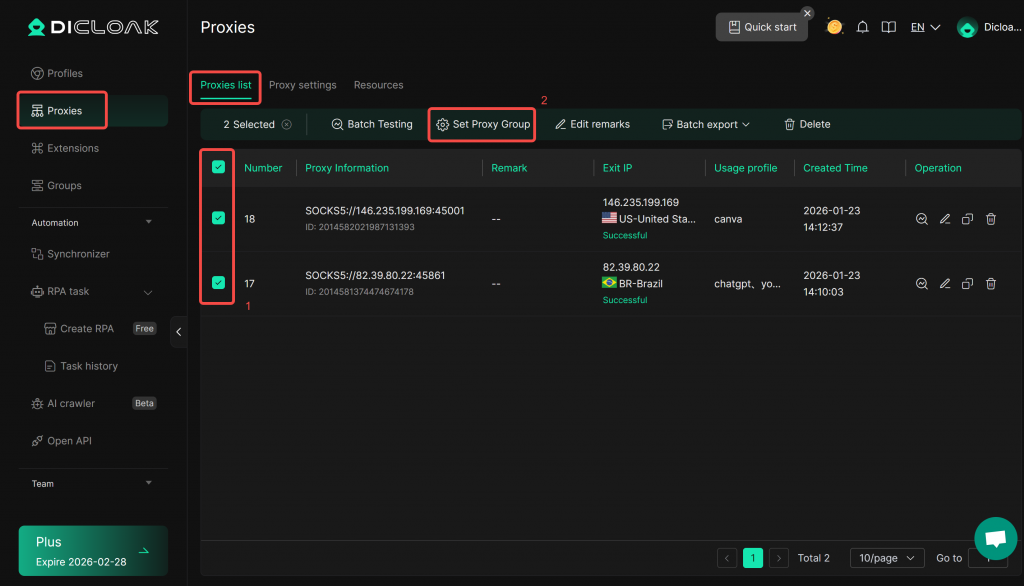
- In [Proxies] > [Proxy List], select the proxies you want to group, then click “Set Proxy Group”.
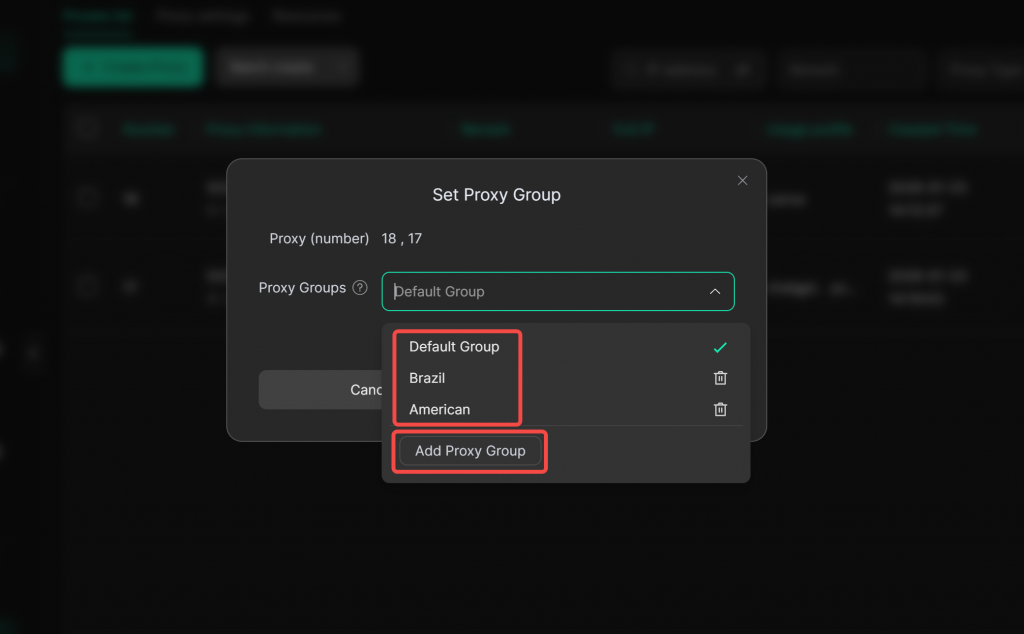
- Choose an existing group for the selected proxies, or click “Add Proxy Group” to create a new one.
II. Filtering Proxies by Group
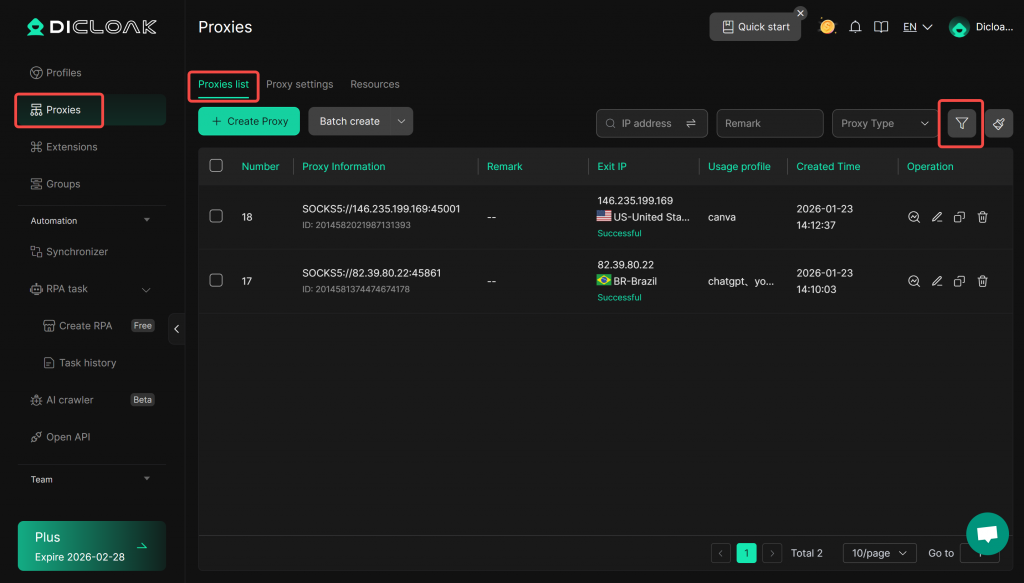
- In [Proxies] > [Proxy List], click the “Filter“ button.
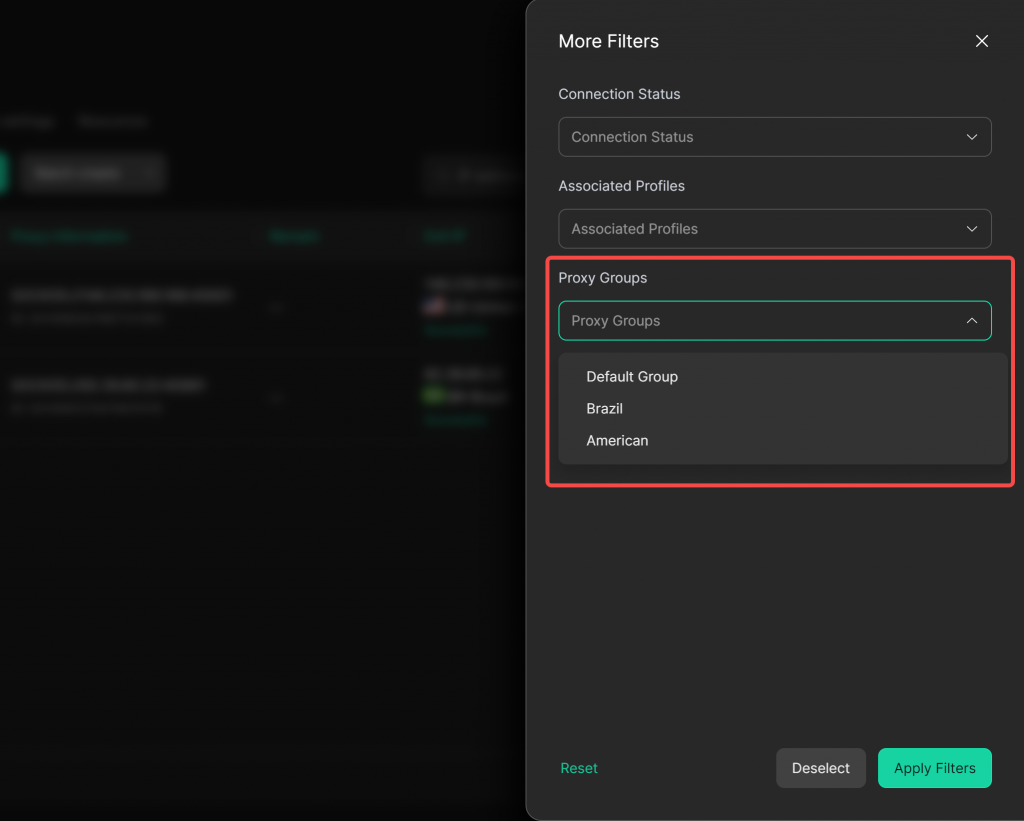
- Select a proxy group to filter and view only the proxies within that group.
III. Assigning Proxies to Profiles
1. Assign a Proxy to a Single Profile
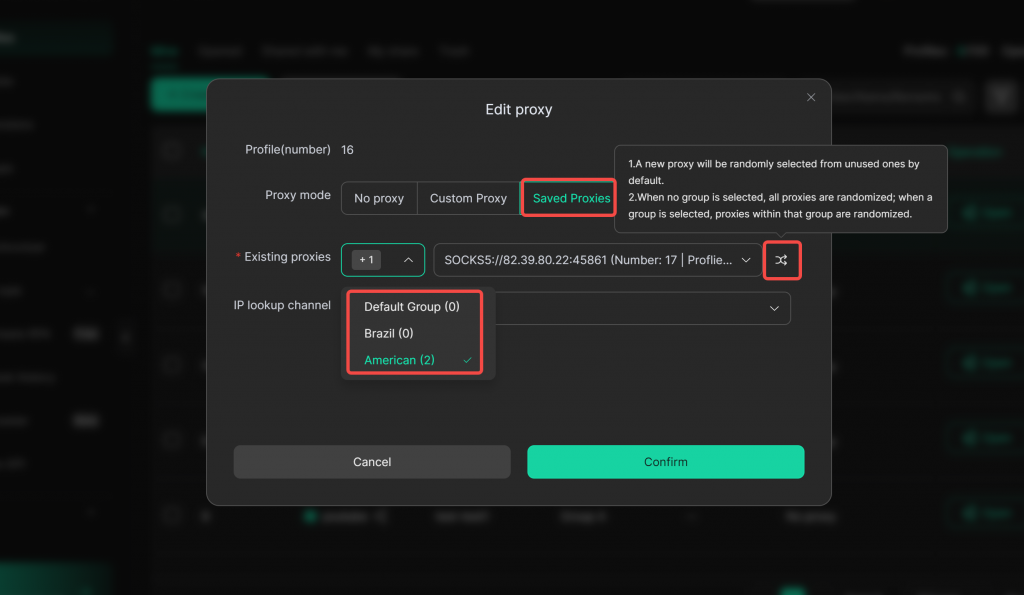
- In [Profiles], edit the target profile under the [Proxy] column.
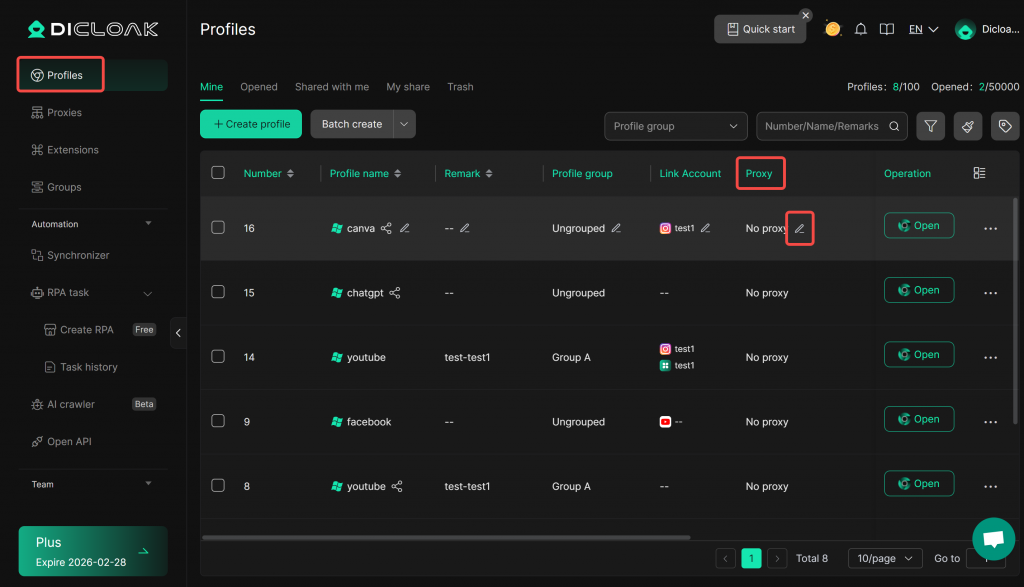
- Select “Saved Proxies”, choose a proxy group, and then either randomly select an unused proxy from that group or pick a specific one. Click “Confirm” to save.
2. Batch Assign Proxies to Multiple Profiles
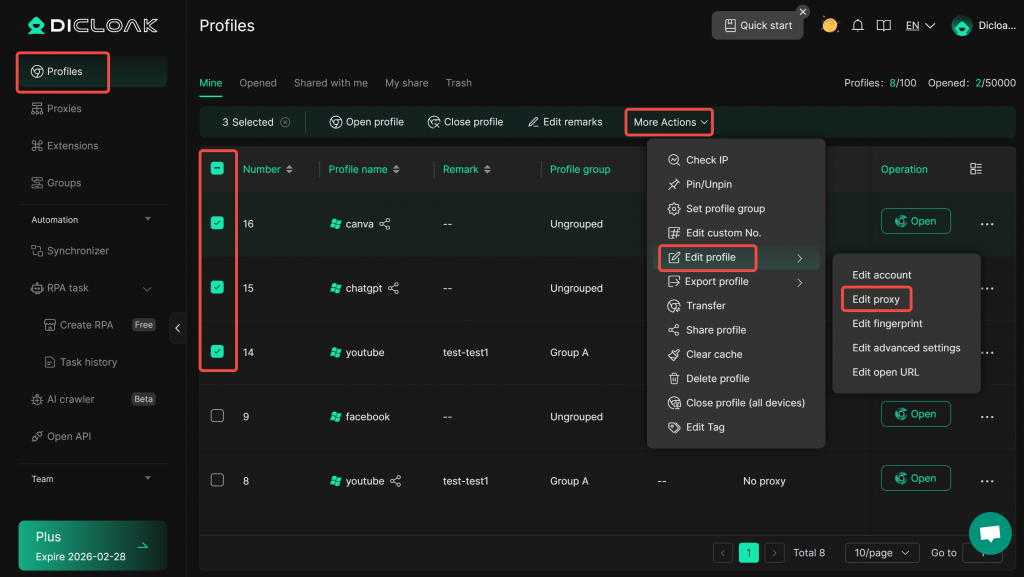
- In [Profiles], select the profiles you want to configure, then click “More Actions” > “Edit Profile” > “Edit Proxy”.
2.1 Assign the Same Proxy to Multiple Profiles
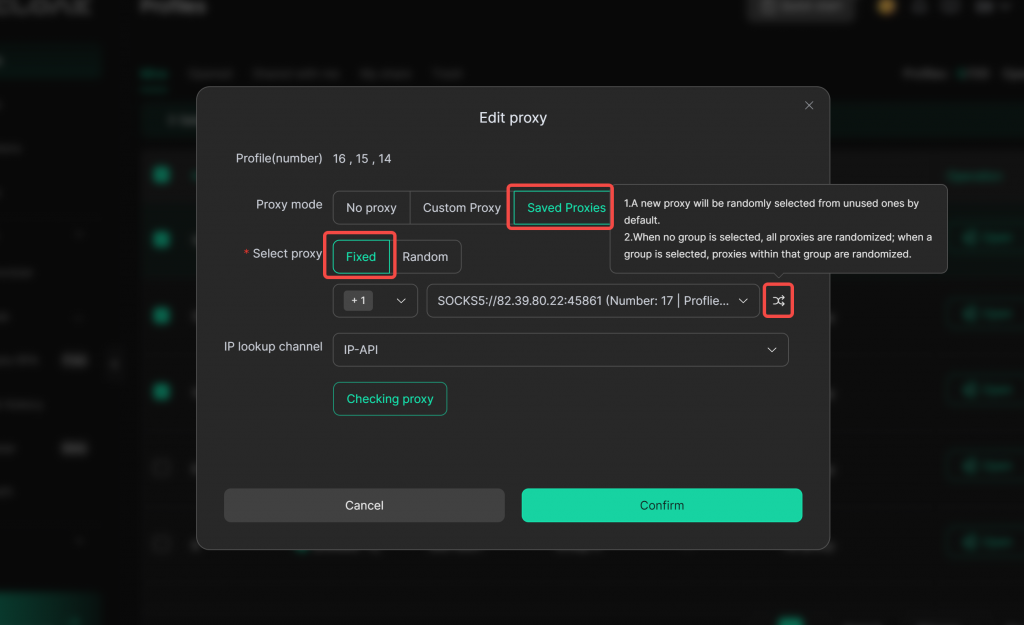
- Select “Saved Proxies”, then choose “Fixed”. Select a proxy group, and either randomly pick an unused proxy from that group or choose a specific one. Click “Confirm” to save.
※Using the “Fixed” method means all selected profiles will use the same proxy.
2.2 Randomly Assign Different Proxies from a Specific Group to Each Profile
- Select “Saved Proxies”, then choose “Random”. Select a proxy group, and each selected profile will be randomly assigned a different proxy from that group.
- The system prioritizes assigning unused proxies to each profile. If all proxies are already in use, it will randomly assign used ones.
- If no group is selected, it randomizes from all proxies. If a group is selected, it randomizes only from proxies within that group.
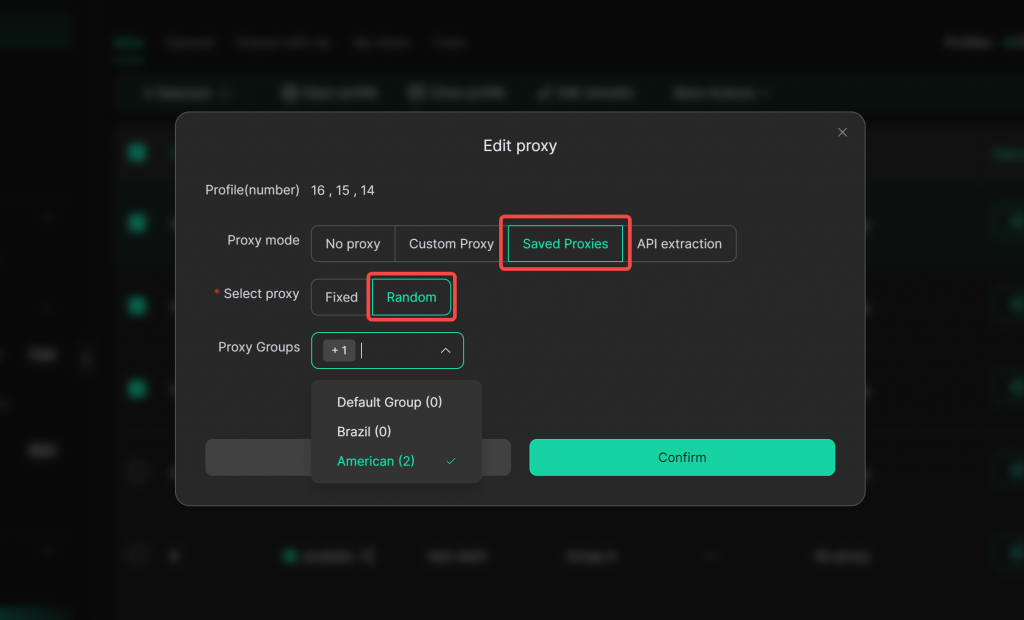
📑 Example: In the image below, the “American” proxy group contains only 2 unused proxies. Therefore, among 3 selected profiles, 2 profiles might end up sharing the same proxy. If a sufficient number of proxies were available, the system would prioritize assigning unique, unused proxies to each profile.