DICloak allows users to transfer browser profiles from Team A to Team B. If you want to transfer browser profiles, you should upgrade your subscription to Plus Plan first. Please follow the instructions below to transfer browser profiles.
Operation Guide
1.Access the Profile List Page
- Open and log in to the DICloak software. Find “Profiles” on the left navigation bar and click the “Transfer” button.
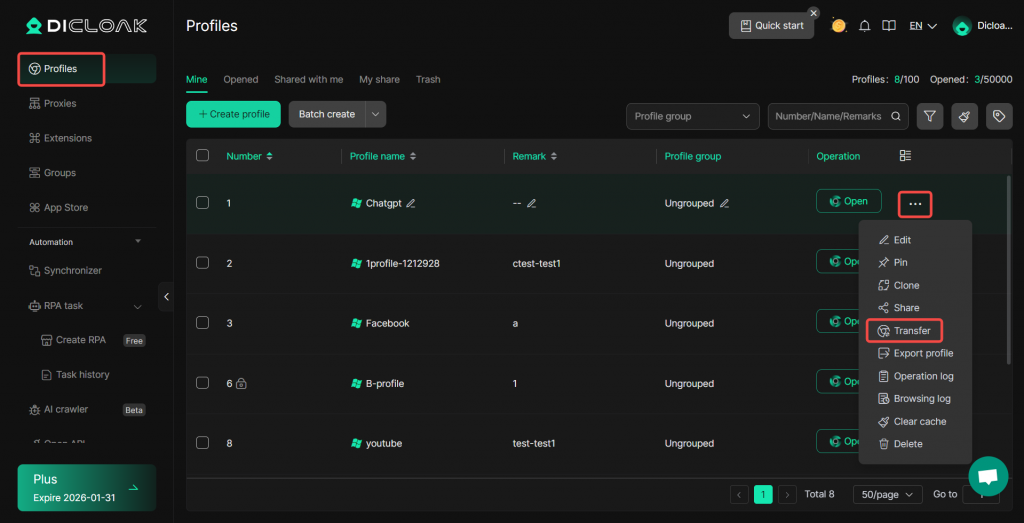
2.Transfer Profiles
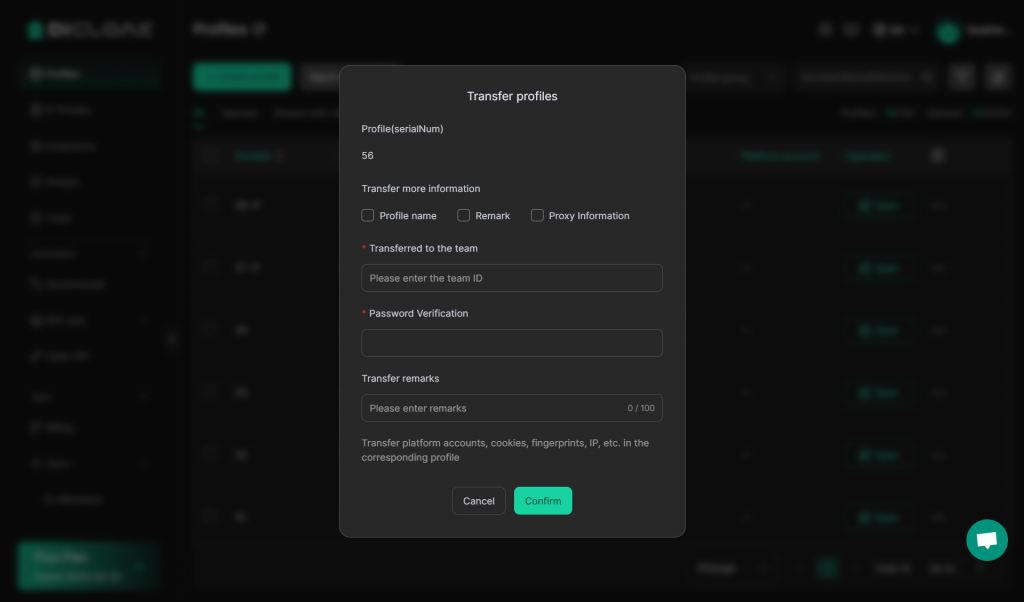
- Select transfer information: You can tick additional information such as profile name, remarks, and proxy information to transfer relevant configurations completely.
- Specify the receiving team: Enter the ID of the target team in the “Transferred to the team” field to identify the recipient of the transfer.
- Password verification: Ensure the security of the operation through password verification to prevent unauthorized profile transfers.
- Fill in transfer remarks: Provide a brief description of this transfer for easier review and management later.
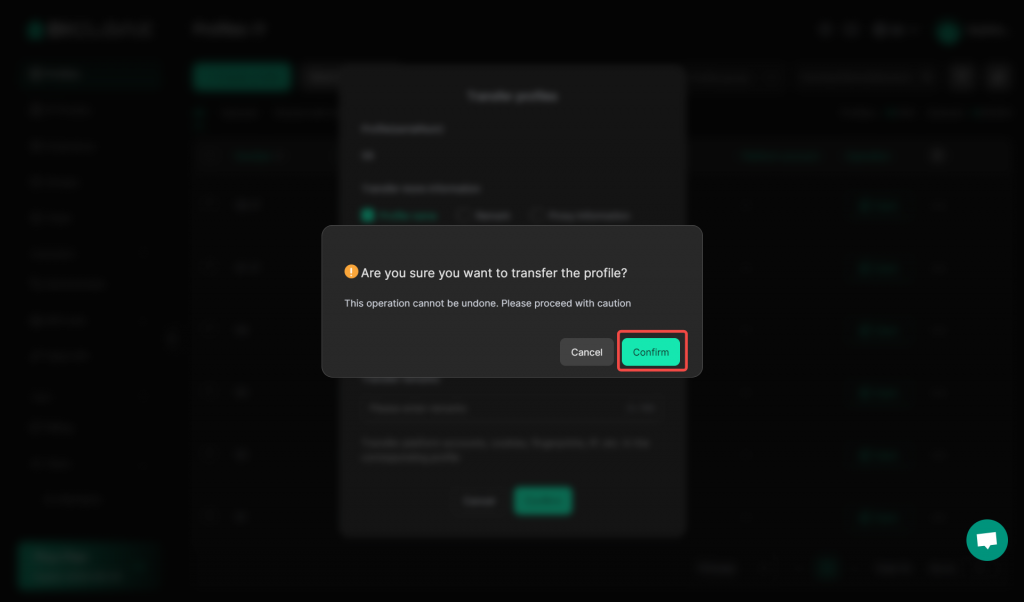
- After clicking “Confirm”, the information within the corresponding profile will be transferred to the target team.
Firstly, enter the team ID you want to transfer the profile to. Then enter the current account’s login password for verification. Finally, click the “Confirm” button to complete the profile transfer.
Frequently Asked Questions
1.What plan do I need to purchase to transfer profiles?
So far, this function is only available with Plus plan. If you want to transfer browser profiles, Plus plan can offer professional help for your work.
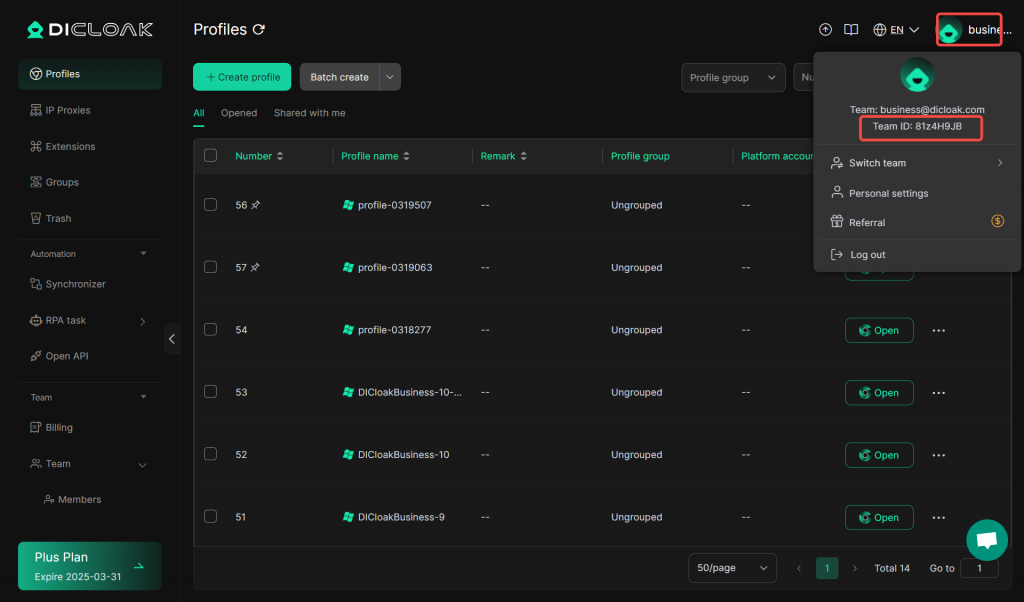
2.How do I find the team ID?
You can find the team ID by clicking on the account information at the top right corner of the DICloak software.
3.What password do I need to enter for verification?
Password verification requires the password of the account that you are using to transfer the profiles.