DICloak allows you to securely share tool/platform accounts with members while effectively preventing them from viewing, stealing, or tampering with account information. Below, I will explain the configuration methods and results of the following three account‑sharing approaches. You can choose one or combine multiple methods.
- Bind account credentials in a profile
- Import cookies
- Cloud data synchronization (Requires upgrading to a paid plan to use)
I. Preventing Members from Viewing and Modifying Passwords
🔔 The “Prohibit viewing website passwords” feature is only available for Plus and Share+ plans. To use this feature, please upgrade your plan.
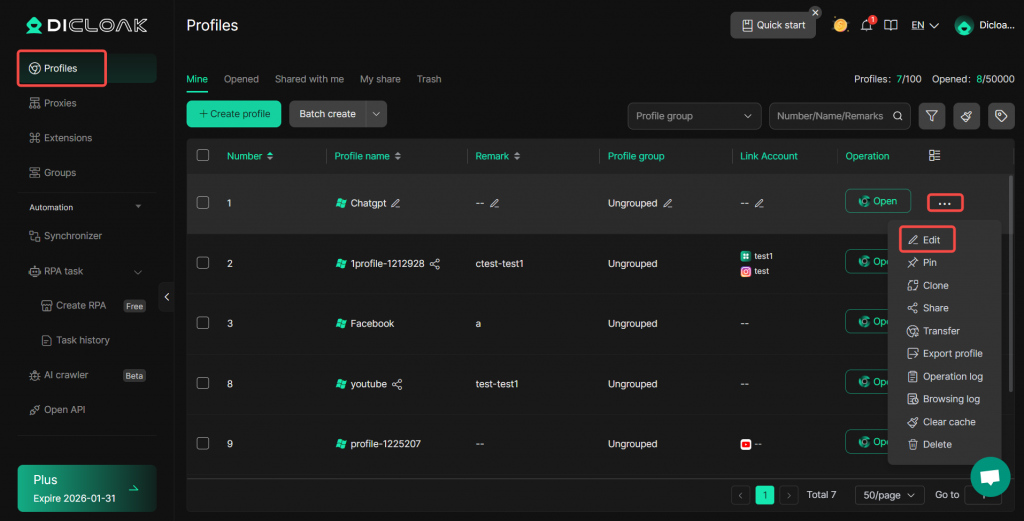
- In [Profiles], click “Edit”, under Advanced Settings → Browser Settings, select “Global Settings”, then click “Confirm” to save.
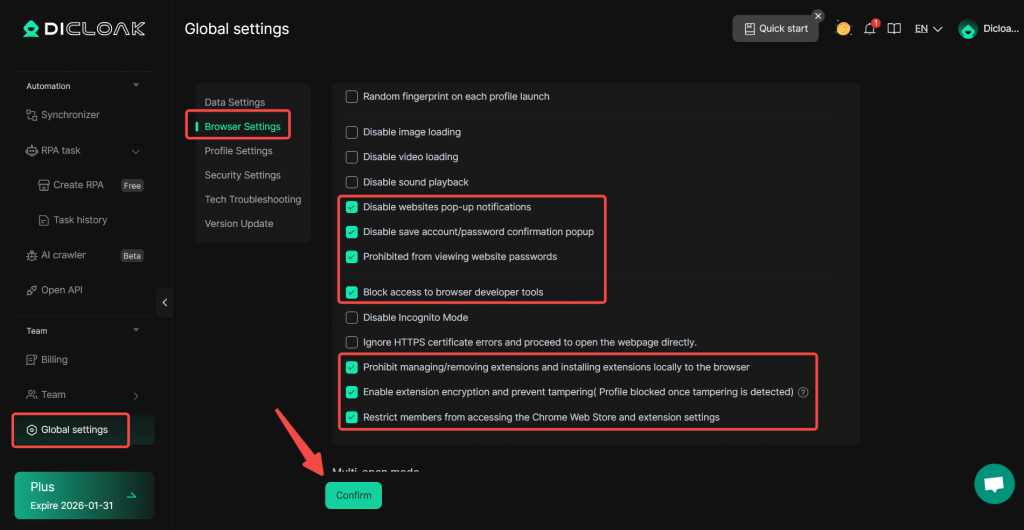
- Go to [Global settings], and under Browser Settings, enable: “Disable website pop‑up notifications”,“Disable save account/password confirmation pop‑ups”, “Prohibited from viewing website passwords”, “Enable extension encryption and prevent tampering”.
- Click “Confirm” to save.
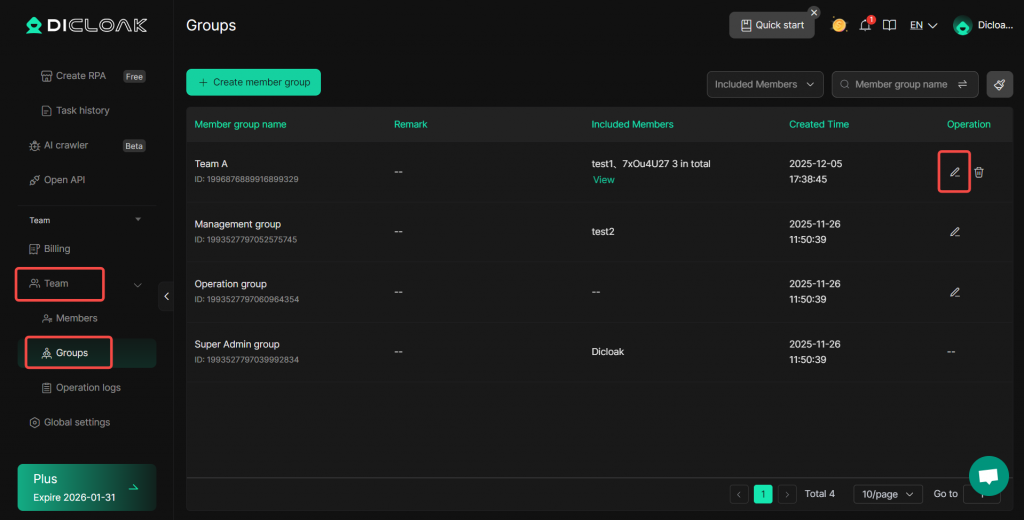
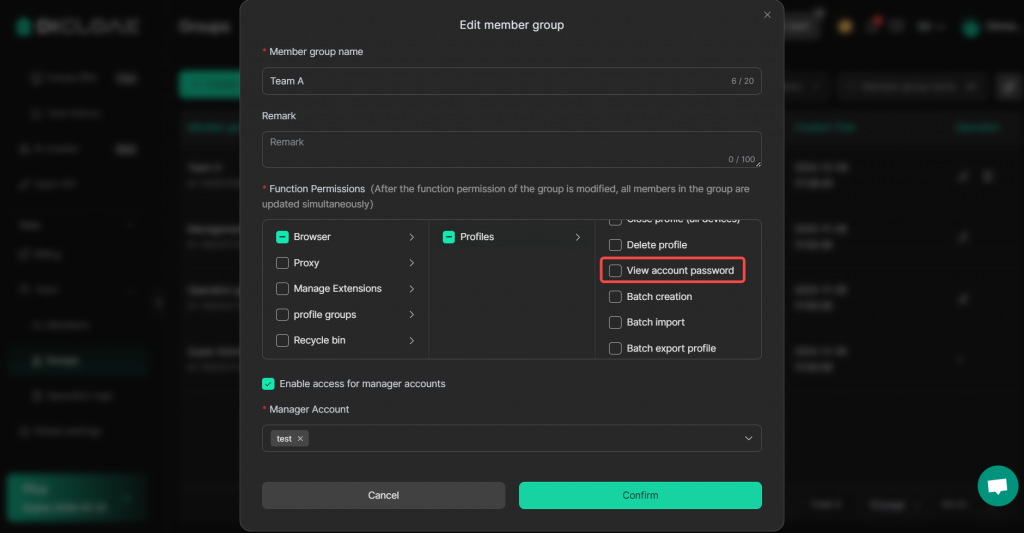
- In Team → Groups, edit the functional permissions of the member’s group, and do not check the “View Passwords” permission.
- For further account‑security enhancements, refer to the “How to Secure Tool Accounts” guide.
II. Three Methods for Sharing Tool Accounts
1. Bind Account Credentials in a Profile
This method saves account credentials directly in the profile’s browser password manager.
1.1 Add an Account
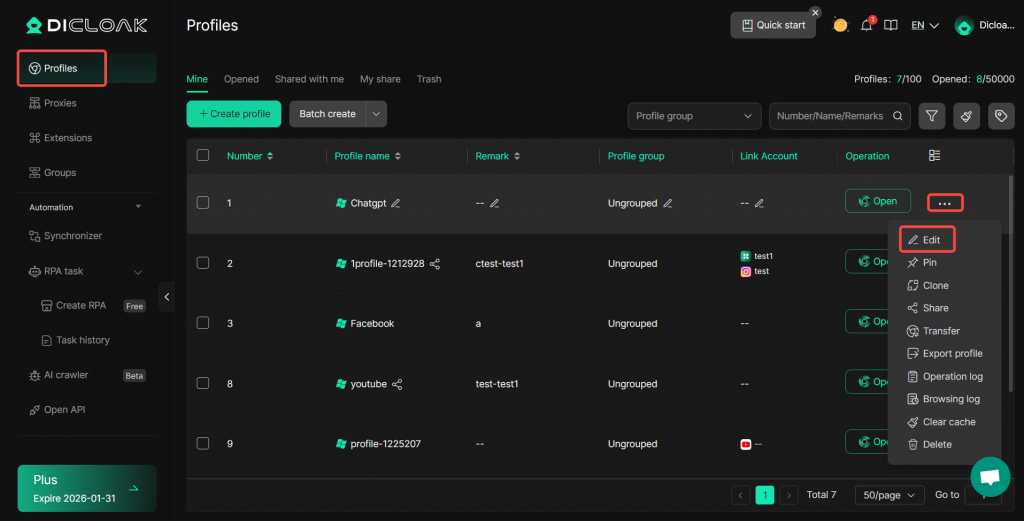
- Go to [Profiles], “Edit” a profile.
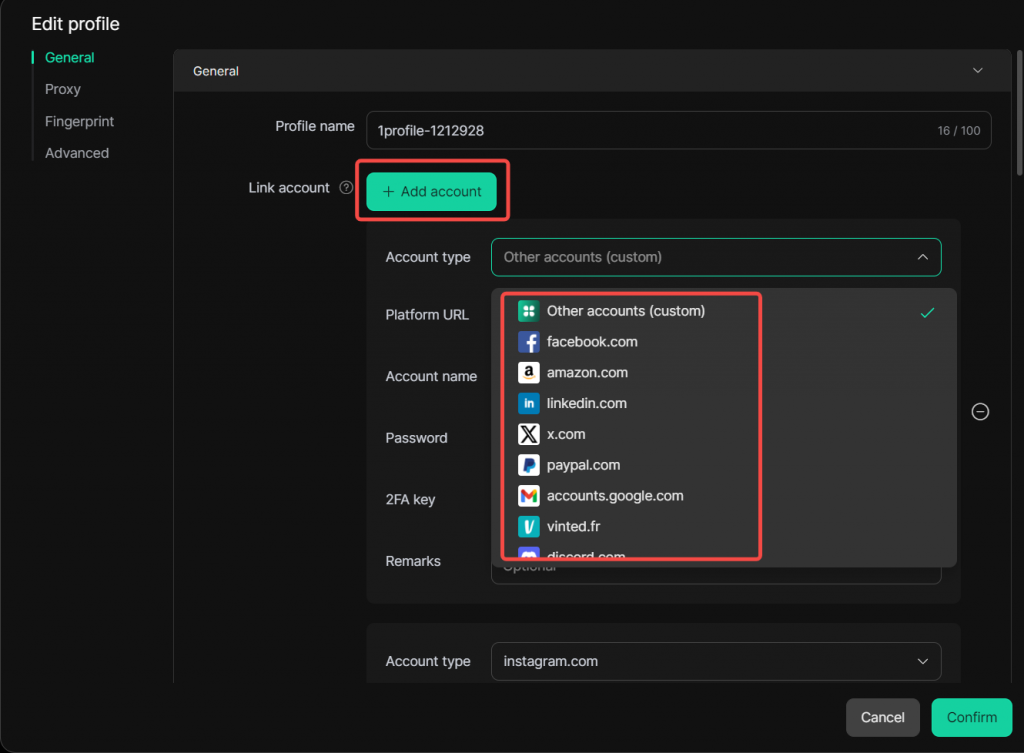
- Click “Add Account” (multiple accounts can be bound), and select the platform to be shared. If the platform is not listed, choose “Other account (custom)”.
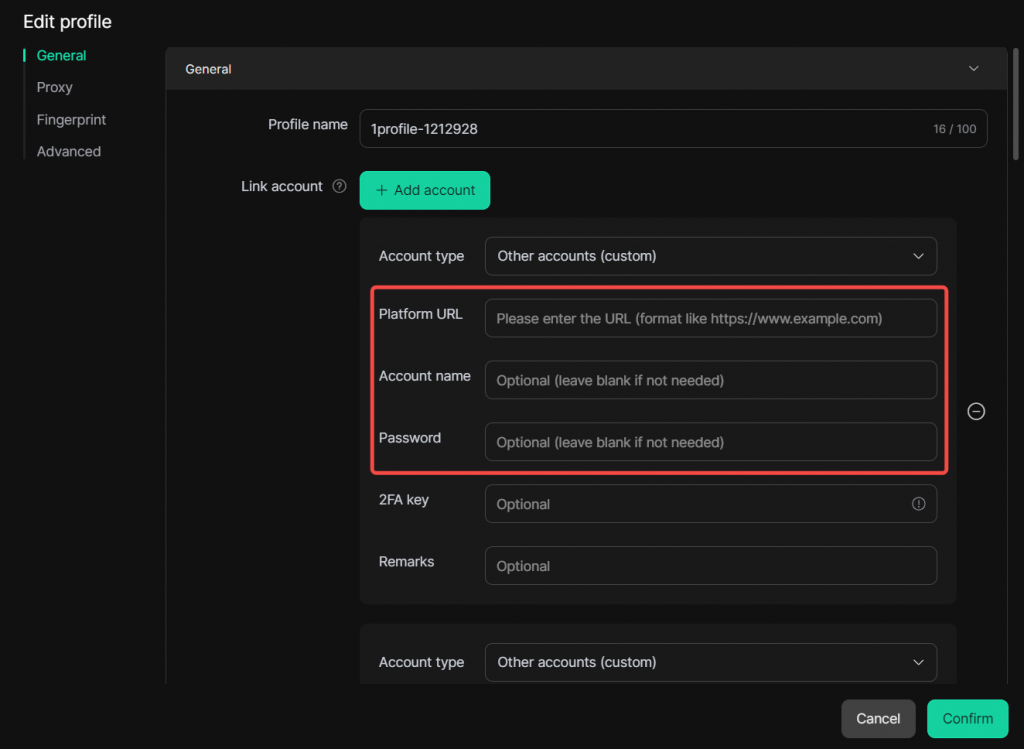
- Fill in the corresponding tool/platform account details:
- Platform URL (required): Format like https://www.example.com;
- Account Name (required): Login username
- Account Password (required): Login password
- 2FA Key (optional): If the tool/platform requires 2FA login, obtain the 2FA secret key from the platform and enter it here. Members can then automatically retrieve the 2FA verification code on the browser’s verification page.
- Remark (optional): A note to help manage and identify the account.
1.2 Members Log into the Tool/Platform
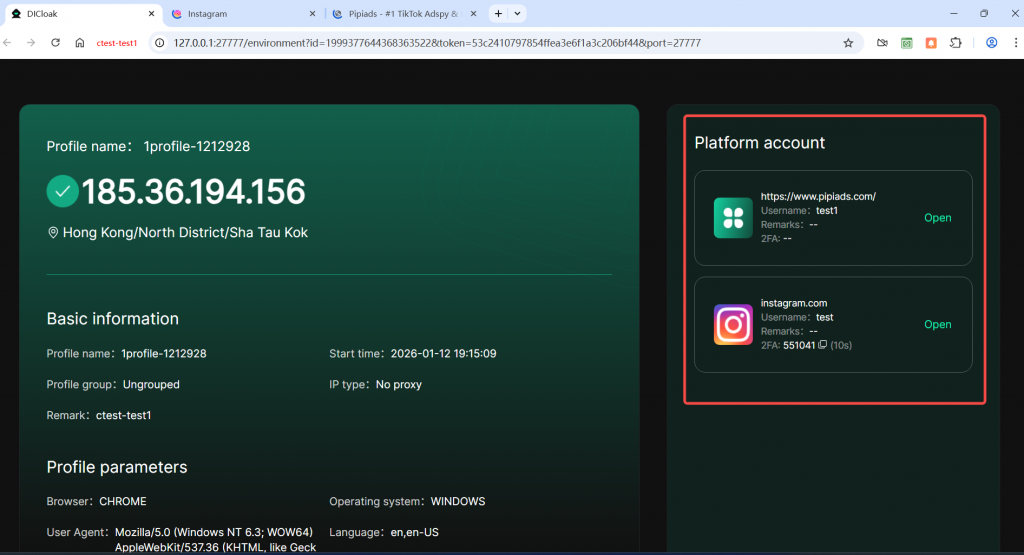
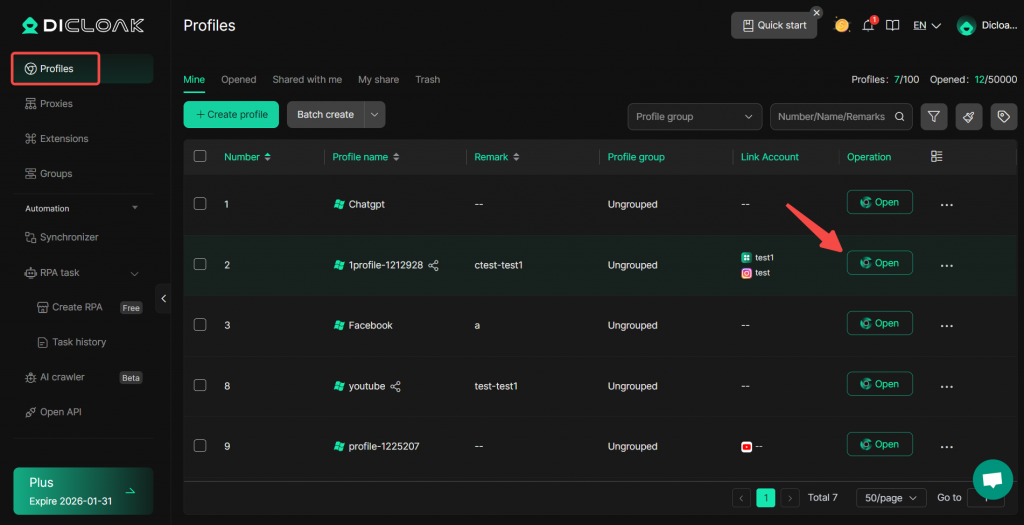
Members open the profile and can see the added platform account on the DICloak check page. Click “Open”.
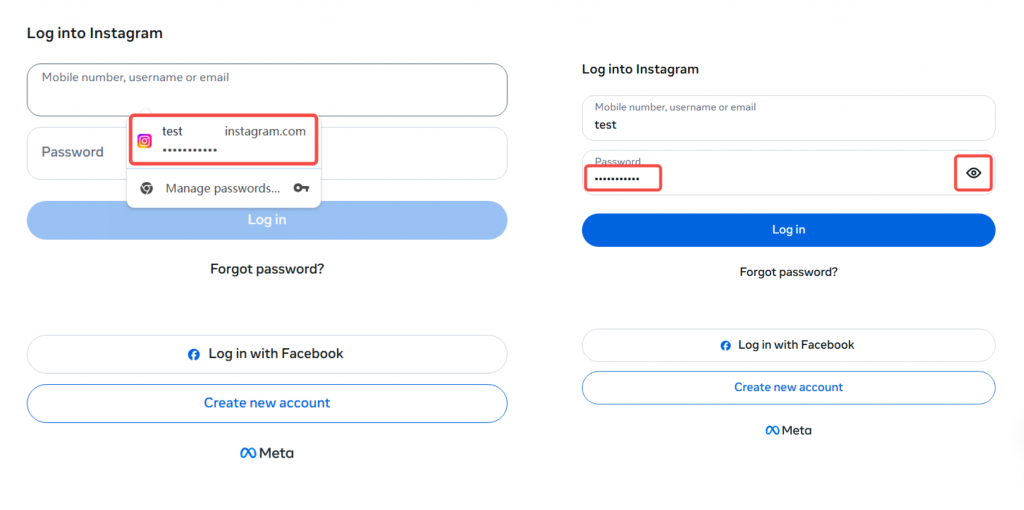
On the login page, members can select the saved account credentials to log in directly, but they cannot view or copy the password.
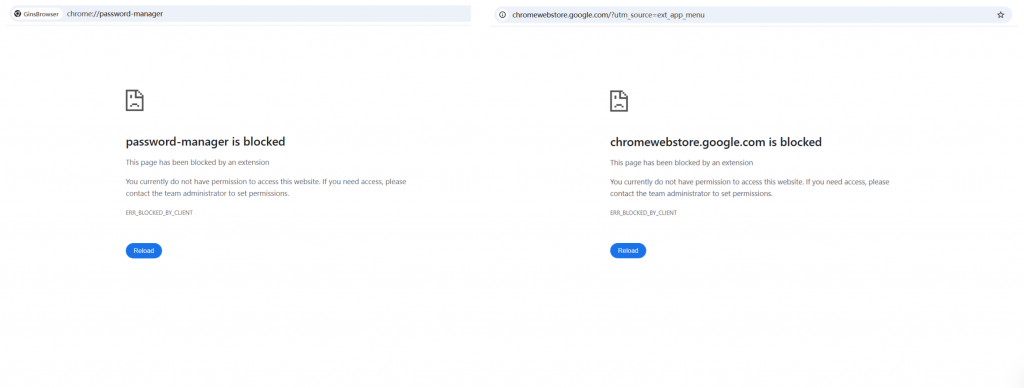
Members cannot access the browser’s “Password Manager” or “Extension Management” pages, preventing them from stealing or tampering with passwords.
2. Import Cookies
Using the Cookie Editor extension, you can export a website’s cookie information and import it into a profile, enabling automatic login.
⚠️ Important notes:
- Some platforms require Local Storage or IndexedDB in addition to cookies for login. If this method does not work for you, please use the other two sharing methods.
- Cookies usually have an expiration period. Once expired, you will need to update the cookie information again.We recommend using this feature in conjunction with cloud data synchronization (requires upgrading to a paid plan) to automatically update the latest cookie information.
Tutorial video for exporting/importing cookies:https://youtu.be/dZzWIJASRuA
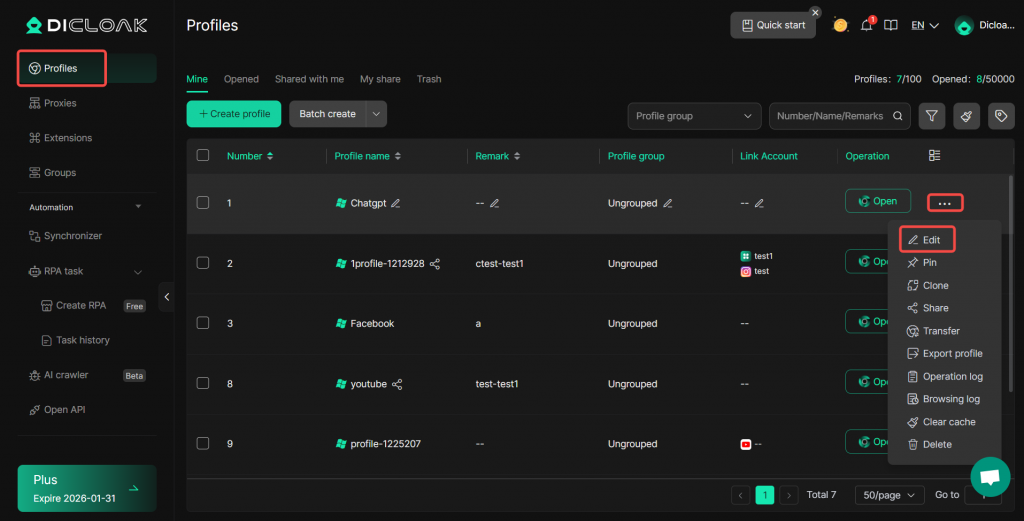
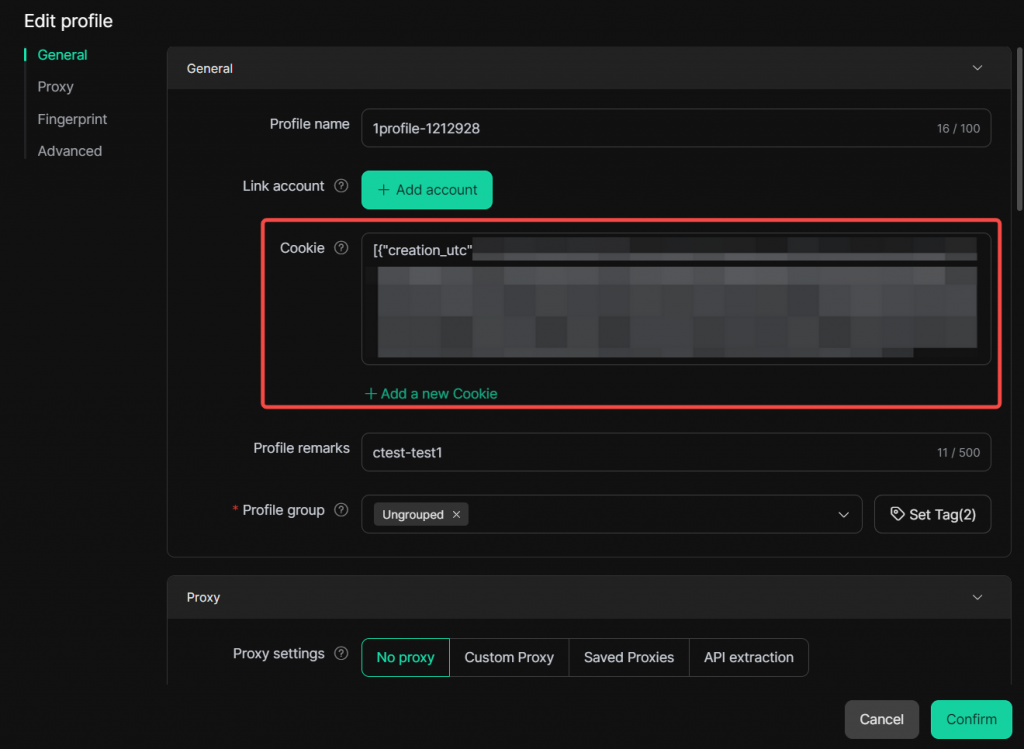
- In [Profiles], “Edit” a profile, paste all the cookie information exported via Cookie Editor into the General → Cookies field. Click “Confirm” to save.
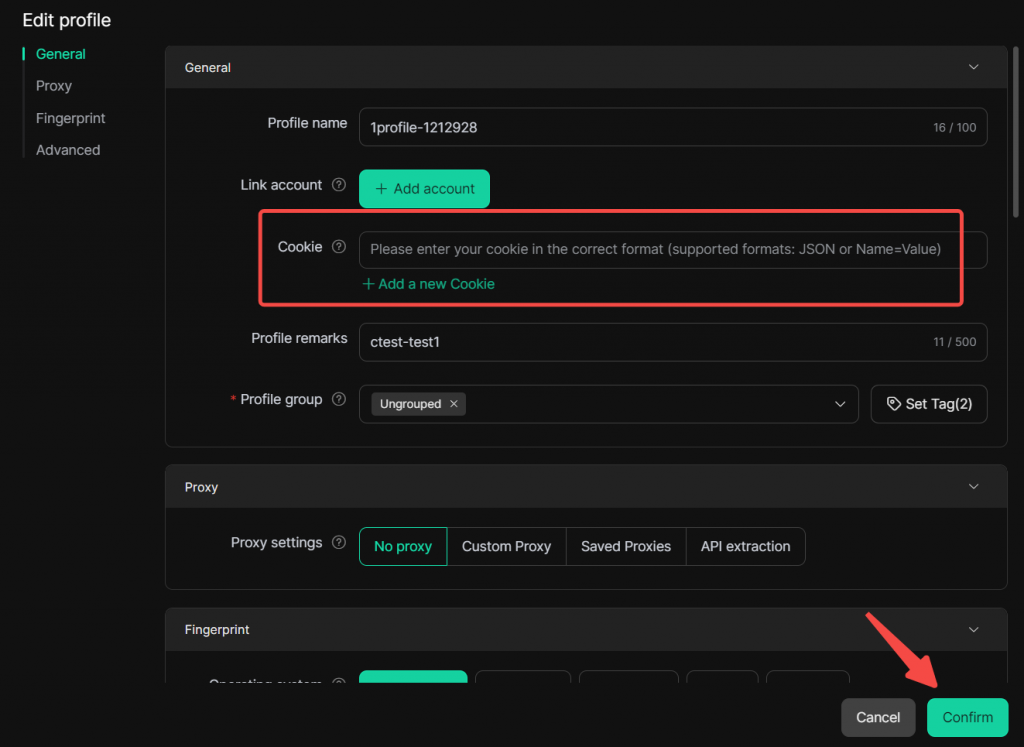
- Open the profile to verify whether the website is already logged in. Other members need to restart the profile to sync the website’s cookie information.
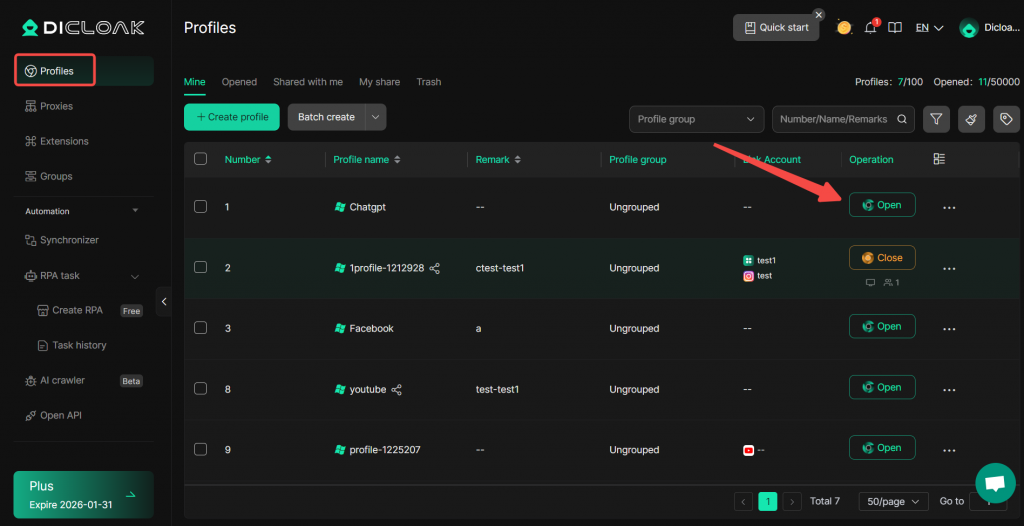
3. Cloud Data Synchronization
🔔Requires upgrading to a paid plan to use (Base, Plus or Share+ plan).
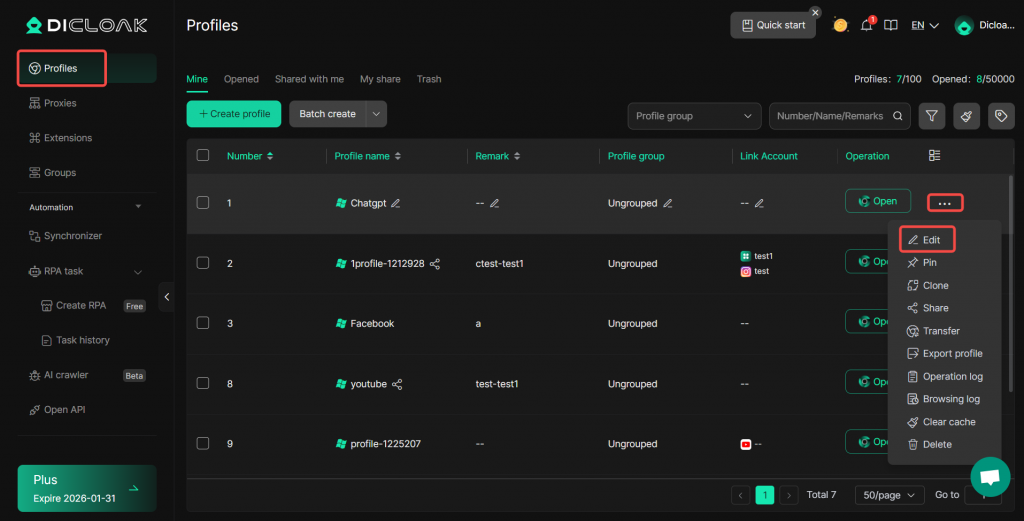
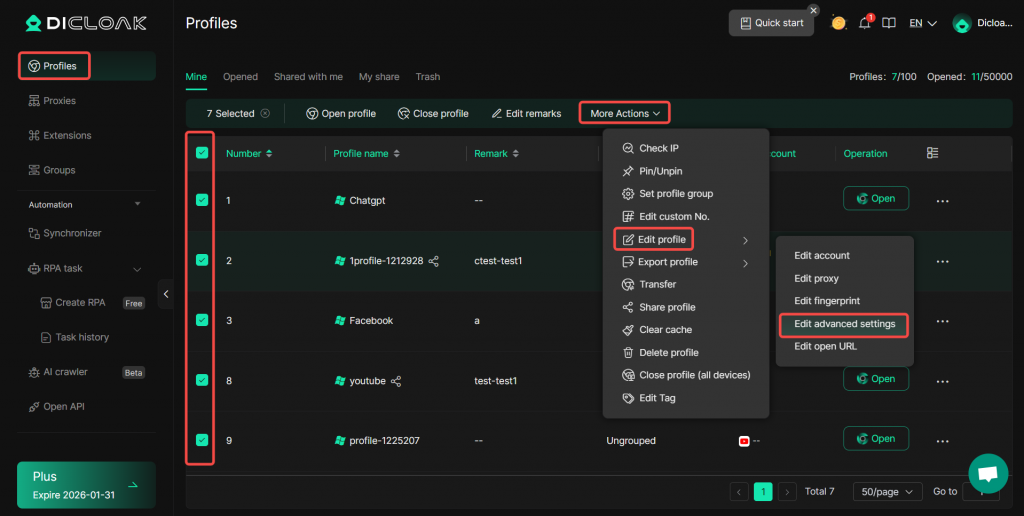
- Go to [Profiles], “Edit” a profile; or select multiple profiles, then click “More Actions” → “Edit profile” → “Edit advanced settings”.
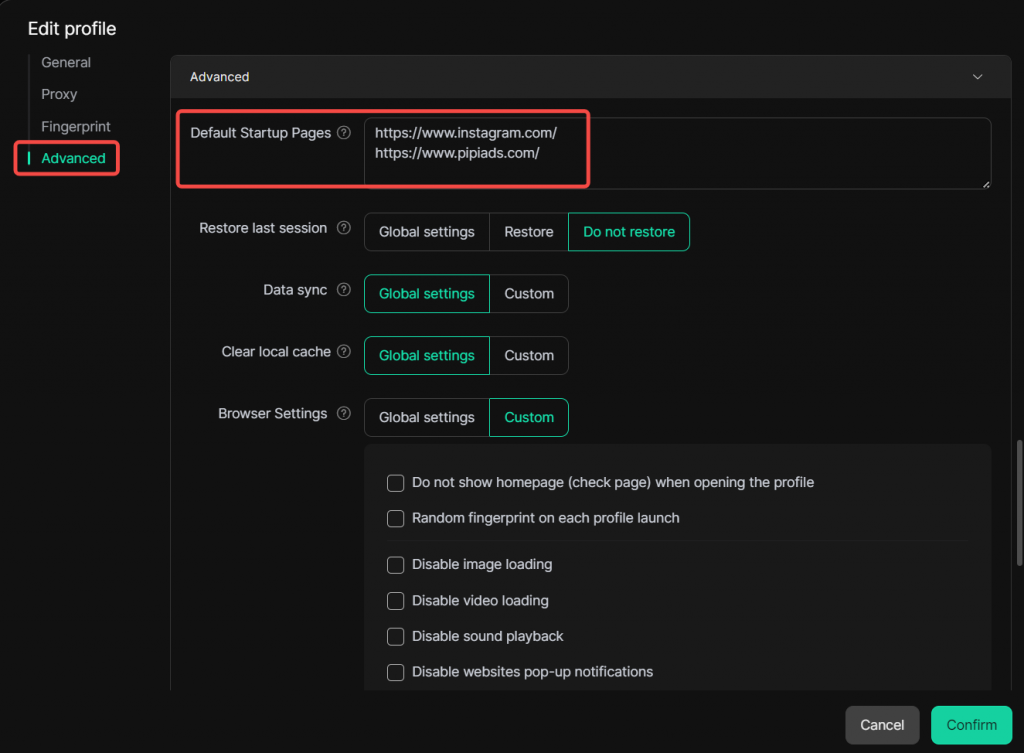
3.1 Set Fixed Launch URL
In Advanced Settings → Default Startup Pages, enter the tool/platform website URL. Members will automatically open this tab when opening the profile, allowing them to access the website without entering credentials.
3.2 Data Synchronization
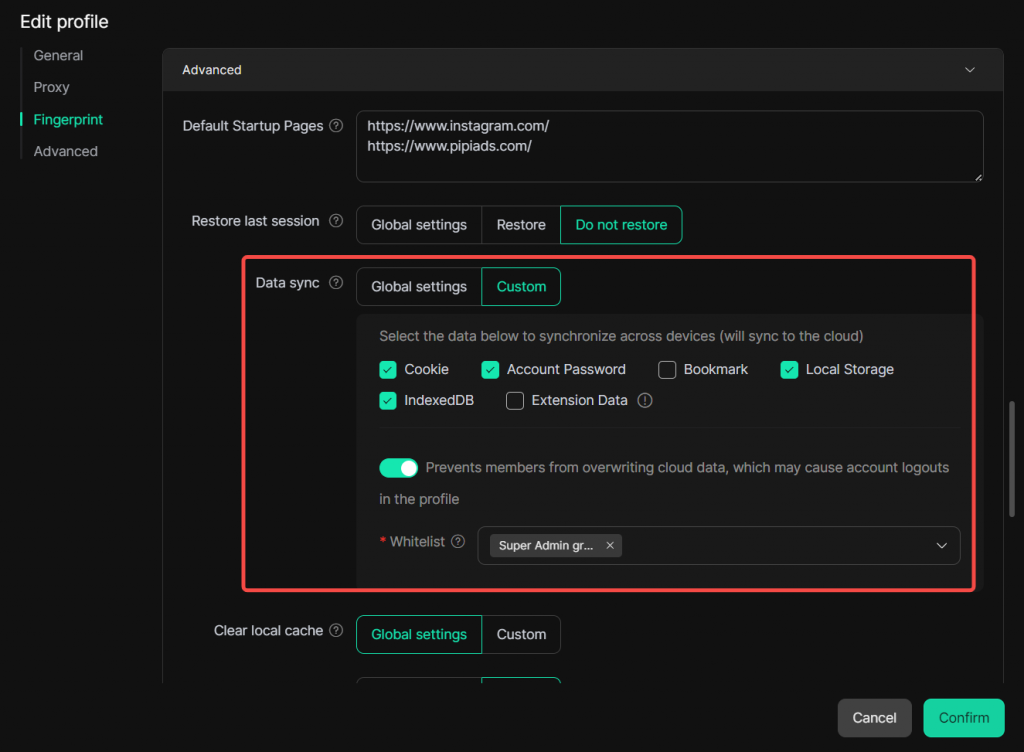
Under Advanced Settings → Data Sync, choose “Global Settings” (configured in the [Global Settings] section) or “Custom”. Check Cookies, Account Passwords, Local Storage, and IndexedDB.
You can enable “Prevent members from overwriting cloud data” and set the whitelist to the Super Admin Group or Admin Group, ensuring only whitelisted members’ login data from the profile is synchronized to the cloud for other members.
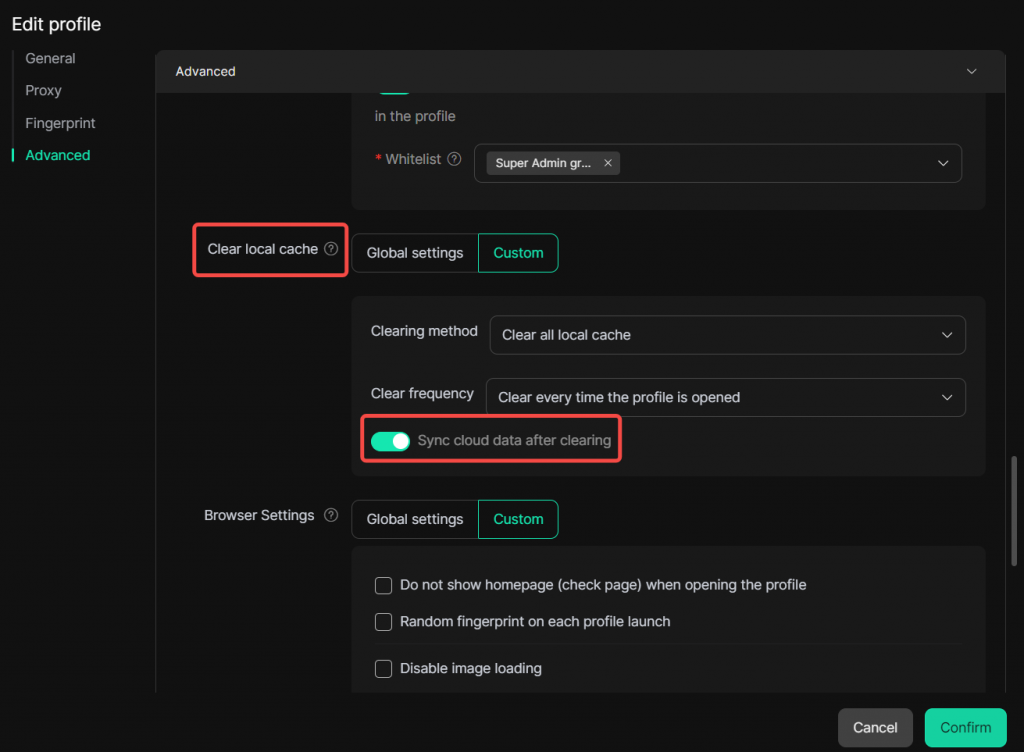
⚠️ Note: If “Clear Local Cache” is enabled, you must check “Sync cloud data after clearing” for members to receive the cloud‑synced login data.
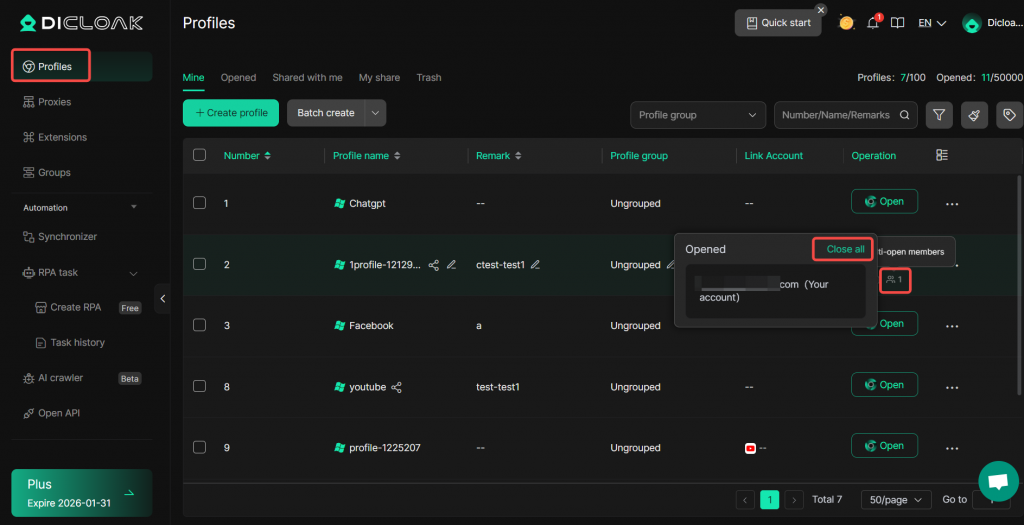
3.3 Super Admin/Admin Logs into the Account
- Ensure all members have closed the profile. You can close all members’ profiles with one click.
- Open the profile, log into the tool/platform website account you wish to share, and confirm the login is successful.
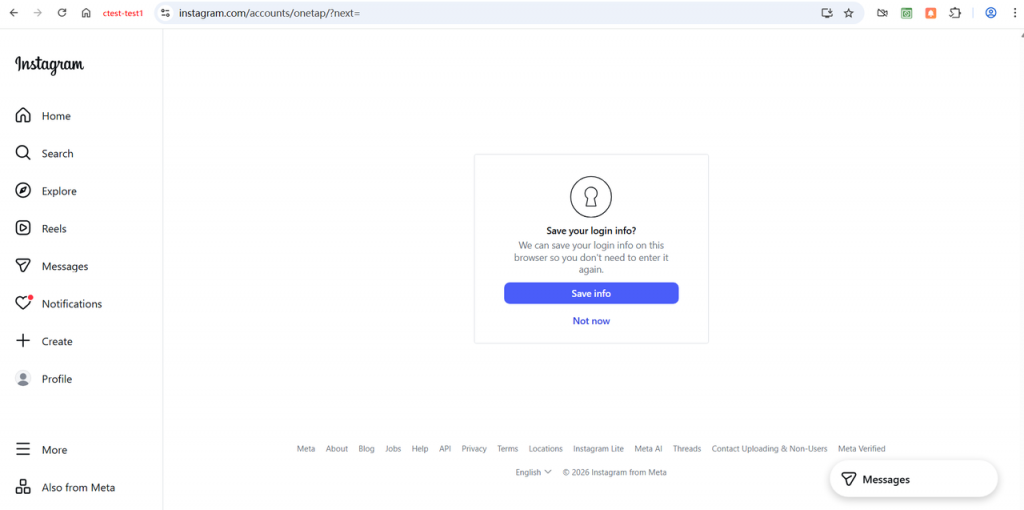
- After a successful login, cookies are automatically saved in the profile’s General → Cookie section.
- Close the profile, then reopen it to verify whether the website remains logged in.
- If yes, notify members to open the profile and start using the tool/platform.
- If no, enable “Technical troubleshooting mode” in [Global Settings] and contact DICloak Customer Service for further troubleshooting via the following contact details.