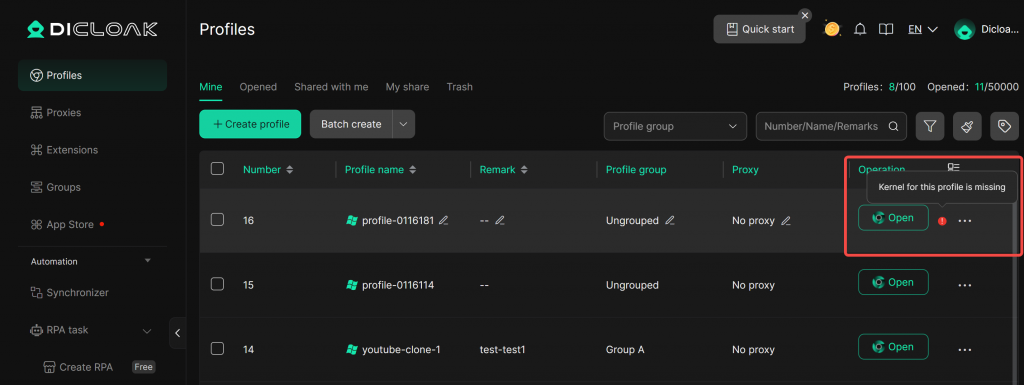
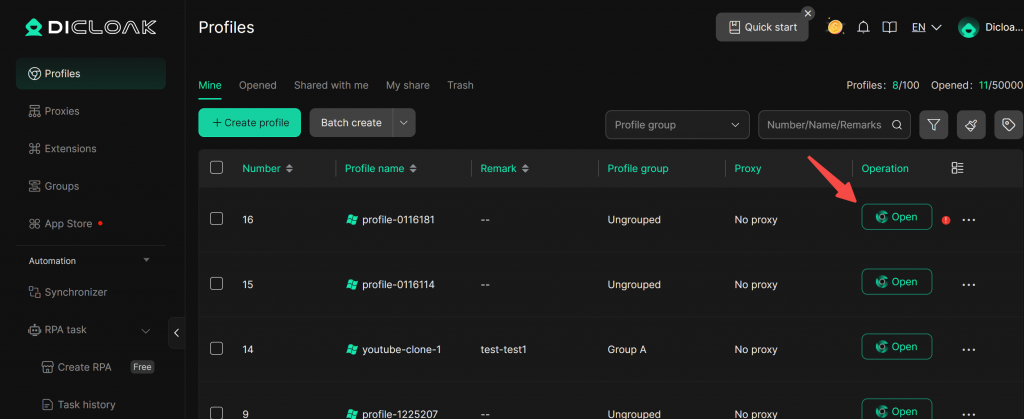
If you see the prompt “Kernel for this profile is missing” next to the “Open” button for a profile, it means that the specific browser kernel configured for that profile has not yet been downloaded on your device. (Currently, profiles support kernel versions 120, 134, 142, and 143. The device must download the corresponding kernel version selected for the profile.)
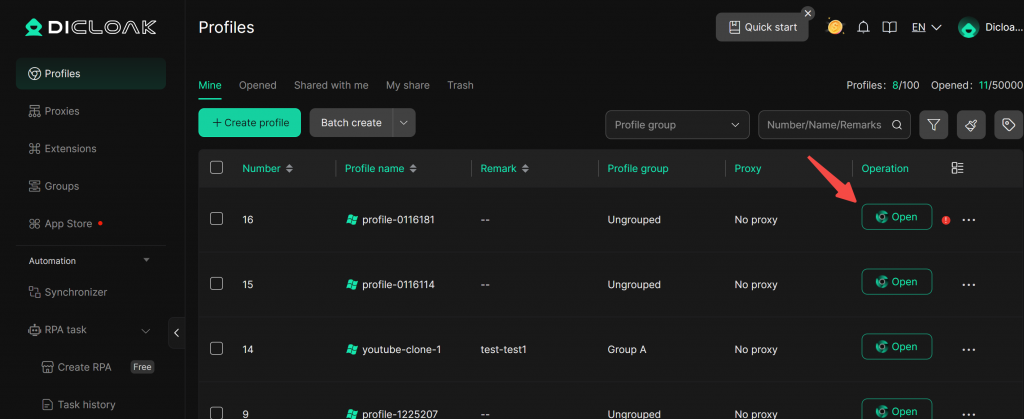
- You can click the “Open” button again. A pop-up titled “Please download the kernel first” will appear. Click “Download”.
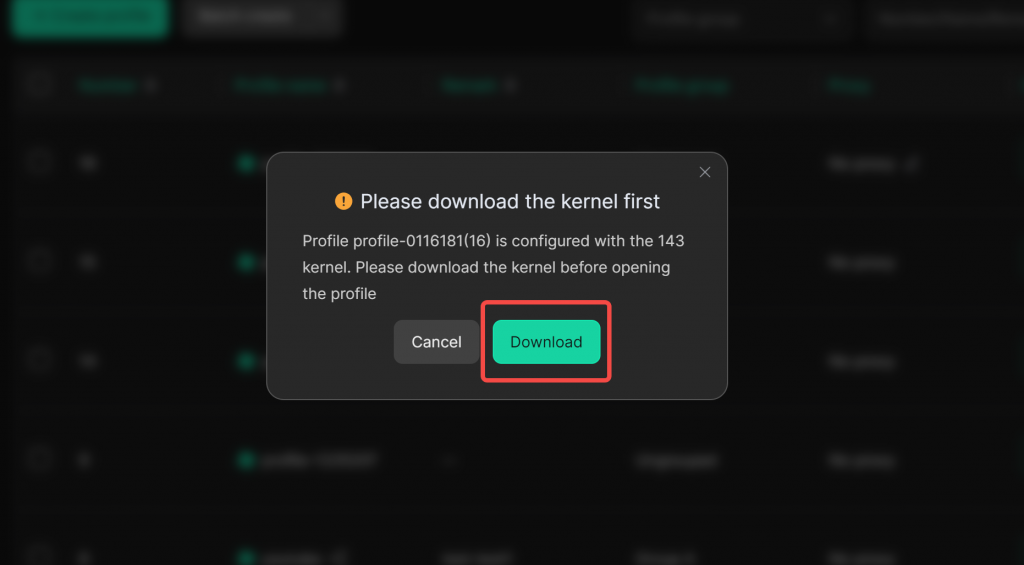
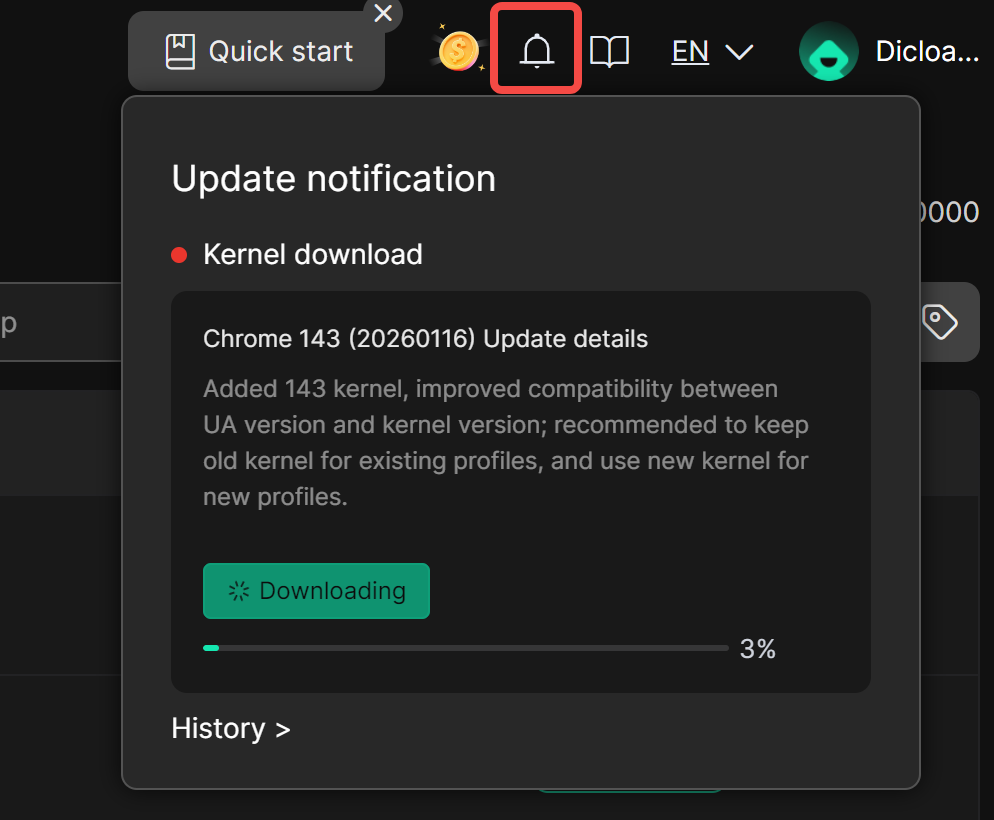
- The download progress will be shown in the top-right corner. Please wait patiently for it to complete. If you accidentally close the pop-up, you can click the “Notification” icon in the top-right corner to check the latest progress. (If no download progress is shown in the notifications, it means the download is already complete.)
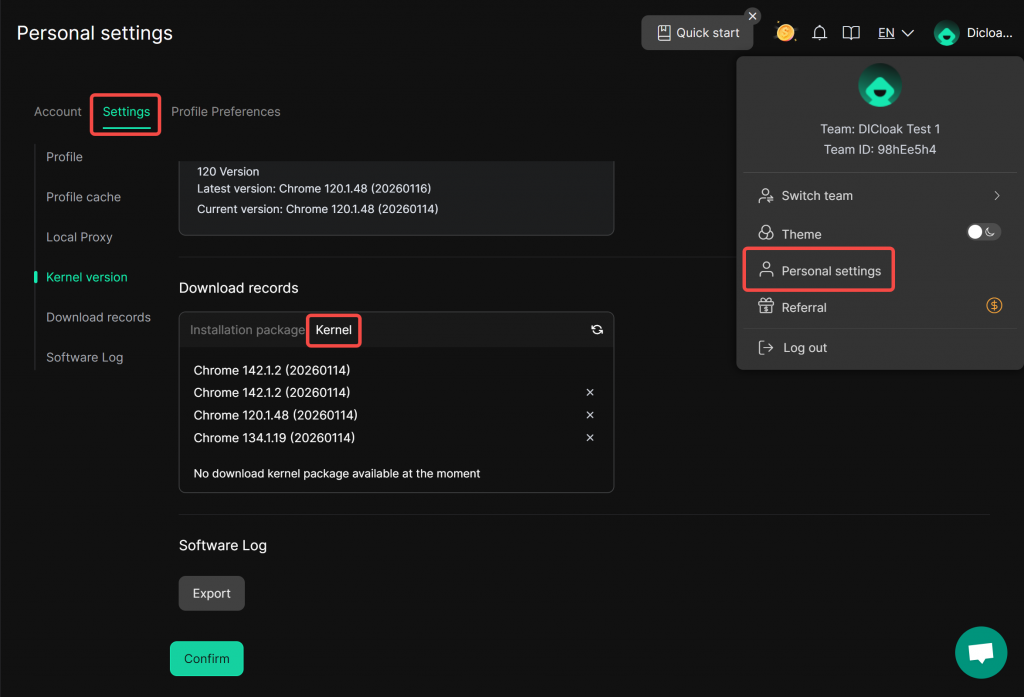
- You can also view the kernel download history in [Personal Settings] -> [Settings].
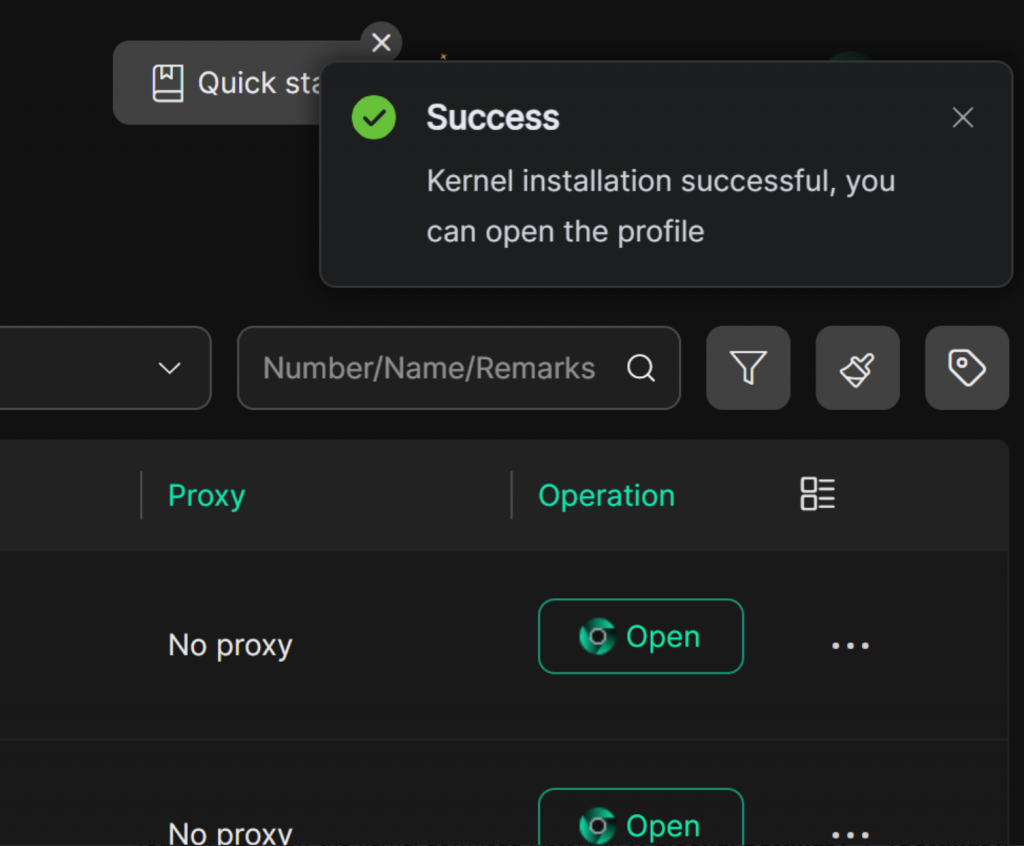
- After the download is complete, reopen the profile from [Profiles].
Frequently Asked Questions
1. Kernel Download Failed
If you encounter a kernel download failure, please troubleshoot by following these steps:
Locate the DICloak cache file folder:
Click your avatar in the top-right corner > Personal Settings > Settings, and check the Profile Cache Folder and the disk where it is located. (For example, cached files in the image are stored on drive D)
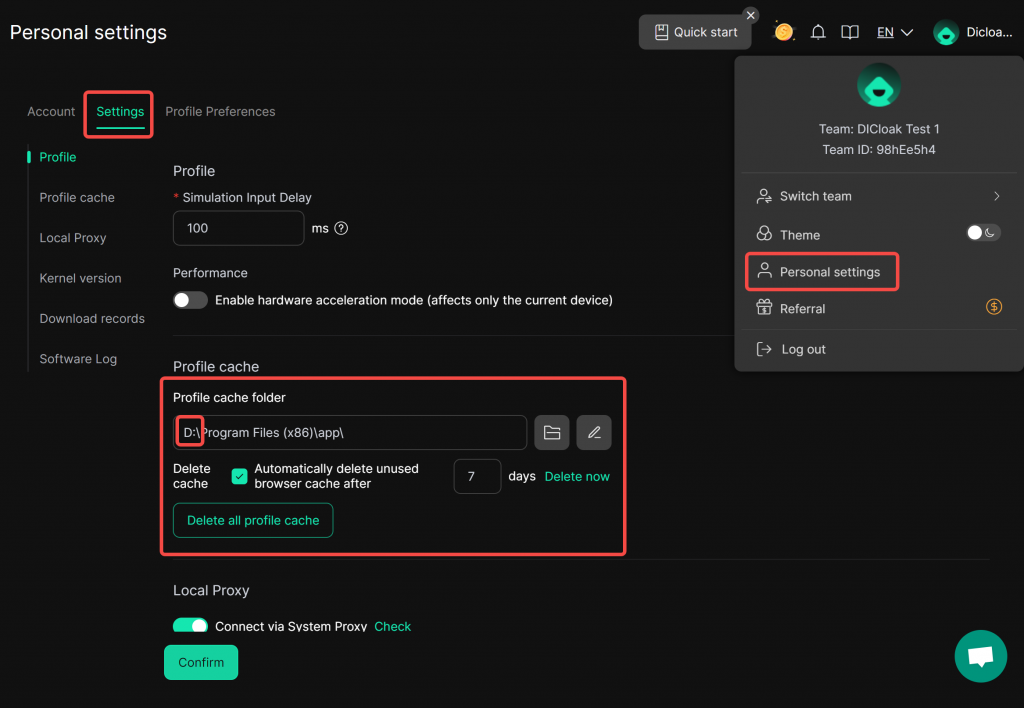
1) Check if the disk where the DICloak cache files are stored has sufficient space. The available space must be at least 2 GB.
If the disk storing the DICloak cache files is low on space, you need to:
- Free up disk space:
- Use a third-party disk cleaning tool.
- Clean up historical files within the cache folder.
- Empty the Recycle Bin.
- Change the DICloak cache file path:
In DICloak, go to Personal Settings > Settings and modify the Profile Cache Folder path to another disk with sufficient space.
After completing the above steps, restart the DICloak software, reopen the corresponding profile, and follow the prompts to download the kernel.
2) Check if antivirus software or Windows Defender is blocking the process.
If you have antivirus software installed or if Windows Defender is active:
- Add the DICloak cache folder to the Exclusions / Whitelist / Allowed Apps list of the corresponding security software.
- Restart the DICloak software, reopen the corresponding profile, and follow the prompts to download the kernel.
3) The disk where the DICloak cache files are stored may be corrupted.
- Change the DICloak cache file path: In DICloak, go to Personal Settings > Settings and modify the Profile Cache Directory path to another disk.
- Restart the DICloak software, reopen the corresponding profile, and follow the prompts to download the kernel.
2. Kernel Extraction Failed
If you encounter a “Kernel extraction failed” error, please refer to this guide.
If the steps above do not resolve your issue
Please contact DICloak Technical Support through the following channels