The profile multiple sessions feature of the DICloak Fingerprint Browser allows users to run multiple independent browsing profiles simultaneously on the same device. Each environment has different browser fingerprint information, such as IP address, operating system, cookies, and browser configuration. This means you can log into multiple accounts and perform multitasking operations without platforms recognizing you as the same device or user.
Multiple sessions
Method 1
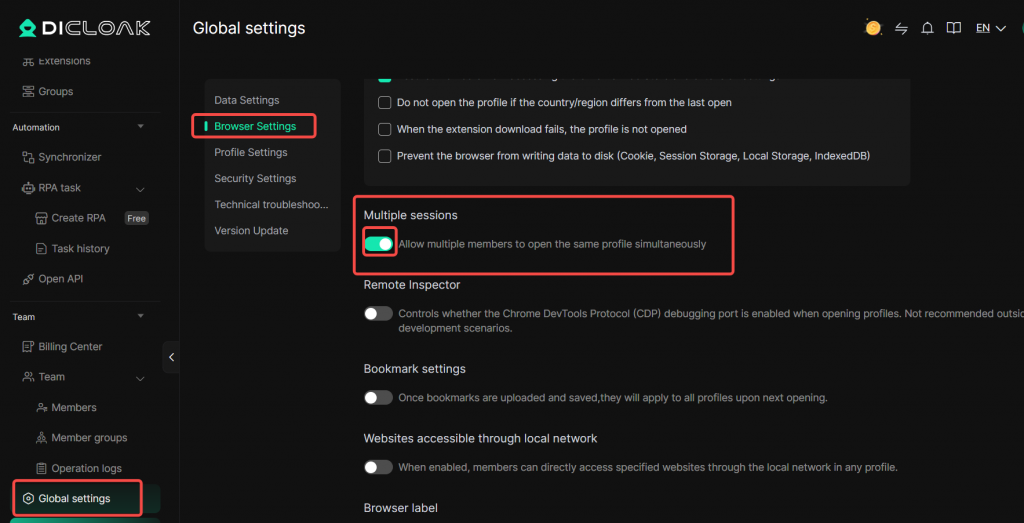
Go to Settings on the left navigation bar. Under “Team“-“Global Settings“, find the Multiple sessions, then enable it.
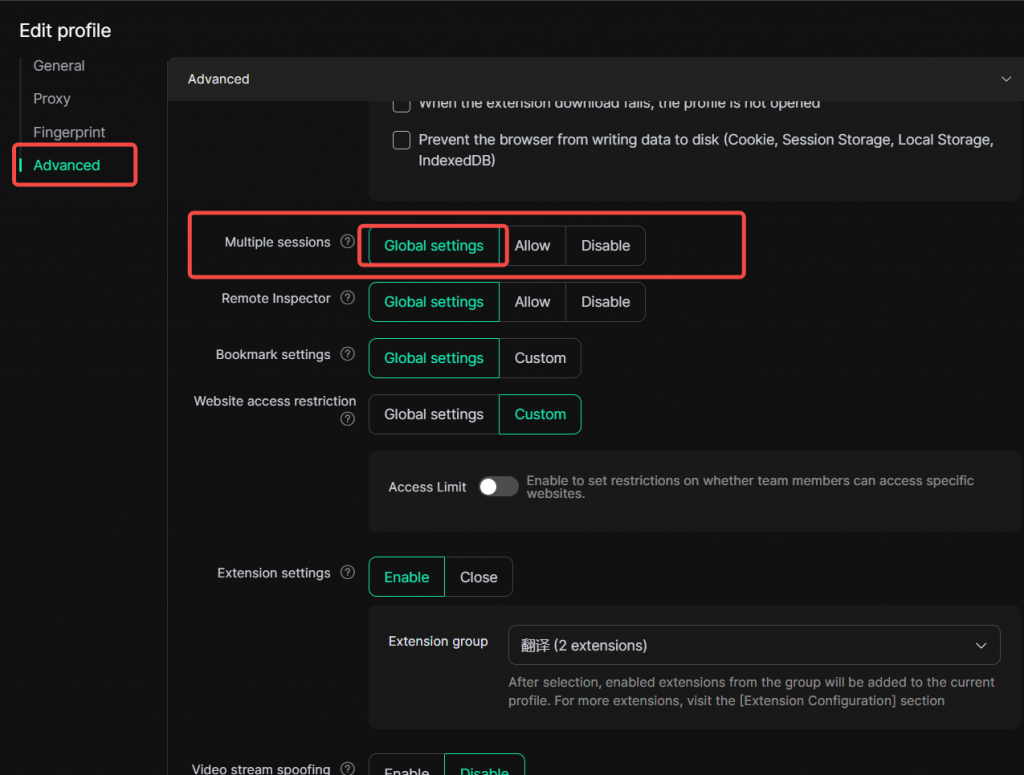
When creating or editing a profile, scroll down to Advanced settings. By default, the common configurations are already set, so you don’t need to make any other changes. Simply click Confirm to create the profile.
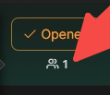
Return to the Profiles List page and open the edited profile. Under the Open button, you can see the member list of the currently opened profile.
Method 2
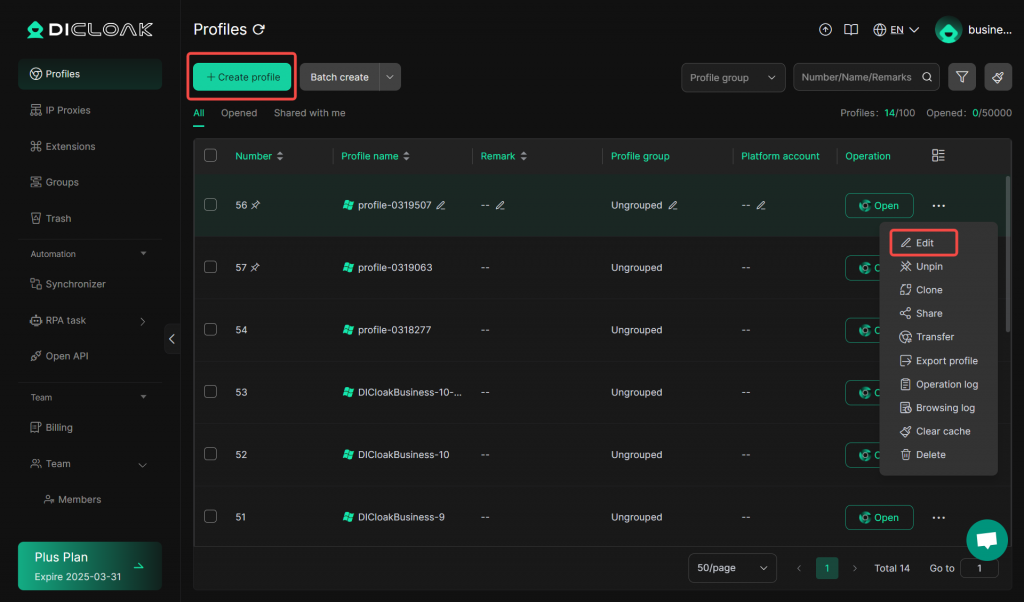
Open and log into the DICloak software. In the left navigation bar, find [Profiles], and choose Create Profile or Edit the profile you wish to enable for multiple sessions.
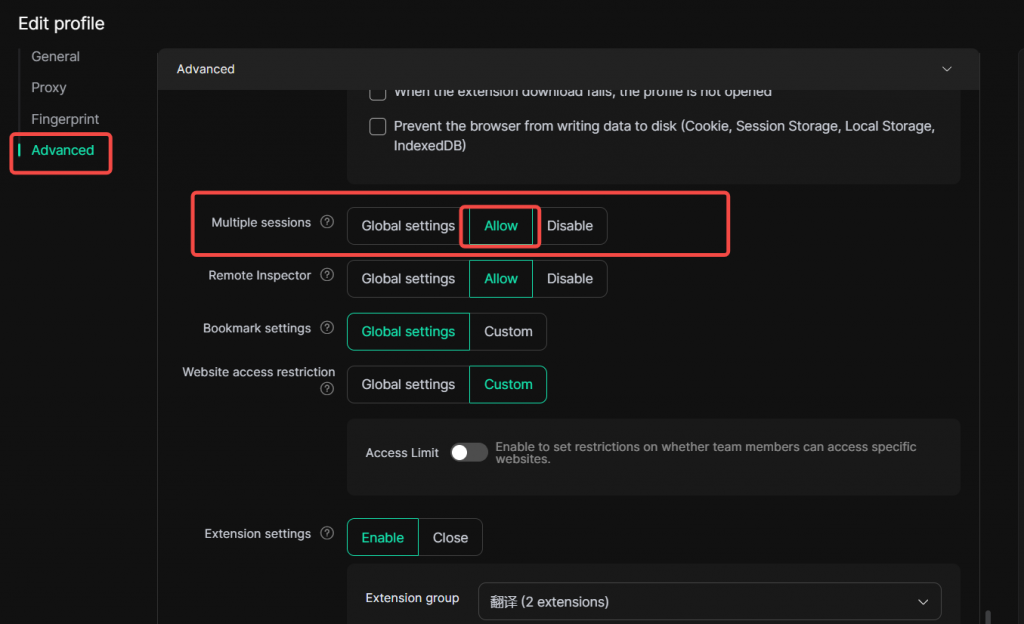
After selecting to create or edit a profile, scroll down to Advanced Settings. In the Multiple sessions option, select Allow, and then click Confirm.
Tips:
- When “Global settings” is selected, it follows the overall global configuration and will be applied to all profiles. This means that the multiple sessions for all profiles will be determined by the global setting.
- Choosing “Allow” in the edit settings of a single profile specifically enables the multiple session function for that individual profile. So, you can run multiple instances of this particular profile as needed.