The super admin can uniformly control the fields that members see in the Profile list. When sharing an account, they can set it up so that members do not see unnecessary fields.
1. Enable “Profile list field permissions”
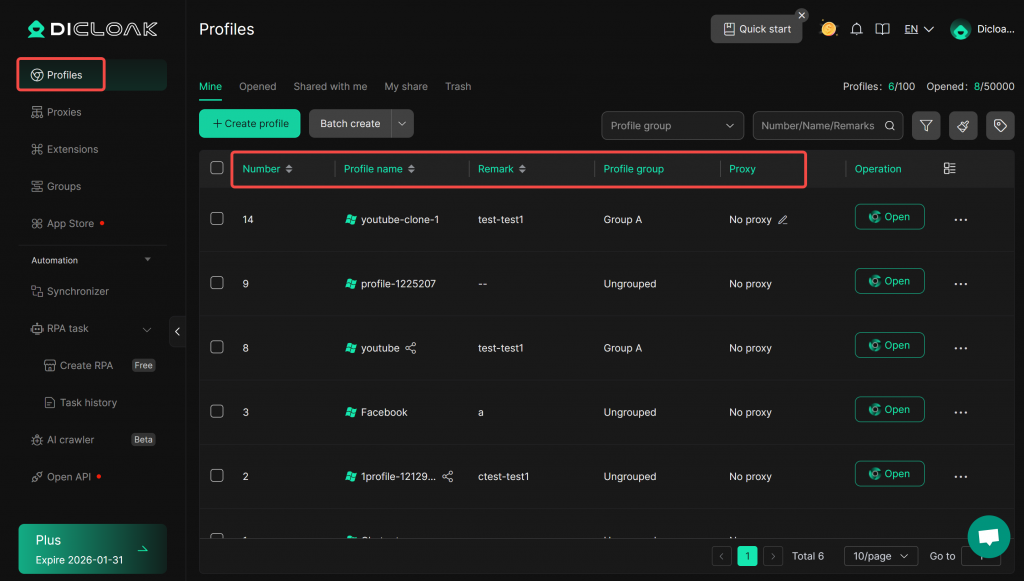
- Allows the super admin to uniformly perform “Profile list field permissions“ on members within their team, i.e., control the visible fields when members open the “Profiles”, as shown in the figure.
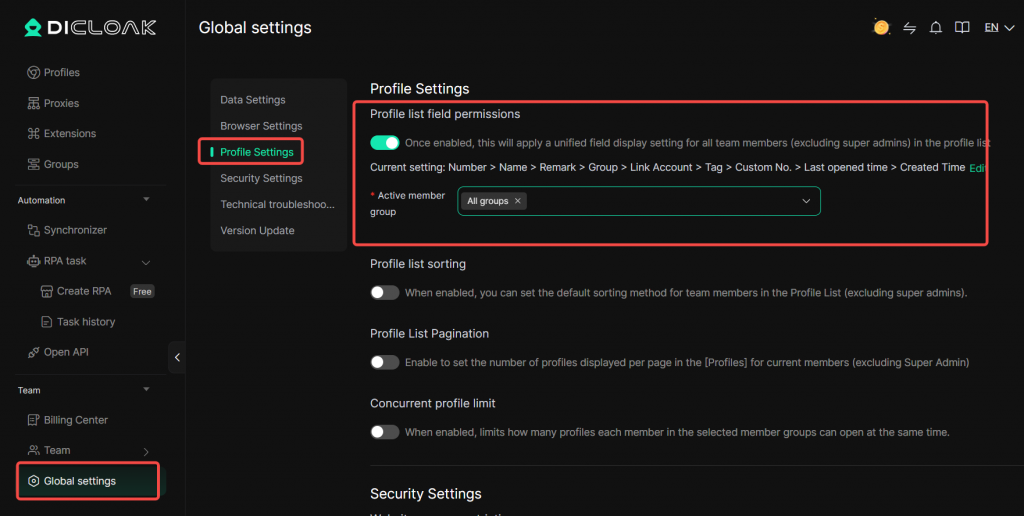
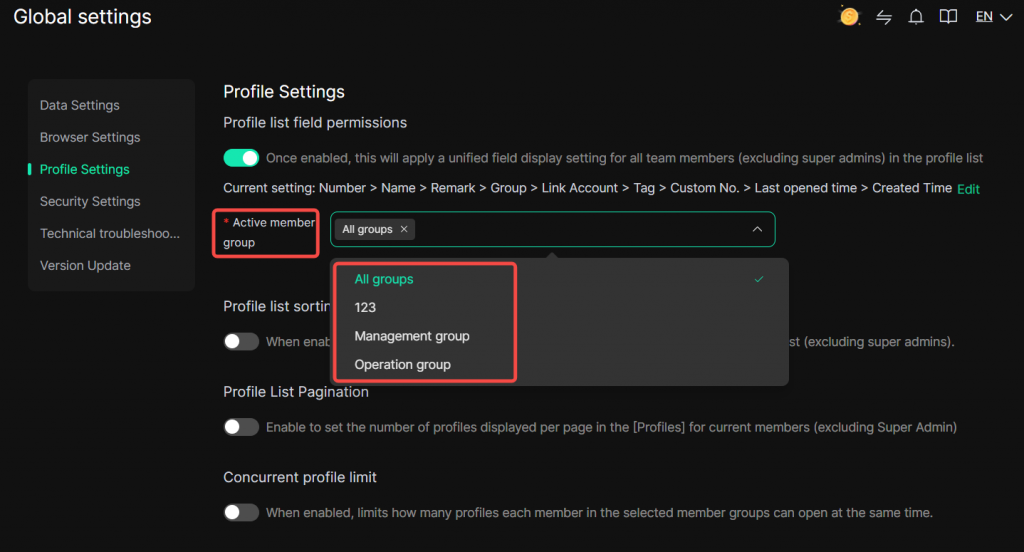
- Enter [Global Settings]. Under [Profile Settings], the super admin can view “Profile list field permissions” and click to enable it.
2. Edit “Profile list field permissions”
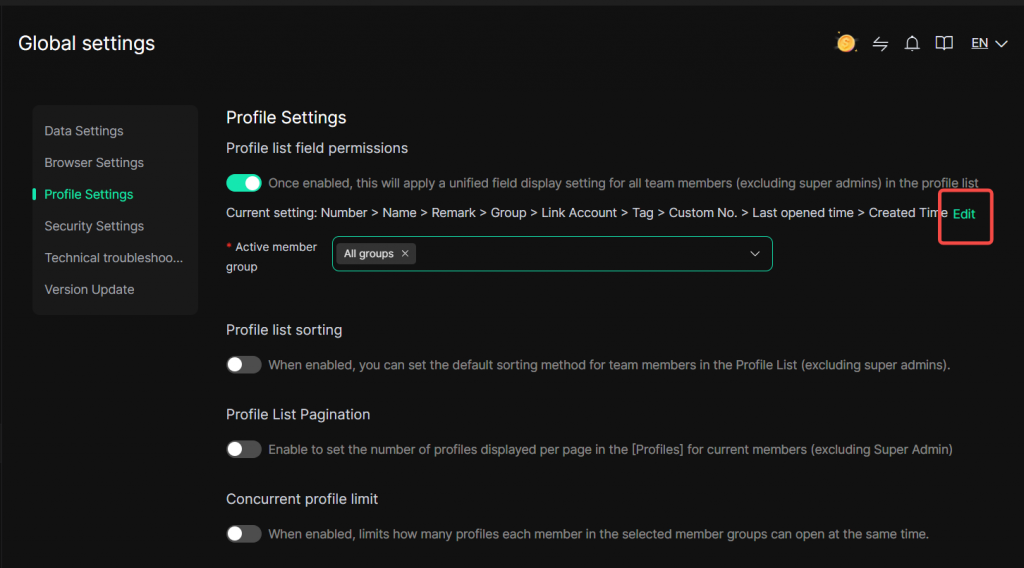
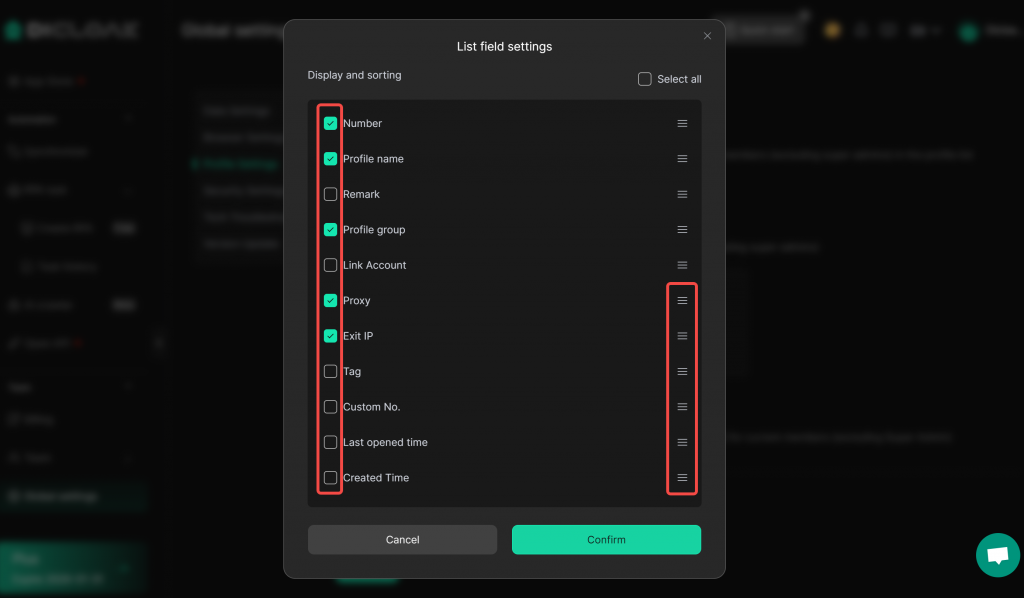
- After enabling, click “Edit”, then enter “List Field Settings”. You can select the fields you want members to see in the profile list, drag to reorder the fields, and click “Confirm”.
3.Select “Active member group”
Click “Active member group” to view member groups. Select the appropriate member group to apply the profile list field permissions to that group. This ensures that members with the same role follow the same visibility rules.
- After completing the editing and confirming that the displayed fields are correct, click “Confirm” to finish the setup.