I. Profile Management
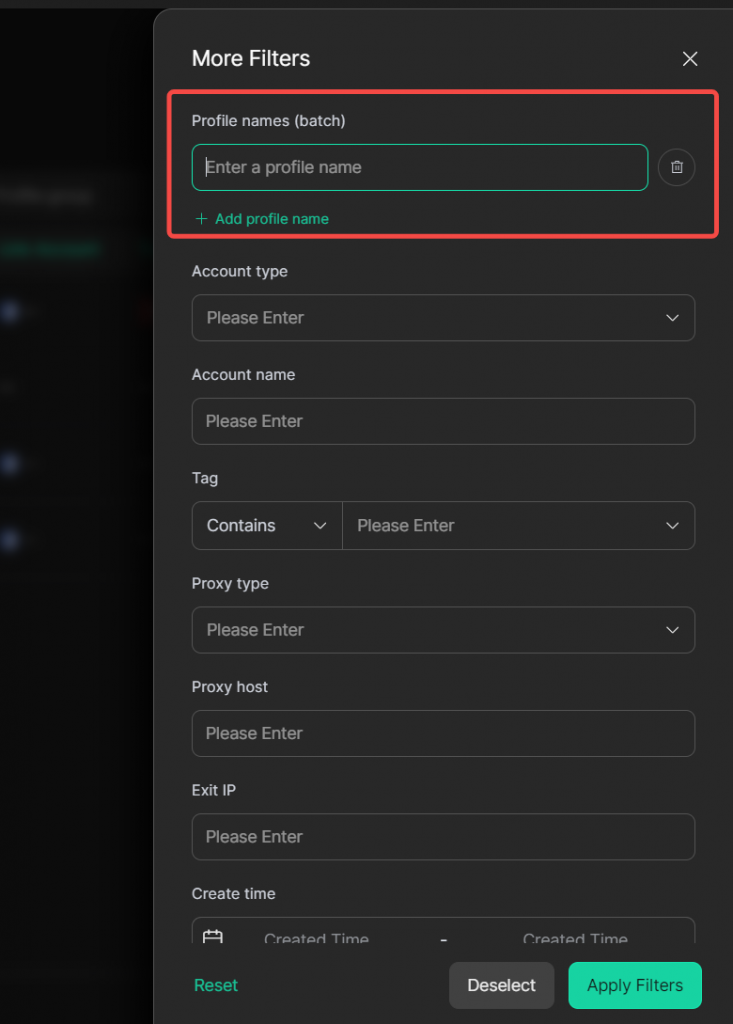
1.Batch search by profile name for profile filtering:
Within [Profiles] page, you can enter multiple keywords under the [Profile name (batch)] filter when you use the filter function. Input the full profile name to locate a specific profile, or enter partial names to retrieve multiple relevant profiles at once.
2.New account assignment function for batch import via social media templates
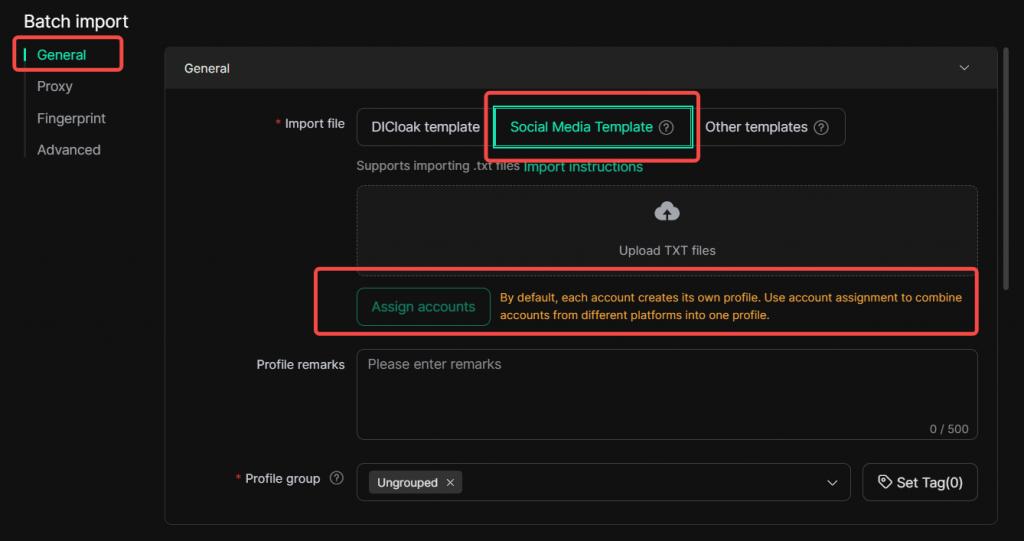
When batch importing using [social media template] in [Profile]-[batch import] feature , you may assign multiple accounts of different platforms from one import template to the same profile directly via the [Assign account] function to streamline account import.
3.Support for terminating bulk profile startup processes
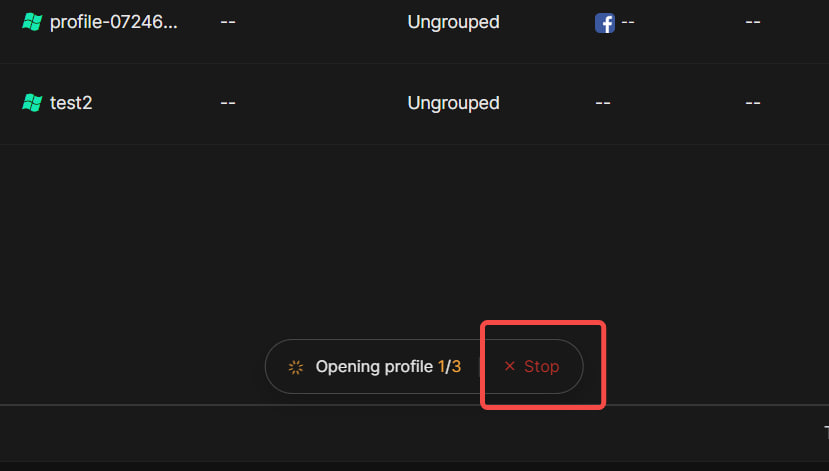
When launching profiles in bulk within [Profiles] page, you can stop ongoing startup operations to avoid wasting time on unwanted profile launches.
II. Extension Management
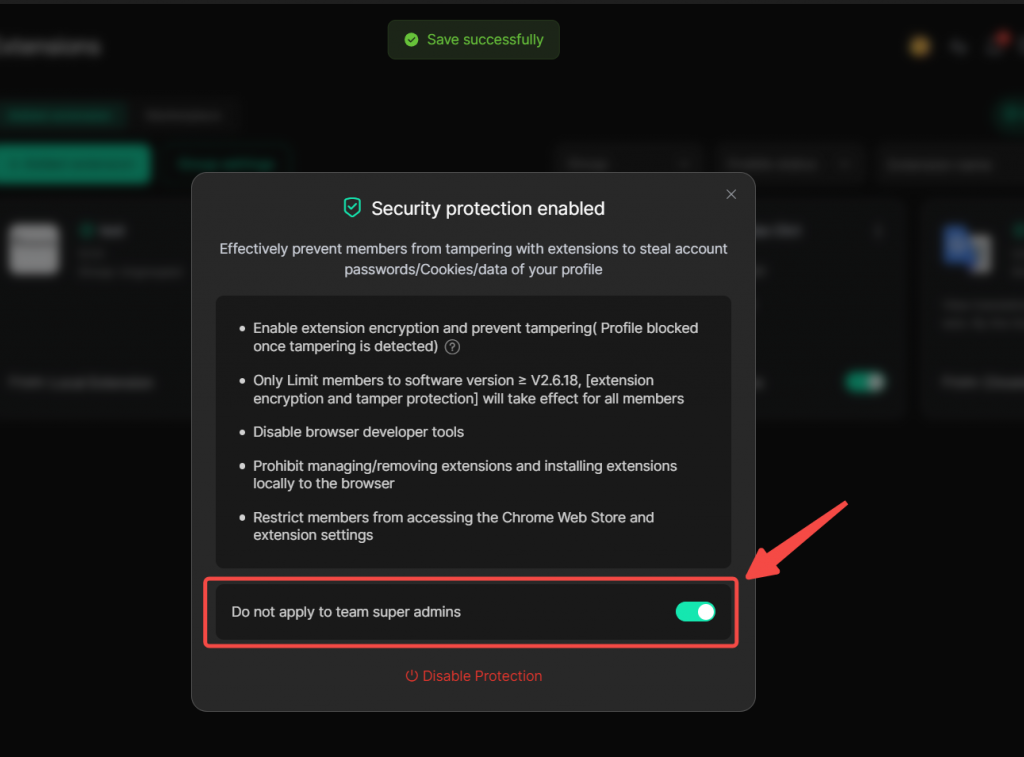
1.New super admin exemption switch for extension anti-tampering
After enabling [security protection] in [Extension] page, you can turn on the [Do not apply to team super admins] switch under [Security protection] feature. Once activated, when the super admin needs to use extension settings or developer tools for maintenance, the extended protection mechanism will still be effective for team members and won’t be mistakenly identified by the system as tampering behavior, thus avoiding interference with the super admin’s updates and maintenance.
III. Team & Member Management
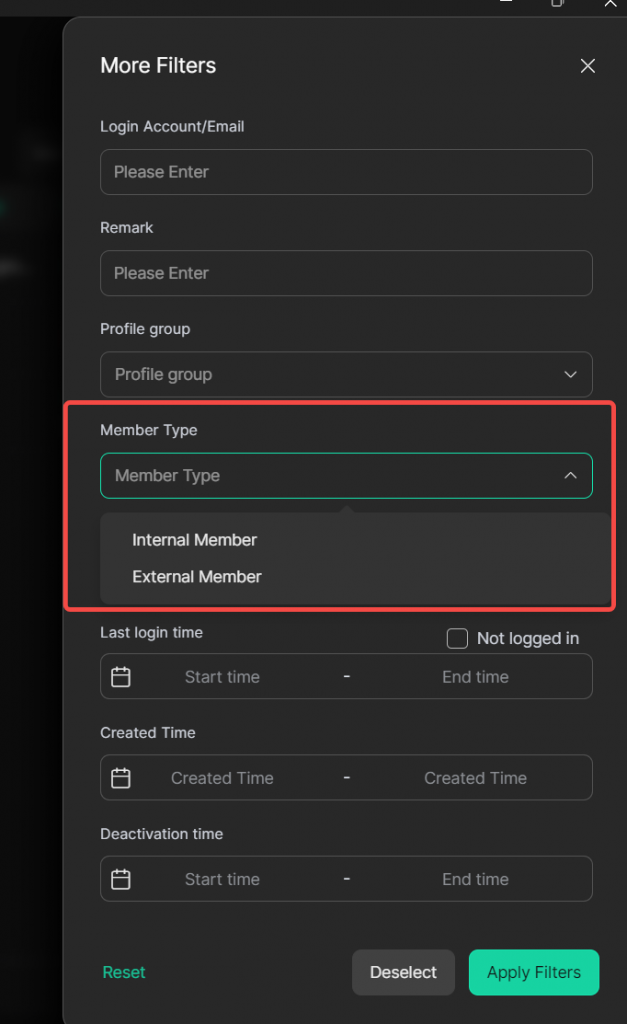
1.Member type filter added to the member list
In the [Team]-[Members] page, administrators can filter Internal Member and External Member via [Member Type] tags when you use the filter function , narrowing the scope for permission audits and member cleanup.
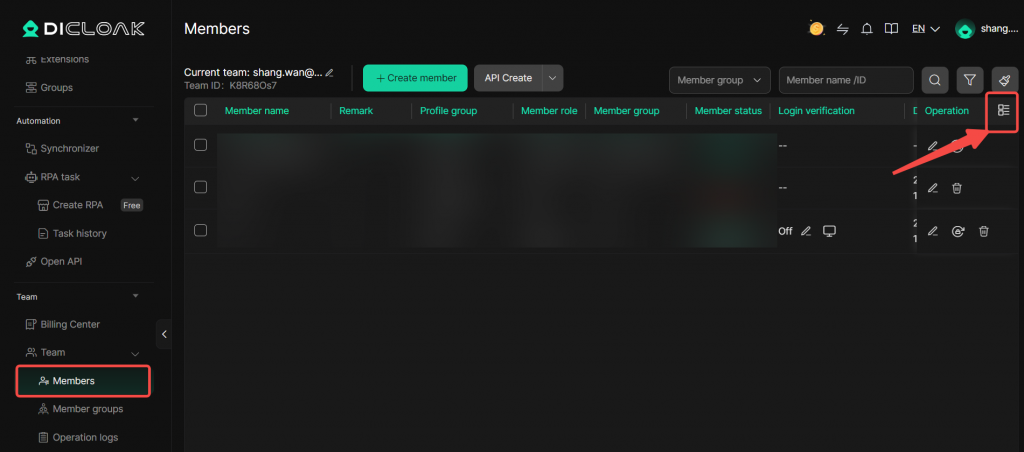
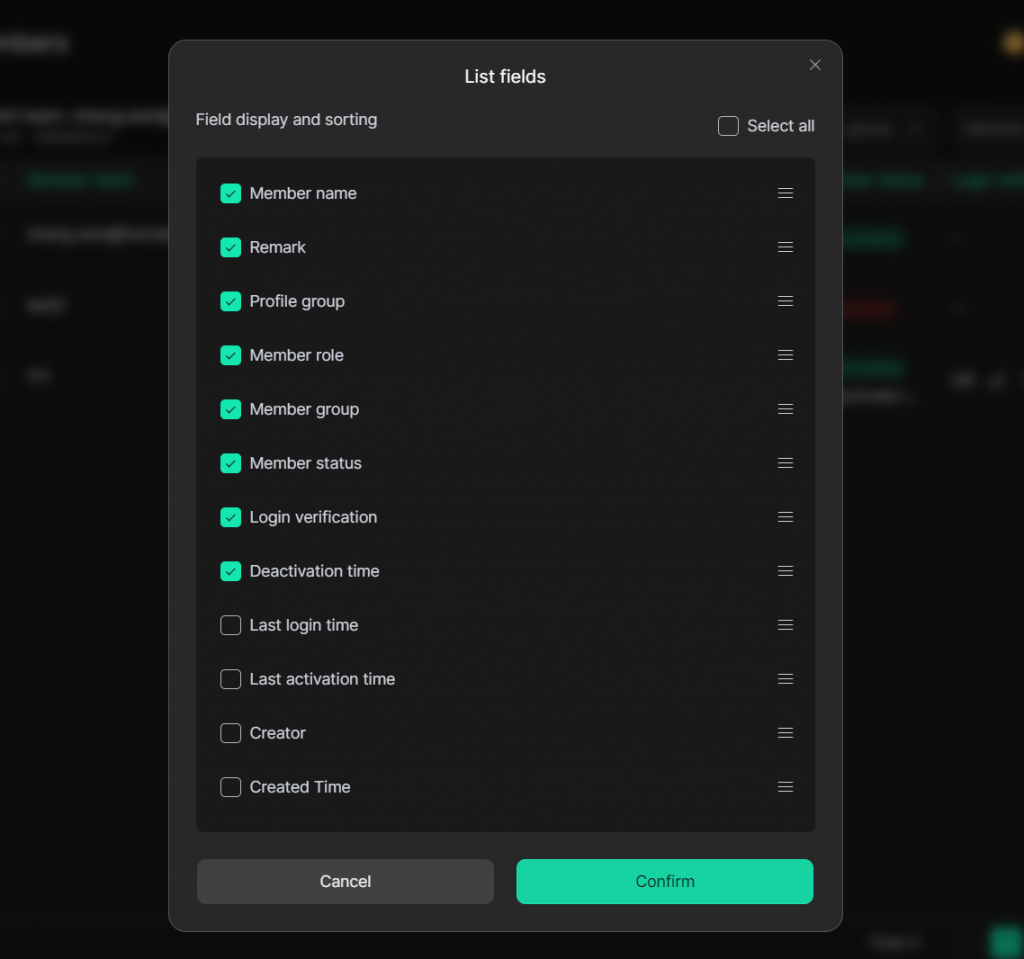
2.Custom display columns supported in the member list
In the [Team]-[Members] page, administrators can customize visible fields according to management needs to focus on key member information and improve review efficiency.
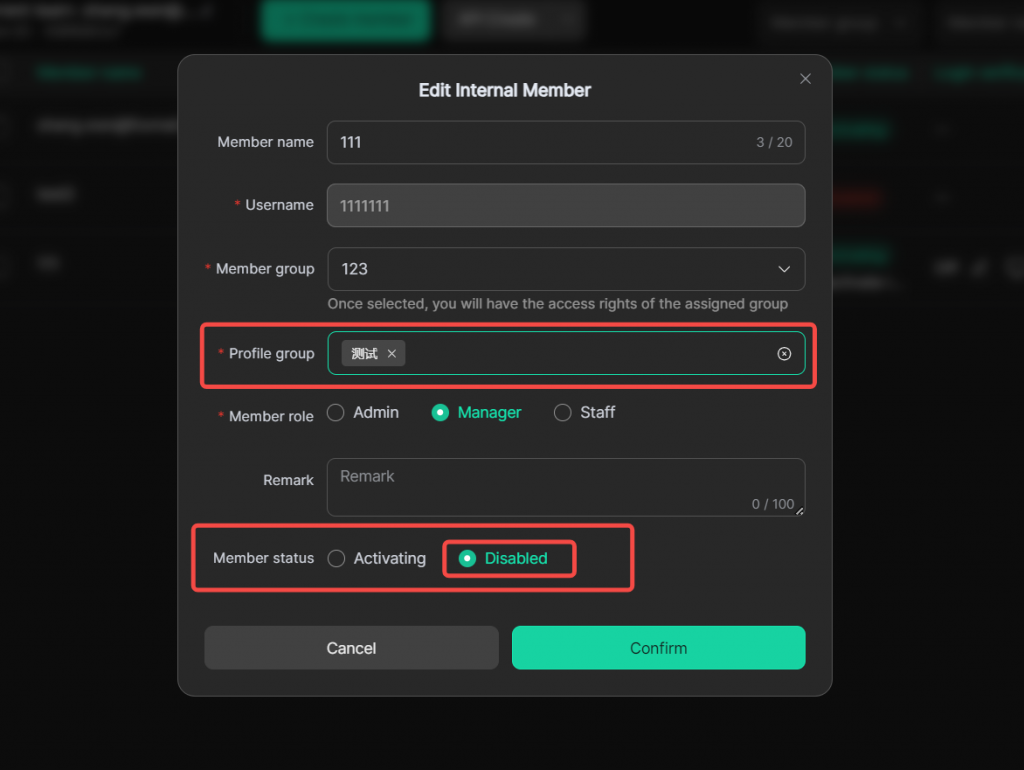
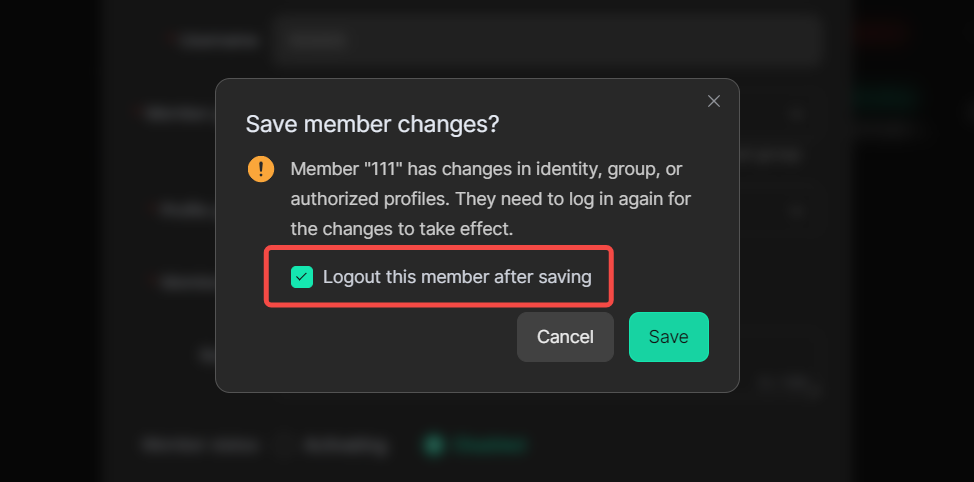
3.Support to log out members when assigning new profile groups
When administrators reassign profile groups to members, they can force the target member to log out. This eliminates the need to notify members manually and prevents members from continuing work under outdated sessions, ensuring newly assigned permissions take effect synchronously.
IV.Personal Settings
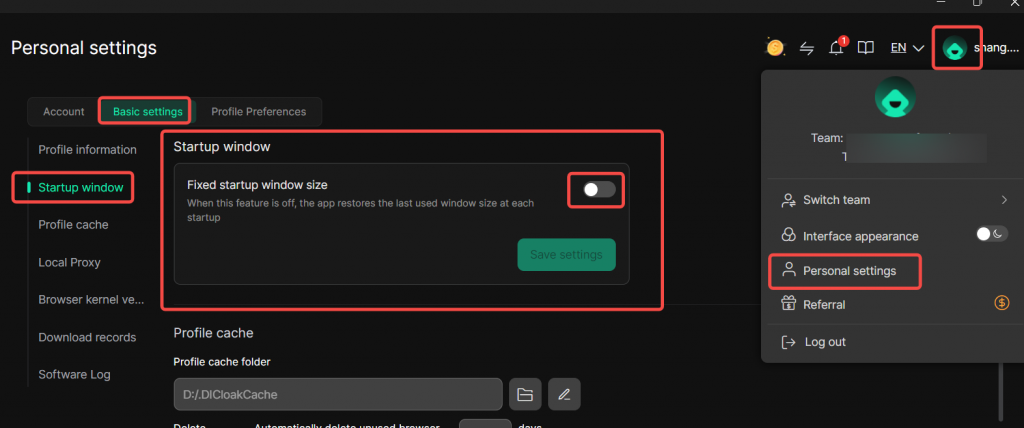
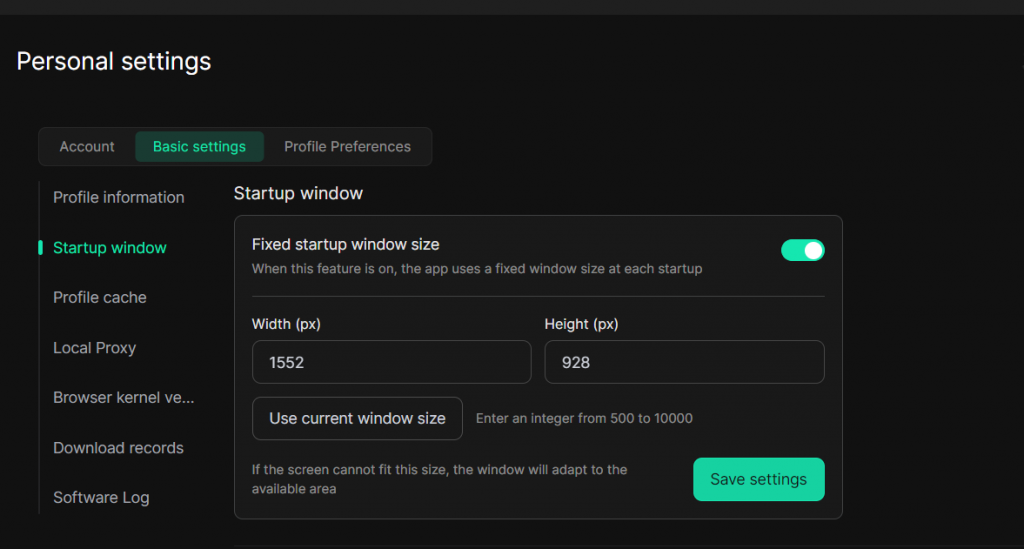
1.New custom setting for DICloak startup window size
In [Personal settings], navigate to [Basic Settings] > [Startup window] to enable this feature. Once enabled, you may customize the startup window size for each launch of the DICloak application, which better accommodates your daily‑work requirements.
Note: If this feature is not enabled, the app will restore the last used window size at each startup
V. New Network Line Switching Feature
1.Network line switching on the login page
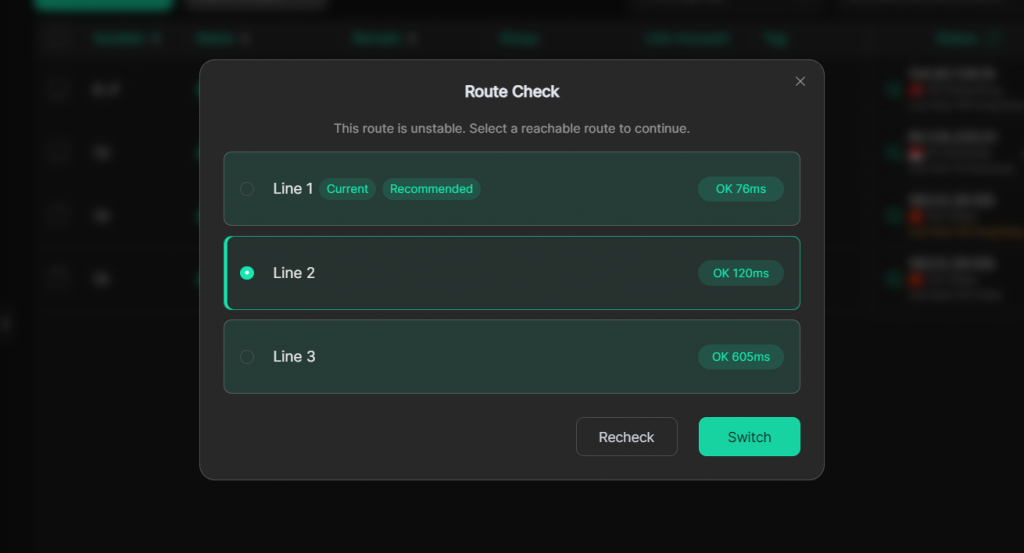
When logging into DICLoak fails due to a specific network environment, a network check window will automatically pop up, displaying currently available network lines and their status. You can switch to another connectable network line to resolve login failures caused by network issues.
Note: The network switching pop-up on the login page only appears when the current network line is unavailable.
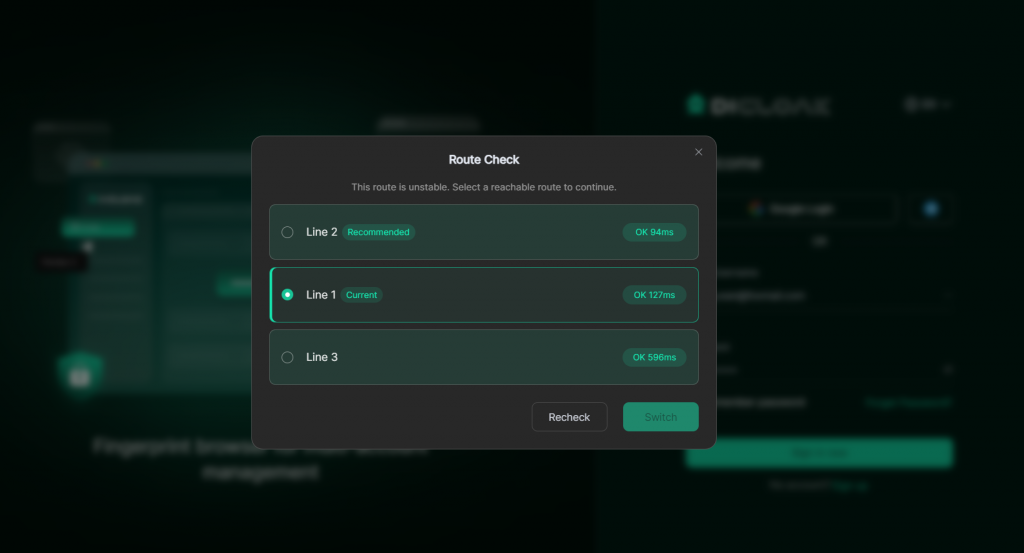
2.Network line switching in App
If the software malfunctions due to a failed connection, you can check line status or switch to alternative lines via the pop-up network switching window inside the application.If the network switching pop-up disappears, you can click the switch icon next to the notification icon in the upper right corner to view and select again.