Configuring proxies within an anti-detect browser hides a user’s real IP address, allows web activities to bypass geo-restrictions, or prevents online platforms from detecting associations between different accounts.
Setting up browser profiless generally requires configuring proxy connections, which means purchasing proxy credentials across separate platforms and copying them manually for setup.
DICloak’s built-in PuraRoute proxy integration enables direct quick purchase of PuraRoute proxies and one-step binding to browser profiles.
Operation Guide
1. Using PuraRoute Static Residential Proxy
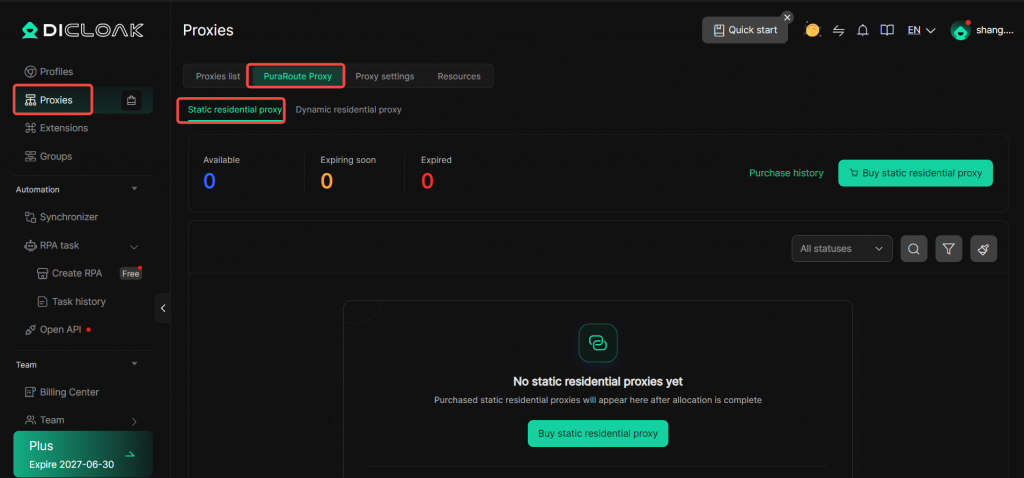
Locate [Proxies] on the left sidebar, open the [PuraRoute Proxy] page, and select [Static residential proxy].
1.1 Static Residential Proxy Basic Information
- Available: Displays the number of static IPs currently usable
- Expiring Soon: Displays the count of static IPs nearing expiry
- Expired: Displays the count of static IPs that have expired
- Purchase history: View records of your purchased static proxies here
- Buy static residential proxy: Purchase static residential proxy directly here if you have no available static residential proxy

1.2 Static Residential Proxy Purchase
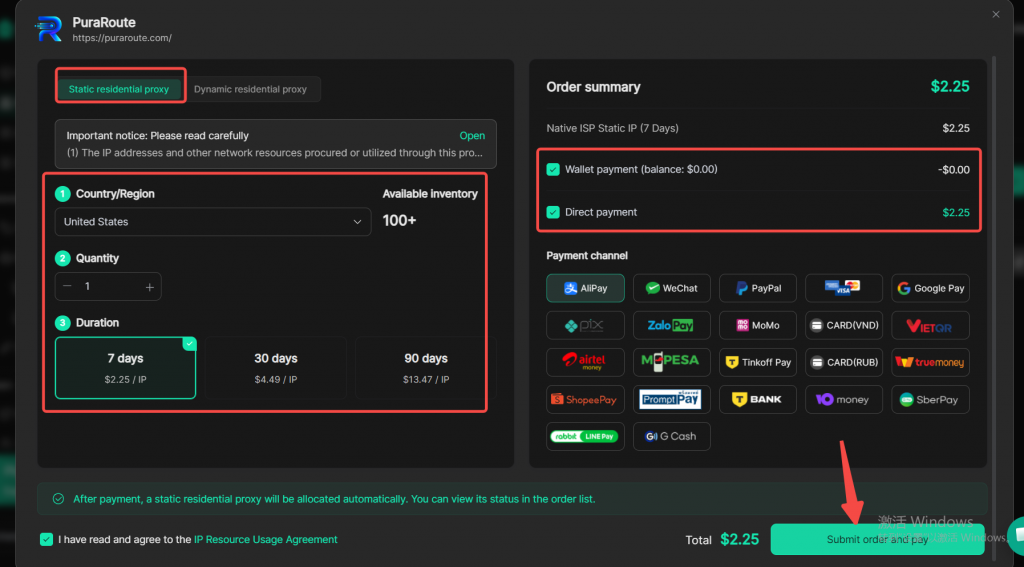
On this page, open Buy Residential Proxy. Select your desired Country/Region, Quantity, and Duration. Payment can be made directly with your PuraRoute wallet balance or other payment methods.
1.3 Static IP Configuration
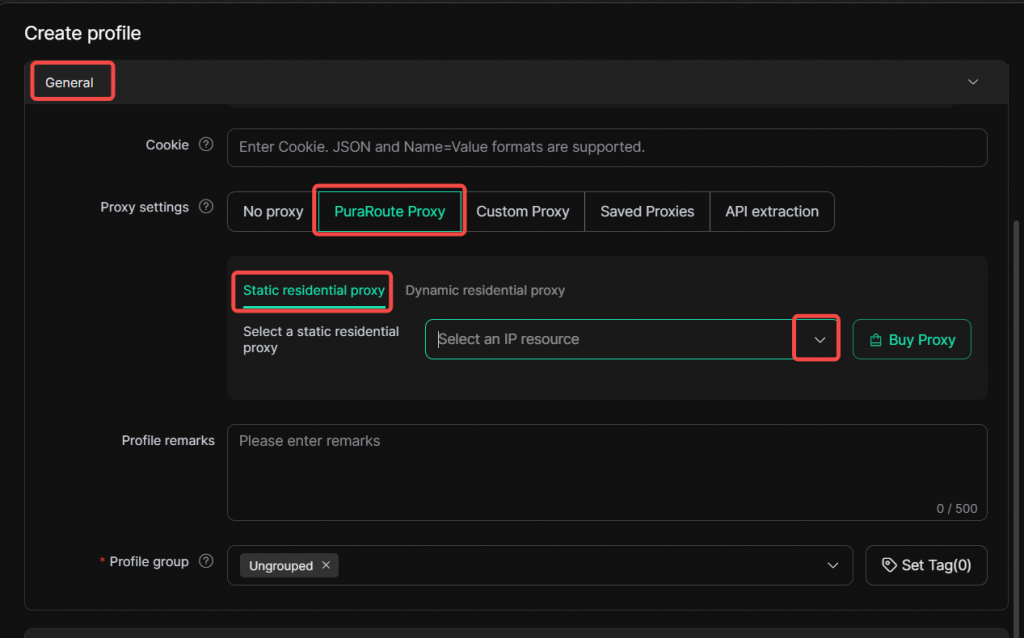
When creating or editing an profile, go to the edit page. Under [General] > [Proxy Settings] > [PuraRoute Proxy] , select Static residential proxy, choose your purchased static proxy resource and save.
2. Using PuraRoute Dynamic Residential Proxy
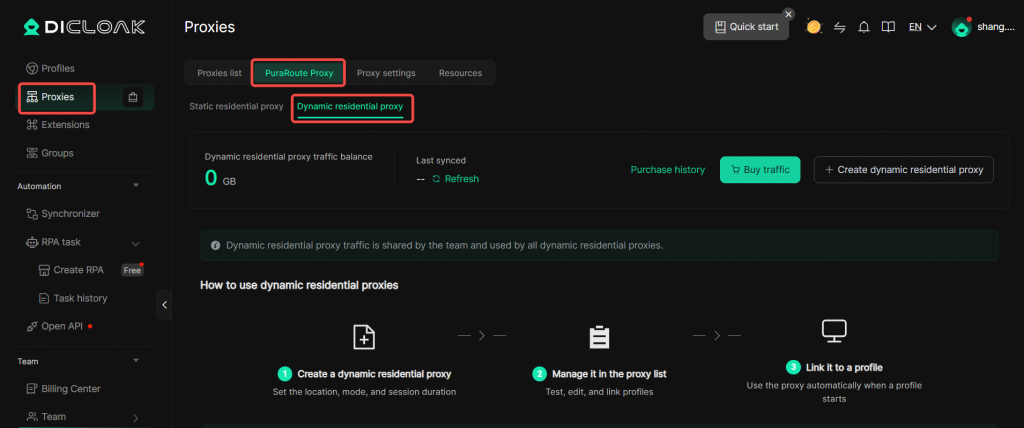
Locate [Proxies] on the left sidebar, open the [PuraRoute Proxy] page, and select [Dynamic residential proxy].
2.1 Dynamic Residential Proxy Basic Information
- Dynamic residential proxy traffic balance: Shows your remaining dynamic residential proxy traffic. Dynamic traffic is a shared team balance for all dynamic proxies.
- Last Synced: Shows the latest refresh and synchronization time of your traffic balance
- Buy traffic: Purchase dynamic traffic directly here
- Purchase history: View records of your purchased dynamic traffic packages
- Create dynamic residential proxy: Create dynamic proxies targeting specific regions
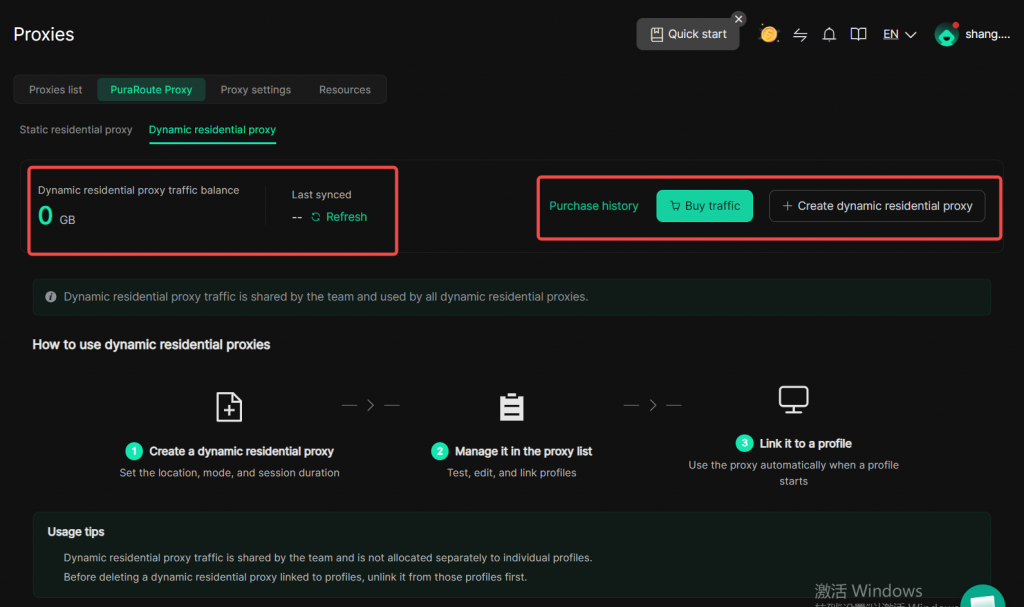
2.2 Dynamic Traffic Purchase
On this page, open [Buy traffic] > [Dynamic residential proxy]. Select traffic packages of 10GB, 20GB, 50GB or 100GB as required. Pay using your PuraRoute wallet balance or other payment methods.
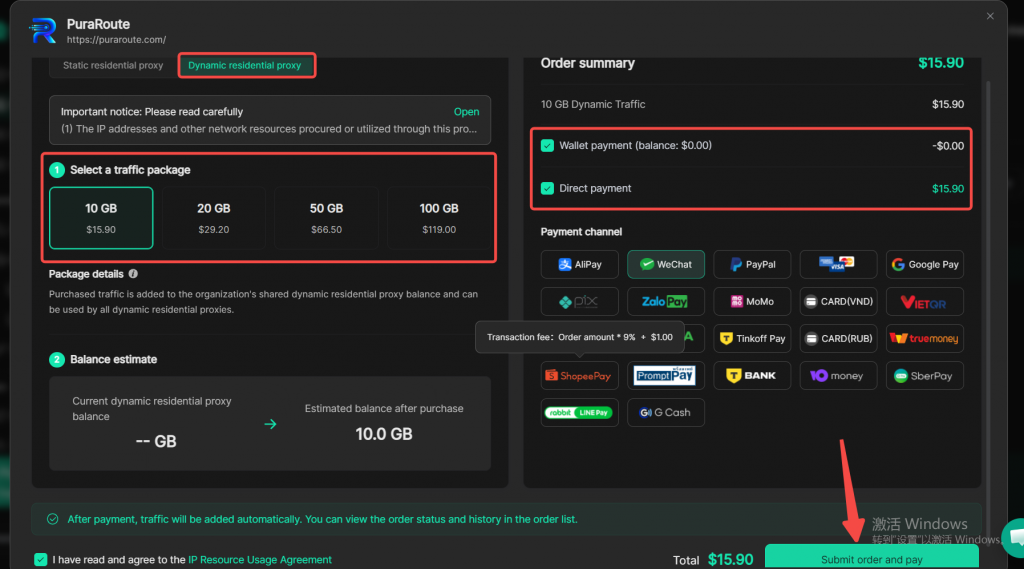
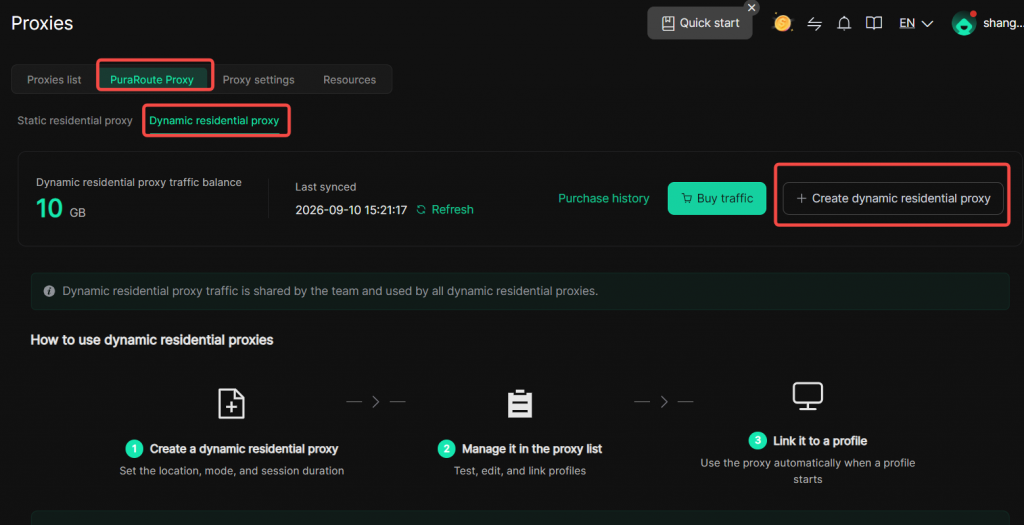
2.3 Create Dynamic Residential Proxy
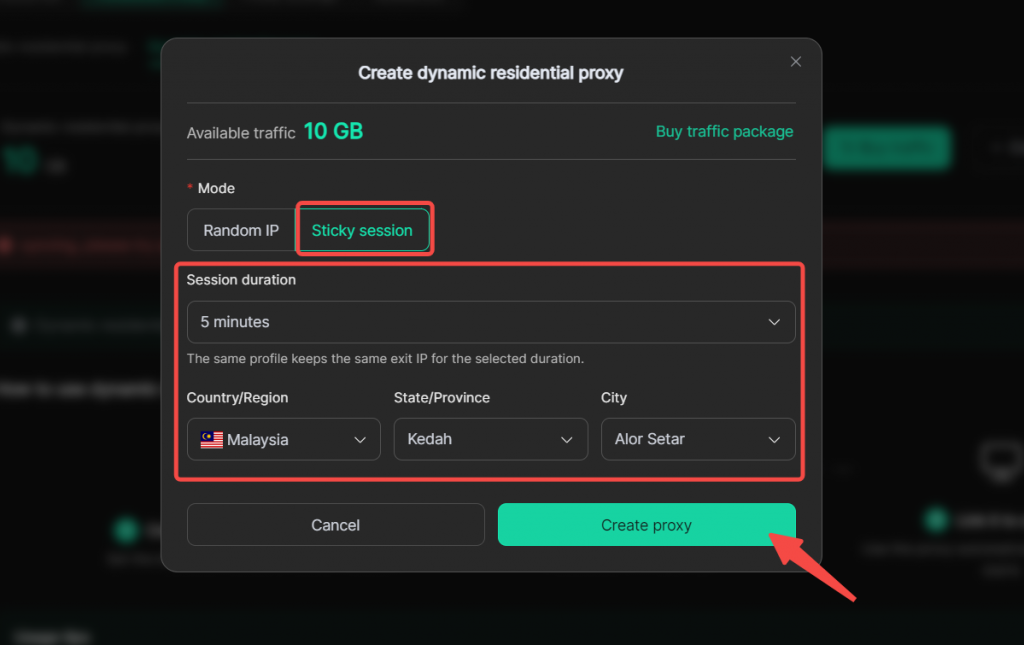
After purchasing traffic, go to [Create dynamic residential proxy] on this page. Create dynamic proxies in either Random IP or Sticky session mode.
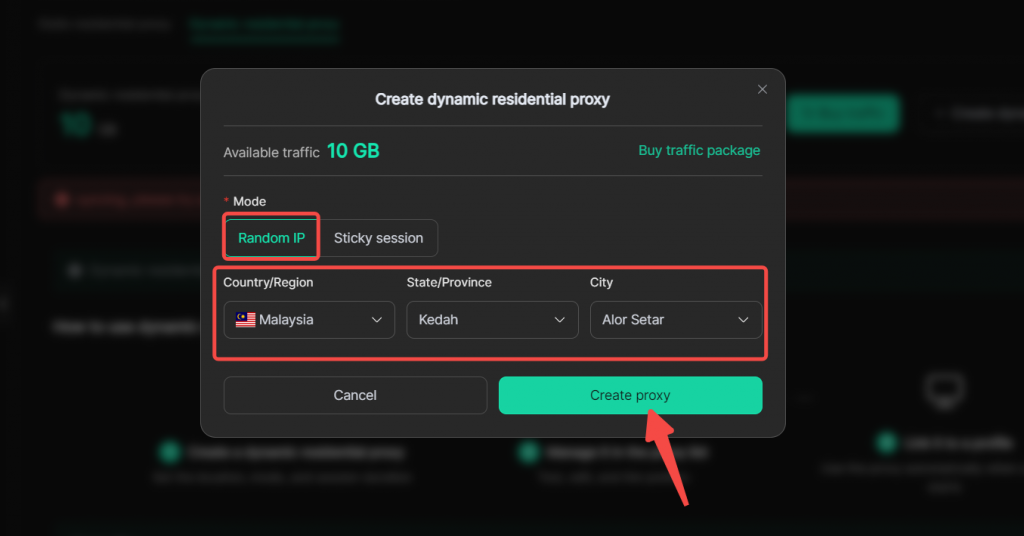
- Random IP Mode: Select Country/Region, State/Province and City as needed, then click [Create proxy] to save.
- Sticky Session Mode: Set session duration so the same browser profiles retains the same egress IP within the configured time. Select session duration time, Country/Region, State/Province and City, then click [Create proxy] .
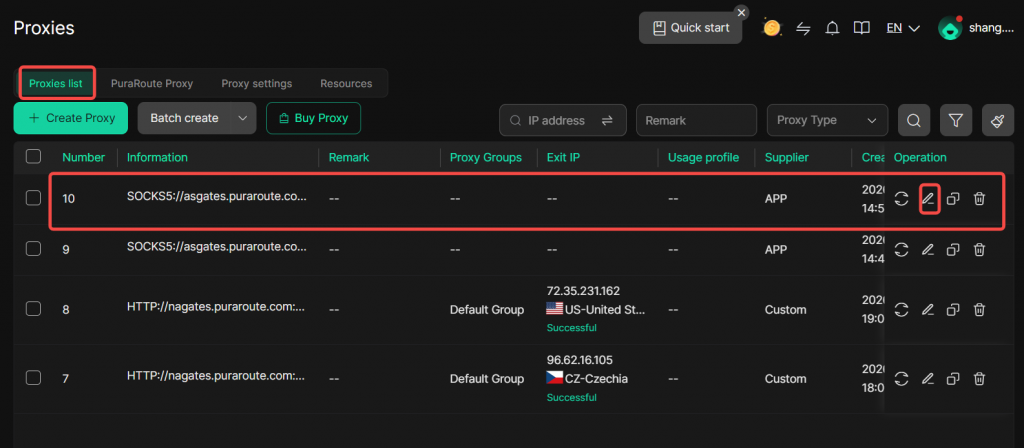
Once created, you can view and edit the PuraRoute Proxies you added directly in the Proxy list.
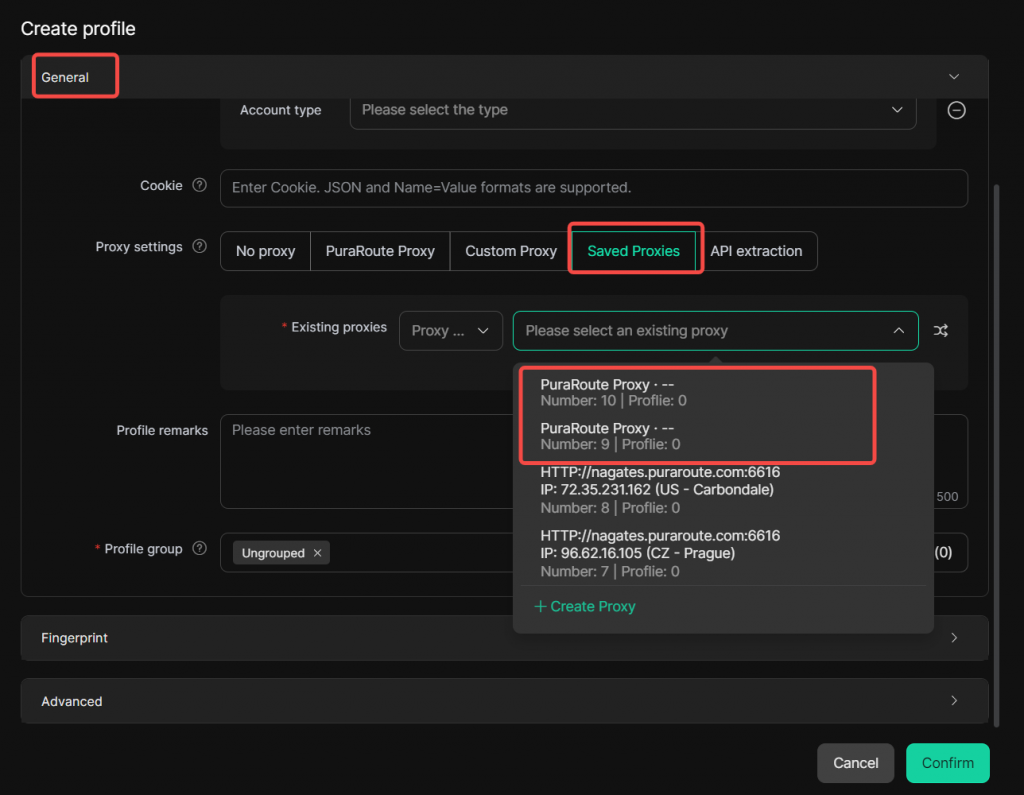
2.4 Dynamic Proxy Configuration
When creating or editing an environment, open the edit page. Under [General] > [Proxy Settings] > [Saved Proxies], pick your dynamic proxy resource and save.
2.5 Usage Notes
Dynamic traffic uses a shared team balance consumed jointly by all dynamic proxies traffic will not be allocated separately for individual profiles.
To delete a dynamic proxy bound to an environment, unlink the proxy inside the environment first.